
Supported Authentication Types:
- GCP Credentials Values — Direct service account key values (type, project ID, private key, client email, and so on)
- GCP Credentials Path — Path to a local service account key JSON file
- GCP External Account — Workload Identity Federation for non-GCP environments
- GCP Application Default Credentials (ADC) — Automatic credential discovery in GCP environments or via
gcloud auth application-default login
Requirements
You need to create an service account in order to ingest metadata from bigquery refer. For more information about how to create a service account, see Create Custom GCP Role.Partitioned Tables
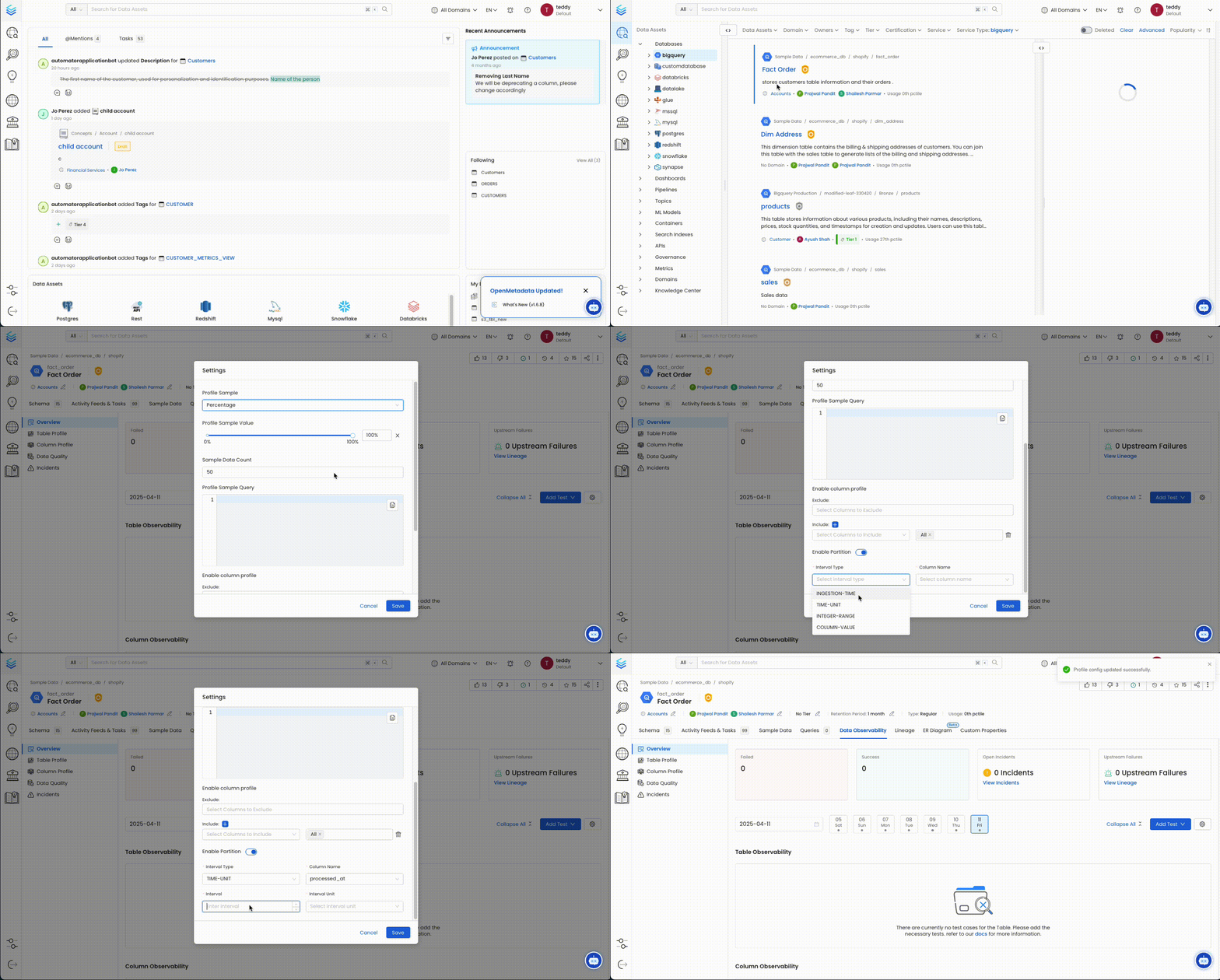
When profiling partitioned tables in BigQuery, OpenMetadata applies a default partition query duration of 1 day for time-based partitions. This conservative setting prevents excessive data scans but may result in no Sample Data or Column Profile Metrics if no data falls within the default window.Resolution
You can adjust this behavior directly from the UI:- Navigate to the table’s detail page.
- Edit the profiler configuration.
- Update the
partitionQueryDurationunder Partition Config to a wider window (for example, 30 days) as needed.
Data Catalog API Permissions
- Enable the
datacatalog.googleapis.comservice in your GCP project. See the Data Catalog API reference. - Select the
GCP Project IDthat you want to enable theData Catalog APIon. - Click on
Enable APIwhich will enable the data catalog api on the respective project.
GCP Permissions
To execute metadata extraction and usage workflow successfully the user or the service account should have enough access to fetch required data. Following table describes the minimum required permissionsMetadata Ingestion
To ingest metadata from BigQuery, you need to create a service connection. The service connects BigQuery with OpenMetadata. Once you create a service, OpenMetadata automatically starts ingesting metadata.Step 1: Add New Service
-
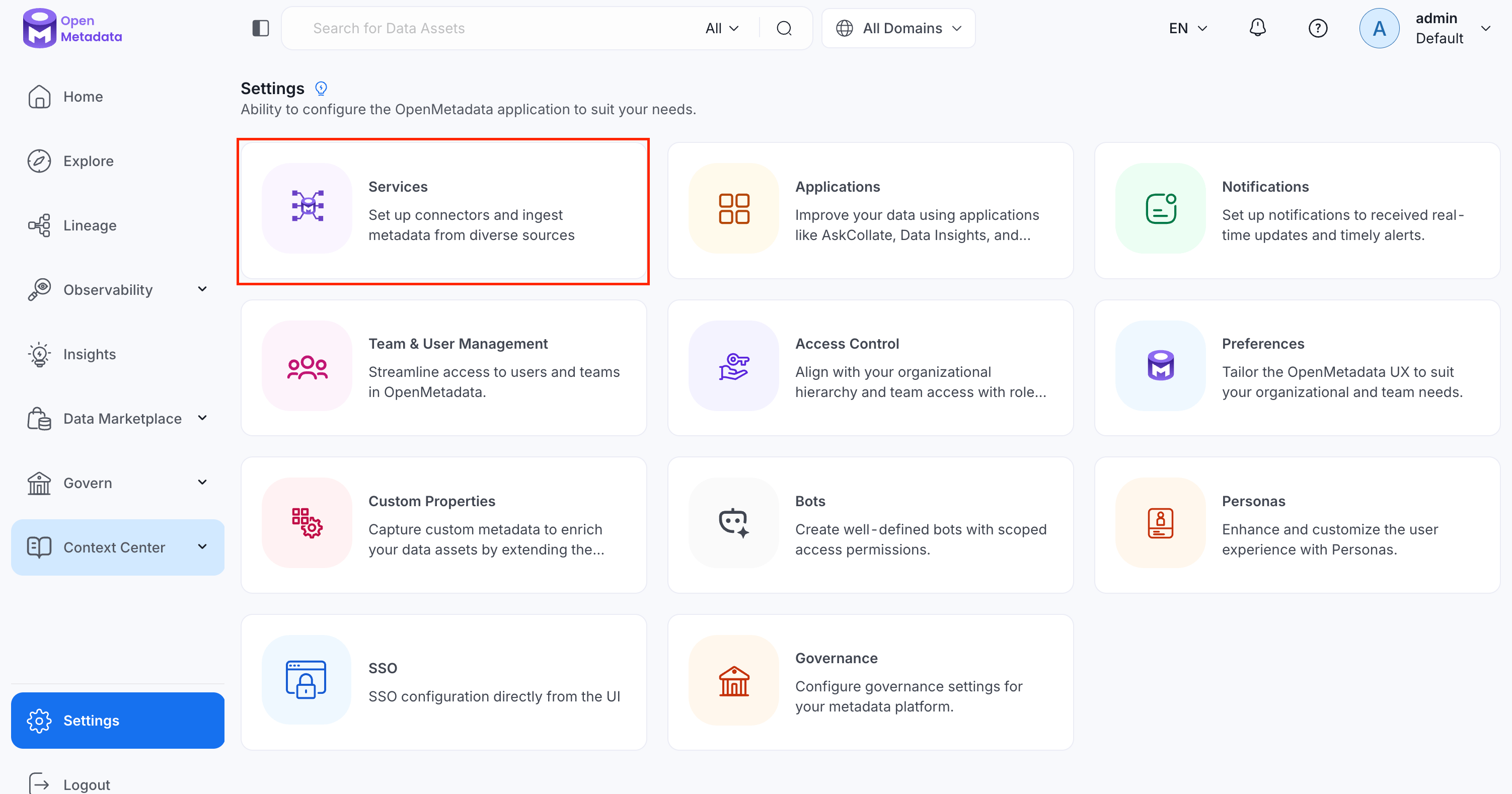
Navigate to Settings > Services.
-
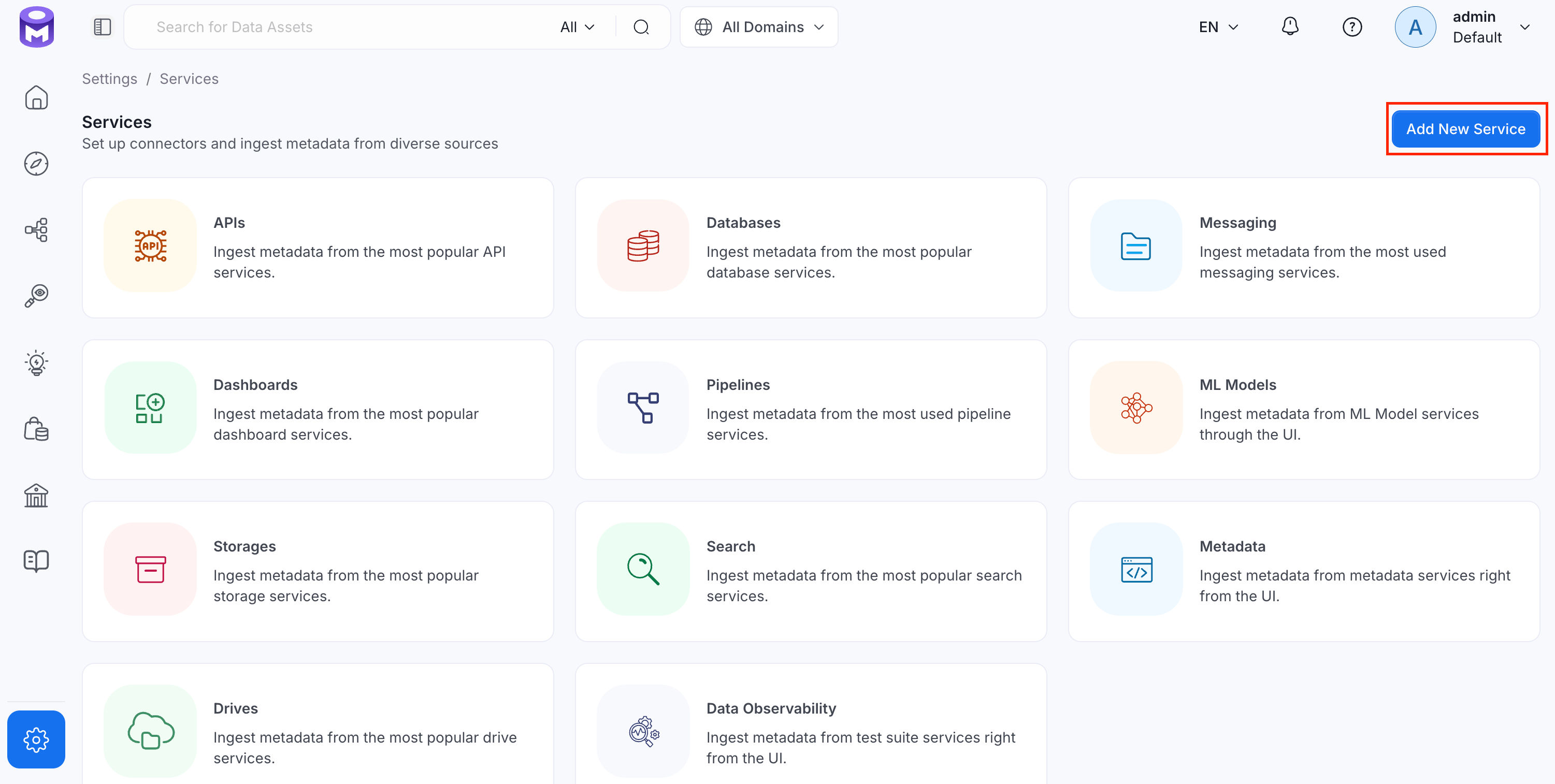
Click Add New Service.
Step 2: Select a Service and Connector
From the service type dropdown, select Database Services, then click the BigQuery connector tile.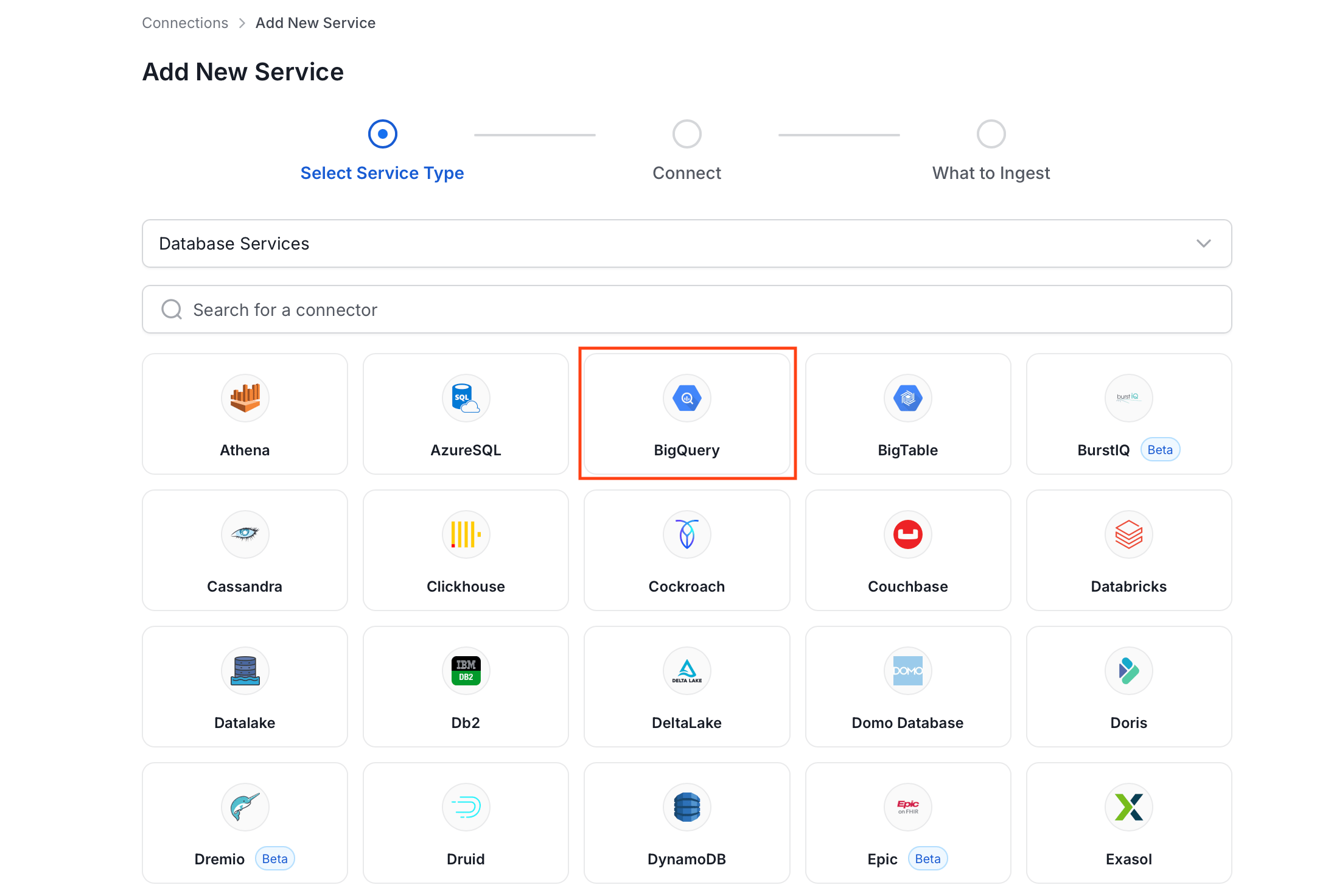
Step 3: Add Service Name and Description
- Enter a unique, descriptive Service Name. OpenMetadata identifies services by their service name. Enter a name that distinguishes this deployment from other BigQuery services you are ingesting metadata from.
- Optional: Enter a Description for the service.
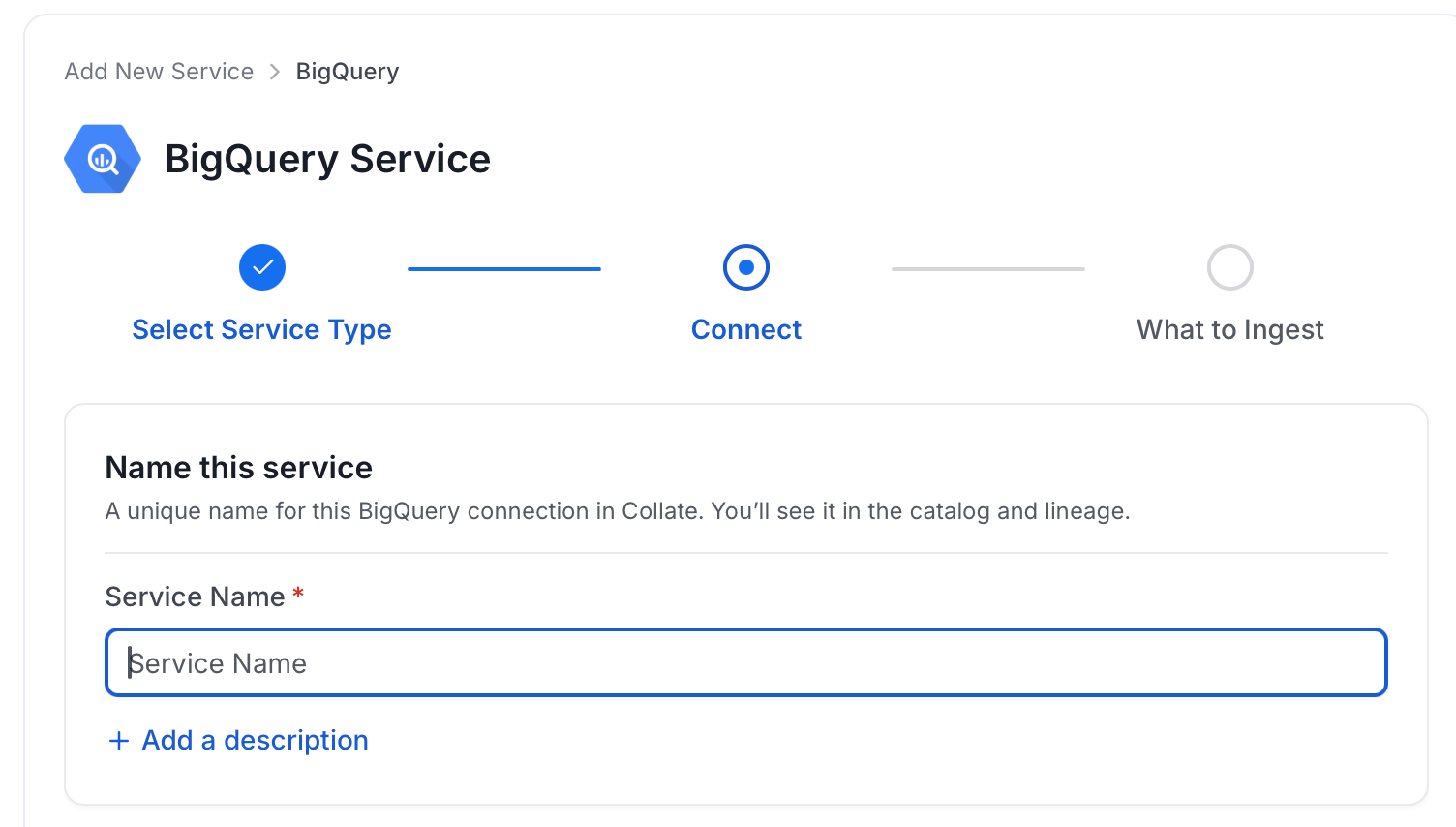
Note: The service name cannot be changed after it is set.
Step 4: Configure Connection Options
Specify your source credentials and verify the connection.Enter Connection Details
Enter the connection details for BigQuery. The right-hand panel in the UI displays inline help for each field.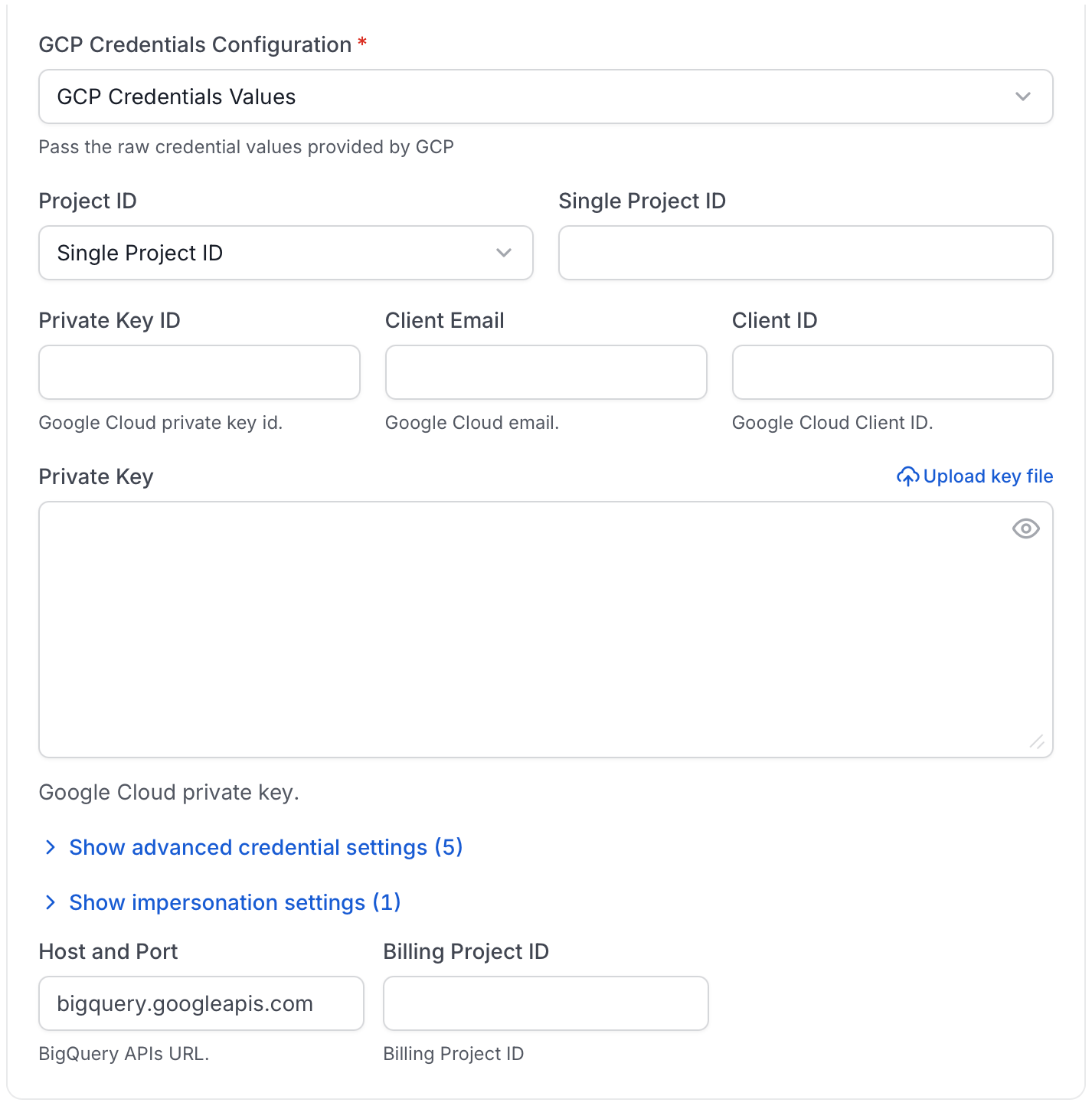
- Host and Port: The ingestion runtime uses the BigQuery API endpoint
bigquery.googleapis.com. CustomhostPortvalues are not currently applied. - GCP Credentials:
You can authenticate with your bigquery instance using either
GCP Credentials Pathwhere you can specify the file path of the service account key or you can pass the values directly by choosing theGCP Credentials Valuesfrom the service account key file. You can check out this documentation on how to create the service account keys and download it.-
GCP Credentials Values: Passing the raw credential values provided by BigQuery. This requires us to provide the following information, all provided by BigQuery:
- Credentials type: Credentials Type is the type of the account, for a service account the value of this field is
service_account. To fetch this key, look for the value associated with thetypekey in the service account key file. - Billing Project ID (Optional): The GCP project that should be charged for the BigQuery jobs OpenMetadata runs. Use this when the project that pays for metadata, usage, or lineage queries is different from the project ID or IDs you ingest from.
- Project ID: The BigQuery project ID or IDs that OpenMetadata should scan for datasets, tables, and other metadata. For service account credentials, this usually comes from the
project_idvalue in the key file. You can also pass multiple project IDs to ingest metadata from different BigQuery projects into one service. - Private Key ID: This is a unique identifier for the private key associated with the service account. To fetch this key, look for the value associated with the
private_key_idkey in the service account file. - Private Key: This is the private key associated with the service account that is used to authenticate and authorize access to BigQuery. To fetch this key, look for the value associated with the
private_keykey in the service account file. - Client Email: This is the email address associated with the service account. To fetch this key, look for the value associated with the
client_emailkey in the service account key file. - Client ID: This is a unique identifier for the service account. To fetch this key, look for the value associated with the
client_idkey in the service account key file. - Auth URI: This is the URI for the authorization server. To fetch this key, look for the value associated with the
auth_urikey in the service account key file. The default value to Auth URI is https://accounts.google.com/o/oauth2/auth. - Token URI: The Google Cloud Token URI is a specific endpoint used to obtain an OAuth 2.0 access token from the Google Cloud IAM service. This token allows you to authenticate and access various Google Cloud resources and APIs that require authorization. To fetch this key, look for the value associated with the
token_urikey in the service account credentials file. The default token URI ishttps://oauth2.googleapis.com/token. - Authentication Provider X509 Certificate URL: This is the URL of the certificate that verifies the authenticity of the authorization server. To fetch this key, look for the value associated with the
auth_provider_x509_cert_urlkey in the service account key file. The Default value for Auth Provider X509Cert URL is https://www.googleapis.com/oauth2/v1/certs - Client X509Cert URL: This is the URL of the certificate that verifies the authenticity of the service account. To fetch this key, look for the value associated with the
client_x509_cert_urlkey in the service account key file.
- Credentials type: Credentials Type is the type of the account, for a service account the value of this field is
- GCP Credentials Path: Passing a local file path that contains the credentials.
-
GCP Impersonate Service Account Configuration (Optional): Enable the authenticated service account to impersonate another service account, instead of ingesting directly with the credentials above.
- Target Service Account Email: The email of the service account to impersonate.
- Lifetime: Number of seconds the delegated credential should remain valid. Defaults to
3600.
-
GCP Credentials Values: Passing the raw credential values provided by BigQuery. This requires us to provide the following information, all provided by BigQuery:
- Include Policy Tags (Optional): Option to include policy tags as part of the column description. Enabled by default.
- Taxonomy Project ID (Optional): Bigquery uses taxonomies to create hierarchical groups of policy tags. To apply access controls to BigQuery columns, tag the columns with policy tags. Learn more about how yo can create policy tags and set up column-level access control here If you have attached policy tags to the columns of table available in Bigquery, then OpenMetadata will fetch those tags and attach it to the respective columns. In this field you need to specify the id of project in which the taxonomy was created.
- Taxonomy Location (Optional): Bigquery uses taxonomies to create hierarchical groups of policy tags. To apply access controls to BigQuery columns, tag the columns with policy tags. Learn more about how yo can create policy tags and set up column-level access control here If you have attached policy tags to the columns of table available in Bigquery, then OpenMetadata will fetch those tags and attach it to the respective columns. In this field you need to specify the location/region in which the taxonomy was created.
- Usage Location (Optional):
Location used to query
INFORMATION_SCHEMA.JOBS_BY_PROJECTto fetch usage data. You can pass multi-regions, such asusoreu, or your specific region such asus-east1. Australia and Asia multi-regions are not yet supported. - Cost Per TiB (Optional):
The cost (in USD) per tebibyte (TiB) of data processed during BigQuery usage analysis. This value is used to estimate query costs when analyzing usage metrics from
INFORMATION_SCHEMA.JOBS_BY_PROJECT. This setting does not affect actual billing, it is only used for internal reporting and visualization of estimated costs. The default value is $6.25 per TiB; adjust it according to your organization’s negotiated rates or flat-rate pricing model.
Advanced Configuration
Database Services have an Advanced Configuration section, where you can pass extra arguments to the connector and, if needed, change the connection Scheme. This would only be required to handle advanced connectivity scenarios or customizations.- Connection Options (Optional): Enter the details for any additional connection options that can be sent to database during the connection. These details must be added as Key-Value pairs.
- Connection Arguments (Optional): Enter the details for any additional connection arguments such as security or protocol configs that can be sent during the connection. These details must be added as Key-Value pairs.
Test Connection
Once the credentials have been added, click on Test Connection and Save the changes.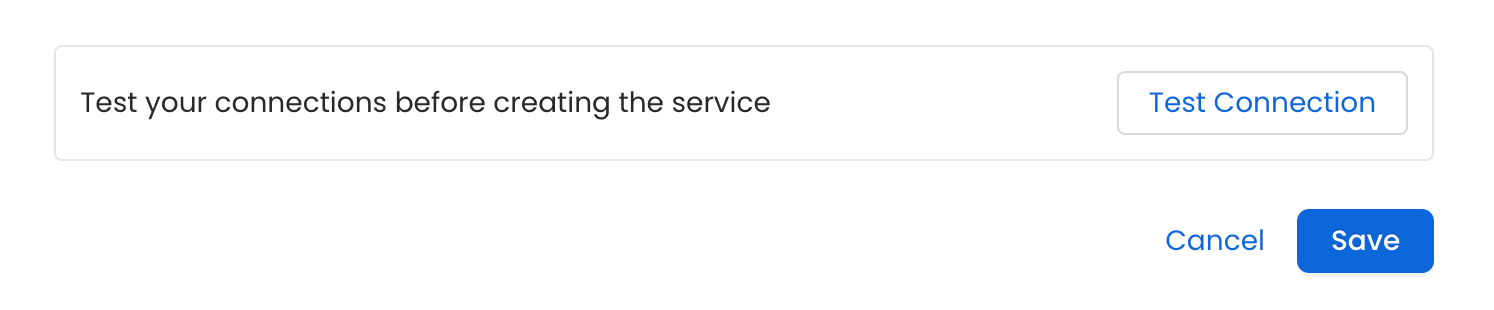
Step 5: Configure Ingestion Options
In the What to Ingest step, use filter patterns to control which assets OpenMetadata ingests from your database service. Filter patterns use regular expressions applied to asset names.How Filter Patterns Work
- Include: Add one or more comma-separated regular expressions. OpenMetadata ingests only assets whose names match at least one expression. Leave blank to include all assets.
- Exclude: Add one or more comma-separated regular expressions. OpenMetadata skips any asset whose name matches an expression. Leave blank to exclude nothing.
- contains: matches any name containing the value. For example,
salesmatchesmy_sales_dataandsales_2024. - starts with: matches names beginning with the value. For example,
prod_matchesprod_dbandprod_schema. - ends with: matches names ending with the value. For example,
_rawmatchesevents_rawandlogs_raw. - is exactly: matches the exact name only. For example,
analyticsmatches onlyanalytics. - matches regex: matches names using a regular expression. For example,
^prod_.*_v\d+$matchesprod_events_v1.
- Database: Controls which databases OpenMetadata ingests from the source.
- Schema: Controls which schemas within the ingested databases are included.
- Table: Controls which tables and views within the ingested schemas are included.
- Scan Mode: You can choose between the following scan modes:
- Scan all: Ingests every asset of that type the connector can access. This is the default.
- Only specific: Enables include rules so only assets matching at least one rule are ingested.
- Exclude system toggle: Use this toggle to automatically filter out system-reserved names defined by the connector, for example, Exclude system databases for the Databases section.
- Always exclude: Add permanent exclusion rules (shown in red). Assets matching these rules are never ingested, regardless of include rules.
- Preview: Shows a real-time summary of what will be in scope based on your current rules.
- Include rules (available only in Only specific mode): Click + Add to define a rule. Added rules appear as chips; an asset is included if it matches any rule.
Step 6: Create & Deploy
Click Create & Deploy to deploy the agent and start the first metadata ingestion run. OpenMetadata saves the service configuration and immediately begins pulling metadata from the source. To monitor ingestion progress or view the service you just added, go to Settings > Services and select your service.Configure Metadata Agent and Schedule Ingestion
The Metadata Agent extracts schemas, tables, columns, and other structural metadata from your source and keeps your OpenMetadata catalog in sync. It powers discovery, lineage, and governance across your data assets. When you click Create & Deploy, OpenMetadata automatically deploys a Metadata Agent for this service and triggers the first ingestion run. View its status and run history from the Agents tab on the service detail page. To configure the additional Metadata Agent and schedule ingestion, follow these steps:-
Navigate to Settings > Services and select the service type.
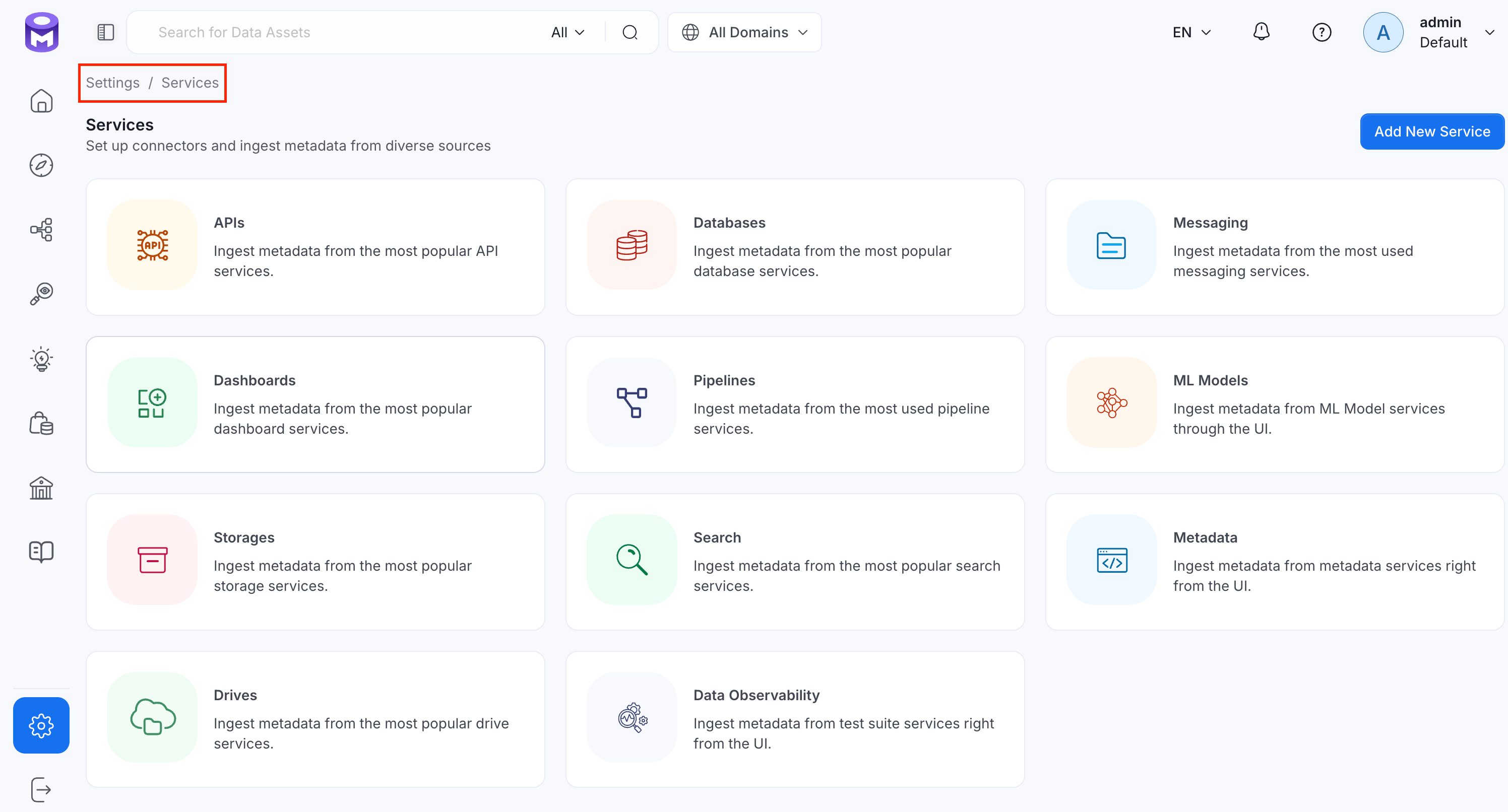
- Click the service you have added.
-
Select the Agents tab and click Add Agent > Metadata.

-
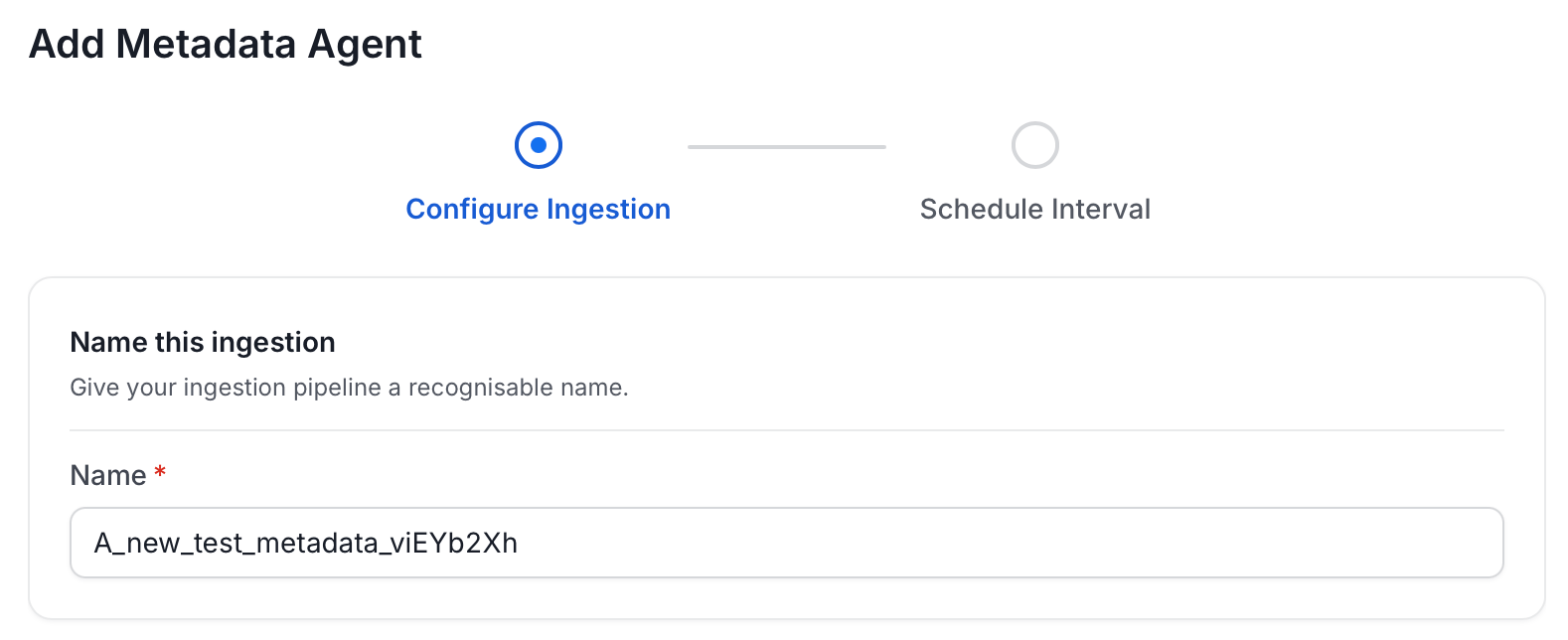
On the Configure Ingestion page, do the following and click Next.
-
Name this Ingestion: Enter a unique recognizable name for this ingestion pipeline.
-
Agent Setup: Configure core parameters for metadata extraction. The following fields are available:

-
Filter Patterns: Apply include or exclude rules to scope which databases, schemas, tables, and stored procedures this agent ingests. For more information about various filter options, see Step 6: Configure Ingestion Options.

-
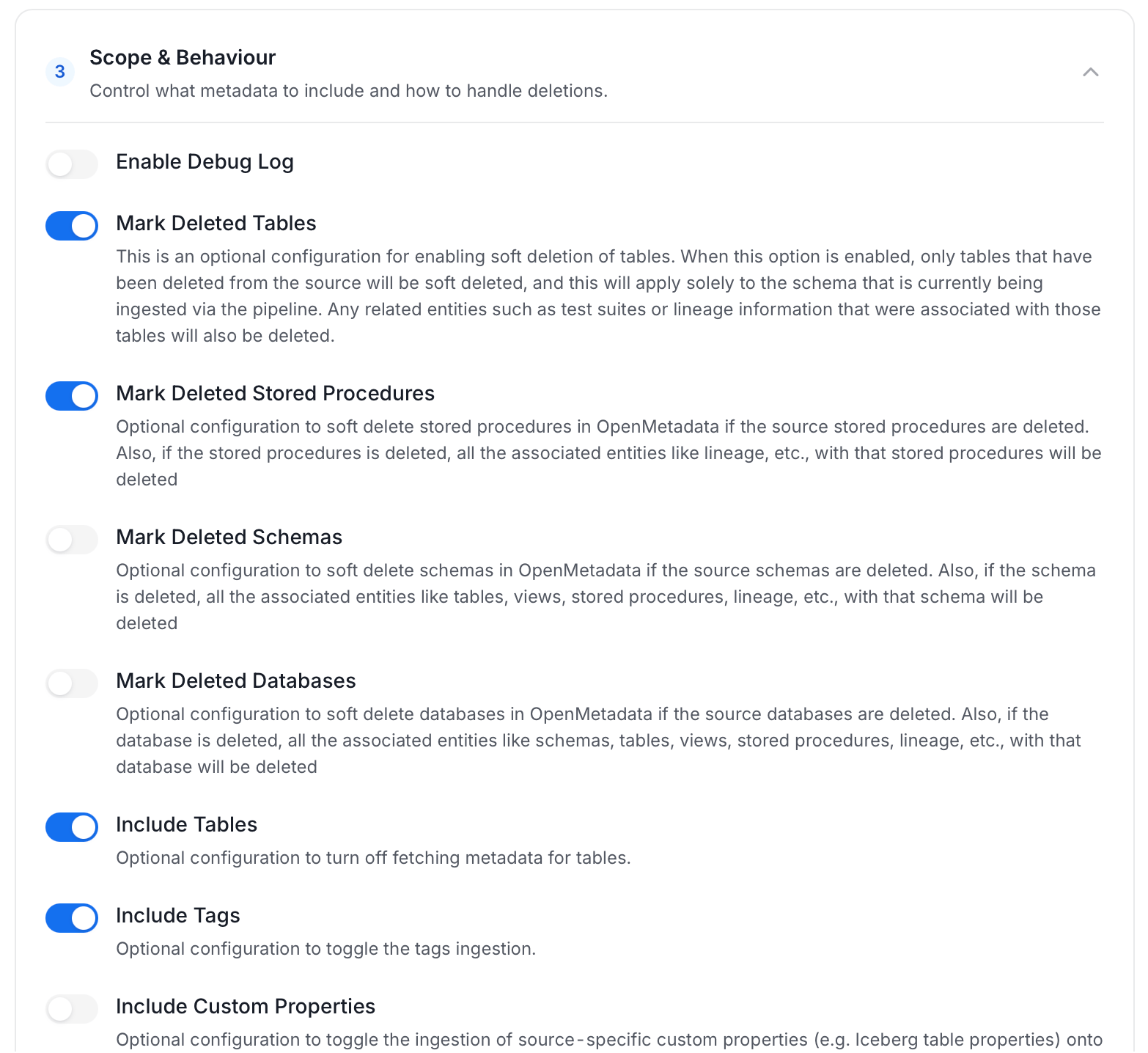
Scope & Behaviour: Control how the agent handles metadata during ingestion. Toggle each option on or off based on your needs:
Available toggles vary by connector. Stored procedure options only appear for connectors that support stored procedures.
-
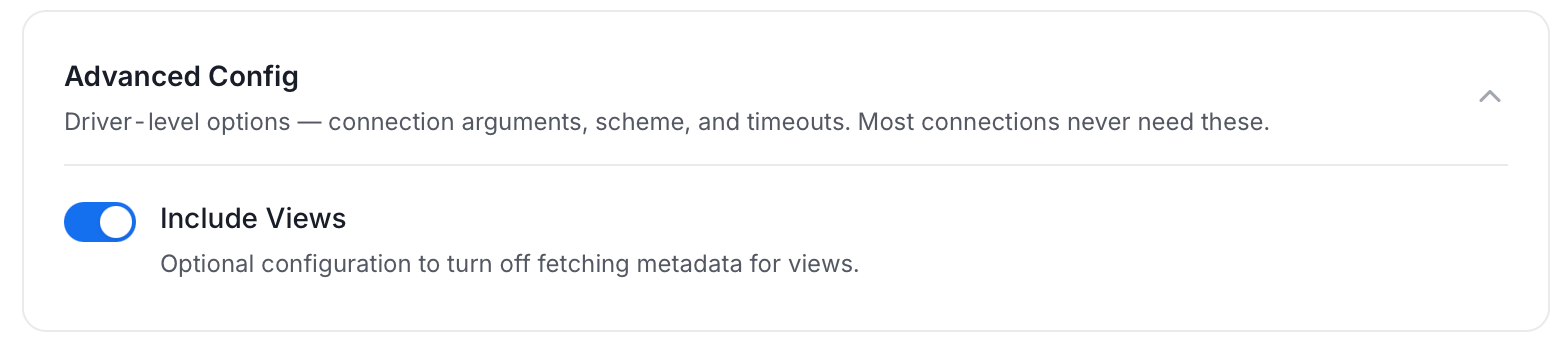
Advanced Config: Optional connector-specific settings such as Include Views and Extract JSON Schema.
-
Name this Ingestion: Enter a unique recognizable name for this ingestion pipeline.
-
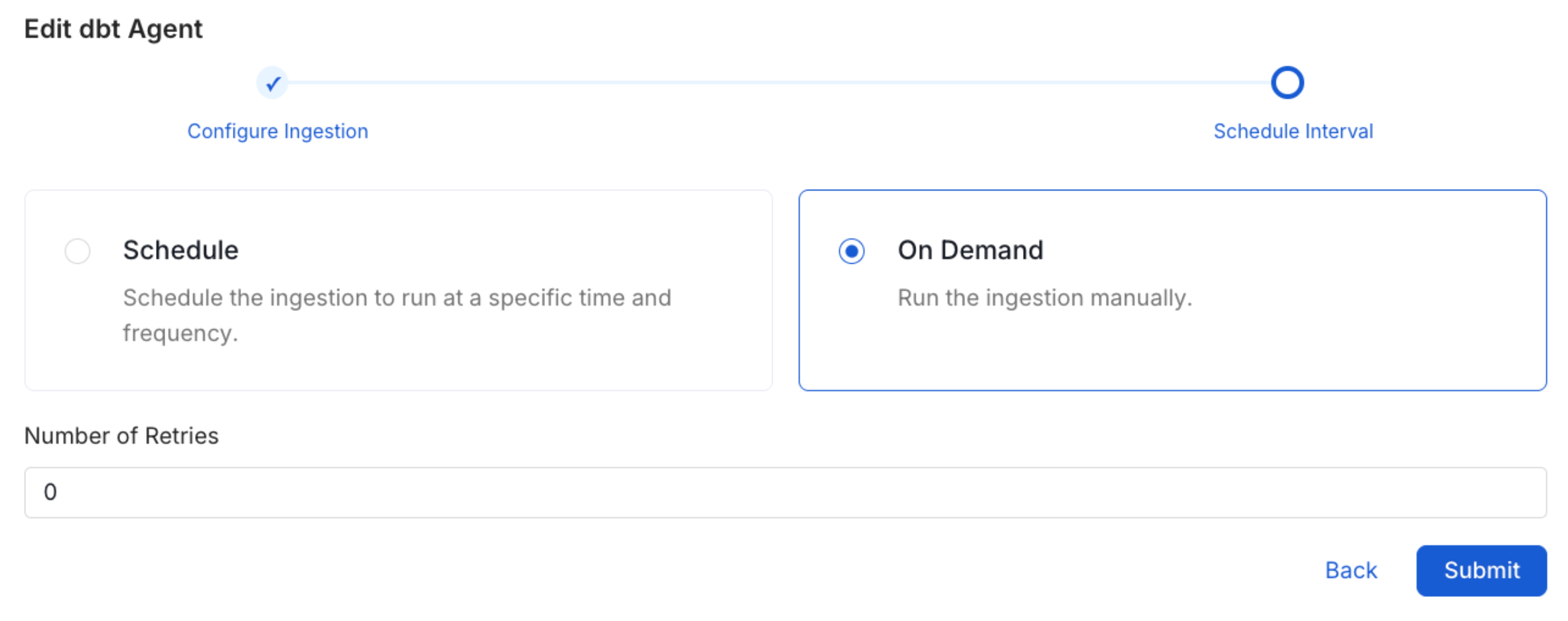
On the Schedule Interval page, set when the agent runs:
- Schedule: Choose a preset interval (Hourly, Daily, Weekly, Monthly) or enter a custom cron expression.
- On-Demand: No automatic schedule; trigger the agent manually when needed.
- Click Add to deploy the agent.
Cross Project Lineage
OpenMetadata supports cross-project lineage, but the data must be ingested within a single service. This means you need to perform lineage ingestion for just one service while including multiple projects.Related
Usage Workflow
Learn more about how to configure the Usage Workflow to ingest Query information from the UI.
Lineage Workflow
Learn more about how to configure the Lineage from the UI.
Profiler Workflow
Learn more about how to configure the Data Profiler from the UI.
Data Quality Workflow
Learn more about how to configure the Data Quality tests from the UI.
dbt Integration
Learn more about how to ingest dbt models’ definitions and their lineage.