> ## Documentation Index
> Fetch the complete documentation index at: https://openmetadata-format-2-0-connector-overview-pages.mintlify.site/llms.txt
> Use this file to discover all available pages before exploring further.
# Custom Drive Connector | Build & Extend OpenMetadata Easily
> Learn how to create a Custom Drive Connector to ingest metadata from file system-like services into OpenMetadata using the ingestion framework.
# Custom Drive Connector
Just like other services in OpenMetadata (Database, Pipelines, Dashboards, Messaging, and so on), it’s possible to create a **Custom Drive Connector** to bring metadata from a storage or file system-like service into OpenMetadata.
In this guide, we'll walk through how to implement your own Custom Drive Connector by extending the ingestion framework. The implementation pattern follows other service types closely, making the transition smooth for anyone familiar with the ecosystem.
Review the [tested Custom Drive source](https://github.com/open-metadata/OpenMetadata/blob/main/ingestion/tests/integration/custom_connectors/custom_drive.py) for a complete source implementation.
Watch OpenMetadata's Webinar on Custom Connectors to get more context on how to build these integrations.
## Steps to Set Up a Custom Drive Connector
Follow these steps to build and register a Custom Drive Connector.
### Step 1 - Prepare Your Drive Connector
A Custom Drive Connector is a Python class that inherits from:
```python theme={null}
from metadata.ingestion.api.steps import Source
```
It must implement required methods such as:
* `prepare`
* `_iter`
* `test_connection` (optional but recommended so the UI can validate access)
```python theme={null}
custom_drive/
my_drive_connector.py
```
**Inside** `my_drive_connector.py`, **define your class:**
```python theme={null}
class MyDriveConnector(Source):
...
def _iter(self):
...
```
`_iter` is a generator that produces the `CreateEntityRequest` instances expected by the ingestion framework.
For more on the ingestion framework, refer to the [OpenMetadata Ingestion Workflow docs](/v2.0.x-SNAPSHOT/connectors/ingestion/workflows).
### Step 2 - Yield Drive Data as Entities
You need to yield `CreateEntityRequest` objects wrapped in an `Either` type. This pattern handles both successful entity creation and errors.
**Import necessary types:**
```python theme={null}
from metadata.ingestion.api.models import Either, StackTraceError
from metadata.generated.schema.api.data.createDirectory import CreateDirectoryRequest
from metadata.generated.schema.api.data.createFile import CreateFileRequest
from metadata.generated.schema.api.data.createSpreadsheet import CreateSpreadsheetRequest
from metadata.generated.schema.api.data.createWorksheet import CreateWorksheetRequest
```
**Example usage:**
```python theme={null}
for directory in self.drive_client.list_directories():
try:
yield Either(
right=CreateDirectoryRequest(
name=directory.name,
description=directory.description,
parent=directory.parent_fqn,
href=directory.href,
)
)
except Exception as exc:
yield Either(
left=StackTraceError(
name="Drive Directory Ingestion Error",
error=str(exc),
stack_trace=traceback.format_exc(),
)
)
for file_metadata in self.drive_client.list_files():
yield Either(
right=CreateFileRequest(
name=file_metadata.name,
description=file_metadata.description,
fileFormats=file_metadata.file_formats,
parent=file_metadata.parent_directory_fqn,
size=file_metadata.size,
)
)
```
Extend the same pattern with `CreateSpreadsheetRequest` and `CreateWorksheetRequest` if your Drive service exposes those concepts.
### Step 3 - Package Your Custom Drive Connector
To use the connector, package it as a Python module. A minimal `setup.py` may look like:
```python theme={null}
from setuptools import setup, find_packages
setup(
name="custom_drive_connector",
version="0.1",
packages=find_packages(),
install_requires=[],
)
```
**Build the package:**
```bash theme={null}
python setup.py sdist
```
### Step 4 - Update the Ingestion Image
To run your Custom Drive Connector inside Docker (for example, with Airflow or directly from the UI), the ingestion image must include your module.
**Dockerfile example:**
```Dockerfile theme={null}
FROM openmetadata/ingestion:
WORKDIR ingestion
USER airflow
COPY custom_drive custom_drive
COPY setup.py .
RUN pip install --no-deps .
```
This ensures that your code is baked into the ingestion container. Always align the ingestion image tag with the OpenMetadata version that is running your server/UI.
### Step 5 - Run OpenMetadata with Custom Image
If you're using Docker Compose, update your setup to use the new image.
```makefile theme={null}
run:
docker compose -f docker-compose.yml up --build
```
### Step 6 - Configure and Run the Connector
The Custom Drive service form does not expose a Source Python Class field. Add the fully qualified class name to your ingestion YAML, then run it with the ingestion CLI.
```yaml theme={null}
source:
type: custom-drive
serviceName:
serviceConnection:
config:
type: CustomDrive
sourcePythonClass: custom_drive.my_drive_connector.MyDriveConnector
sourceConfig:
config:
type: DriveMetadata
sink:
type: metadata-rest
config: {}
```
Run `metadata ingest -c `.
## Configure Metadata Agent and Schedule Ingestion
The **Metadata Agent** extracts directories, files, spreadsheets, and other structural metadata from your source and keeps your OpenMetadata catalog in sync. It powers discovery, lineage, and governance across your data assets.
When you click **Create & Deploy**, OpenMetadata automatically deploys a Metadata Agent for this service and triggers the first ingestion run. View its status and run history from the **Agents** tab on the service detail page.
To configure the additional Metadata Agent and schedule ingestion, follow these steps:
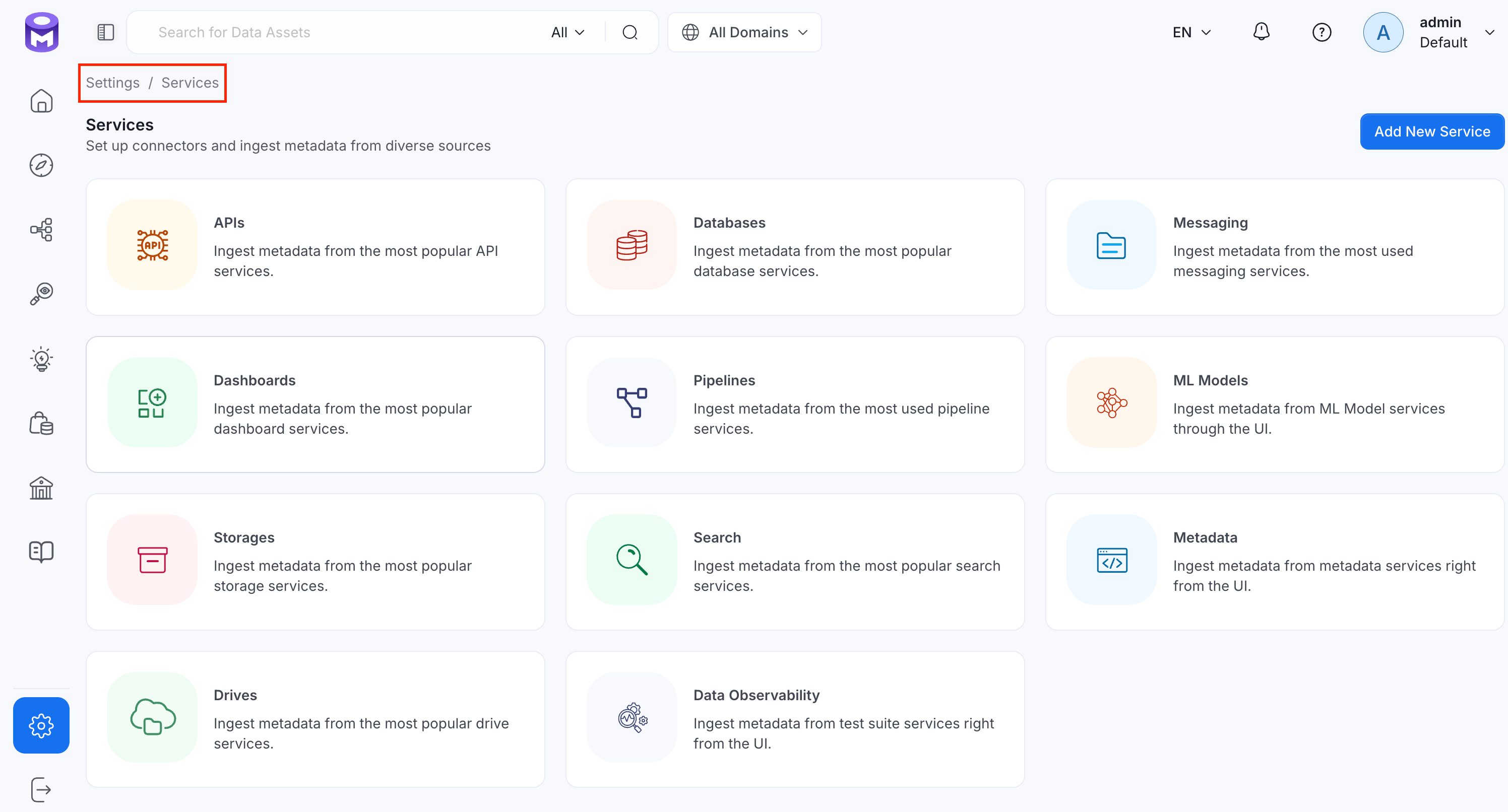
1. Navigate to **Settings** > **Services** and select the service type.
2. Click the service you have added.
3. Select the **Agents** tab and click **Add Agent** > **Metadata**.
For some services, the dropdown is not available and clicking **Add Agent** takes you directly to the agent configuration page.
4. On the **Configure Ingestion** page, do the following and click **Next**.
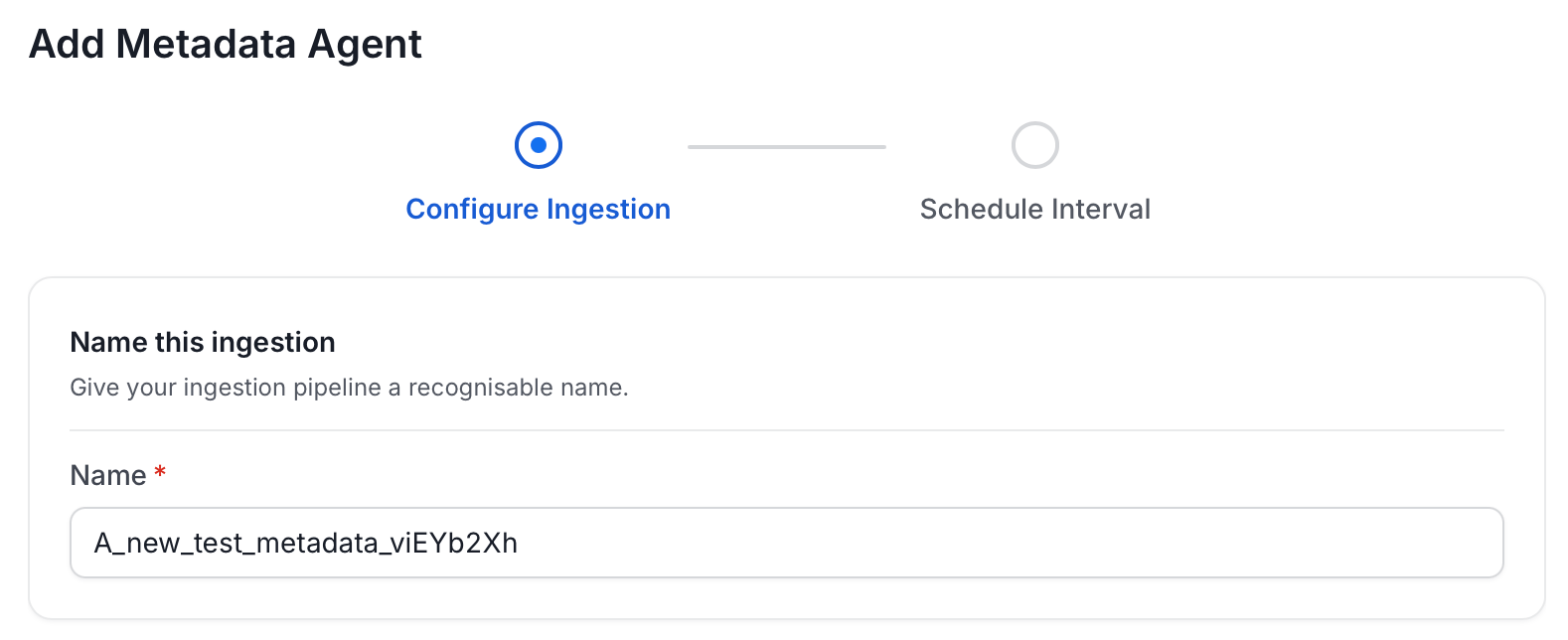
* **Name this Ingestion**: Enter a unique recognizable name for this ingestion pipeline.
* **Agent Setup**: Configure the core parameters for this agent. The following fields are available:
| Field | Default | Description |
| ------------------------- | ------- | ---------------------------------------------------------------------------------------------------------------------------------------------------------------------- |
| Number of Threads | 1 | Number of threads to use for parallel drive ingestion. |
| Mark Deleted Directories | On | Soft-delete directories in OpenMetadata when they are removed from the source. Associated entities like files, spreadsheets, worksheets, and lineage are also deleted. |
| Mark Deleted Files | On | Soft-delete files in OpenMetadata when they are removed from the source. Associated entities like lineage are also deleted. |
| Mark Deleted Spreadsheets | On | Soft-delete spreadsheets in OpenMetadata when they are removed from the source. Associated entities like worksheets and lineage are also deleted. |
| Mark Deleted Worksheets | On | Soft-delete worksheets in OpenMetadata when they are removed from the source. Associated entities like lineage are also deleted. |
| Include Directories | On | Fetch directory metadata. Turn off to skip directories entirely. |
| Include Files | On | Fetch file metadata. Turn off to skip files entirely. |
| Include Spreadsheets | On | Fetch spreadsheet metadata. Turn off to skip spreadsheets entirely. |
| Include Worksheets | On | Fetch worksheet metadata. Turn off to skip worksheets entirely. |
* **Filter Patterns**: Apply include or exclude rules to scope which directories, files, spreadsheets, and worksheets this agent ingests. Use FQN for filtering to apply regex on fully qualified names (for example, `service_name.directory_name.file_name`) instead of raw names. These follow the same filter options described in **Step 5: Configure Ingestion Options**.
* **Scope & Behaviour**: Control what metadata to include and how to handle deletions. Toggle each option on or off based on your needs:
| Toggle | Default | Description |
| ----------------- | ------- | -------------------------------------------------------------------------------------------------------------------------------------------------------------------------------- |
| Enable Debug Log | Off | Sets the ingestion log level to DEBUG. Useful for troubleshooting. |
| Include Tags | On | Ingest tags from the source. |
| Include Owners | Off | Assign owners from the source when the owner email matches an OpenMetadata user. Does not overwrite an existing owner. |
| Override Metadata | Off | When on, source values overwrite existing descriptions, tags, owners, and display names in OpenMetadata. When off, OpenMetadata only updates fields that have no existing value. |
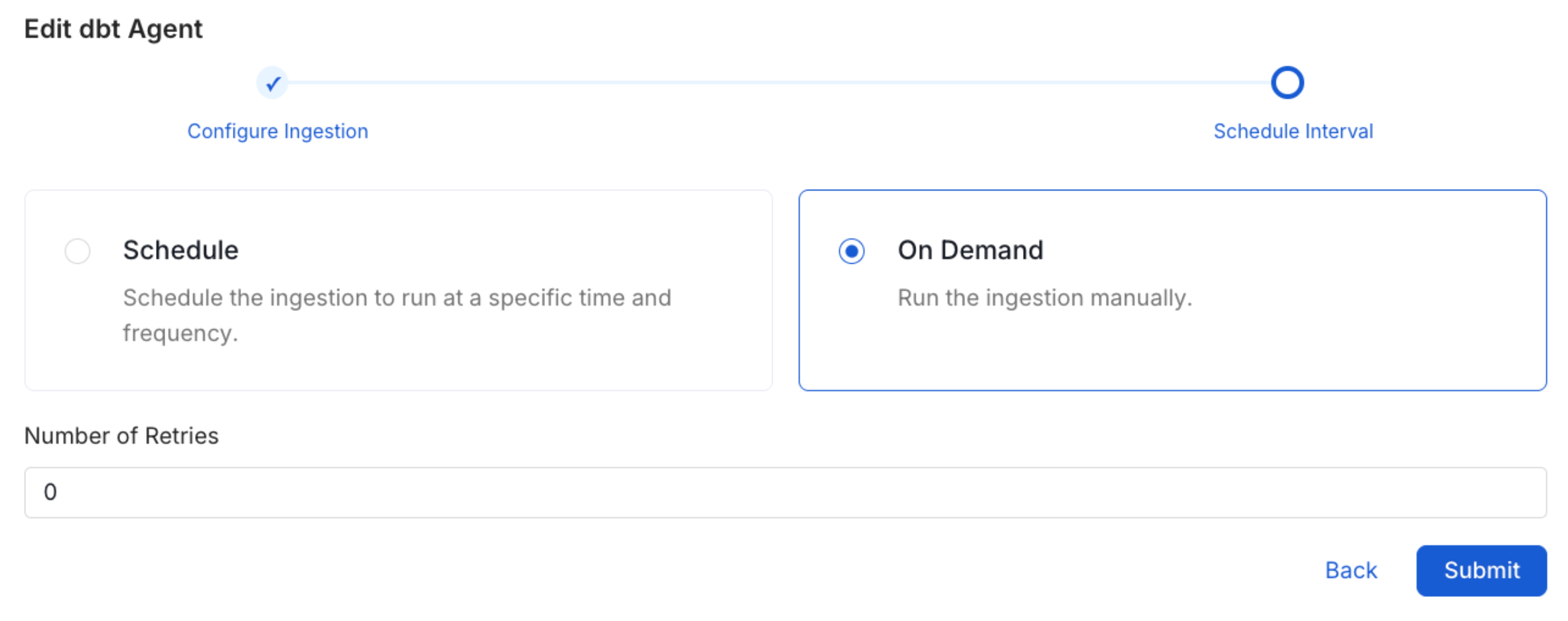
5. On the **Schedule Interval** page, set when the agent runs:
* **Schedule**: Choose a preset interval (Hourly, Daily, Weekly, Monthly) or enter a custom cron expression.
* **On-Demand**: No automatic schedule; trigger the agent manually when needed.
6. Click **Add** to deploy the agent.
 2. Click the service you have added.
3. Select the **Agents** tab and click **Add Agent** > **Metadata**.
2. Click the service you have added.
3. Select the **Agents** tab and click **Add Agent** > **Metadata**.
 For some services, the dropdown is not available and clicking **Add Agent** takes you directly to the agent configuration page.
4. On the **Configure Ingestion** page, do the following and click **Next**.
* **Name this Ingestion**: Enter a unique recognizable name for this ingestion pipeline.
For some services, the dropdown is not available and clicking **Add Agent** takes you directly to the agent configuration page.
4. On the **Configure Ingestion** page, do the following and click **Next**.
* **Name this Ingestion**: Enter a unique recognizable name for this ingestion pipeline.
 * **Agent Setup**: Configure the core parameters for this agent. The following fields are available:
| Field | Default | Description |
| ------------------------- | ------- | ---------------------------------------------------------------------------------------------------------------------------------------------------------------------- |
| Number of Threads | 1 | Number of threads to use for parallel drive ingestion. |
| Mark Deleted Directories | On | Soft-delete directories in OpenMetadata when they are removed from the source. Associated entities like files, spreadsheets, worksheets, and lineage are also deleted. |
| Mark Deleted Files | On | Soft-delete files in OpenMetadata when they are removed from the source. Associated entities like lineage are also deleted. |
| Mark Deleted Spreadsheets | On | Soft-delete spreadsheets in OpenMetadata when they are removed from the source. Associated entities like worksheets and lineage are also deleted. |
| Mark Deleted Worksheets | On | Soft-delete worksheets in OpenMetadata when they are removed from the source. Associated entities like lineage are also deleted. |
| Include Directories | On | Fetch directory metadata. Turn off to skip directories entirely. |
| Include Files | On | Fetch file metadata. Turn off to skip files entirely. |
| Include Spreadsheets | On | Fetch spreadsheet metadata. Turn off to skip spreadsheets entirely. |
| Include Worksheets | On | Fetch worksheet metadata. Turn off to skip worksheets entirely. |
* **Agent Setup**: Configure the core parameters for this agent. The following fields are available:
| Field | Default | Description |
| ------------------------- | ------- | ---------------------------------------------------------------------------------------------------------------------------------------------------------------------- |
| Number of Threads | 1 | Number of threads to use for parallel drive ingestion. |
| Mark Deleted Directories | On | Soft-delete directories in OpenMetadata when they are removed from the source. Associated entities like files, spreadsheets, worksheets, and lineage are also deleted. |
| Mark Deleted Files | On | Soft-delete files in OpenMetadata when they are removed from the source. Associated entities like lineage are also deleted. |
| Mark Deleted Spreadsheets | On | Soft-delete spreadsheets in OpenMetadata when they are removed from the source. Associated entities like worksheets and lineage are also deleted. |
| Mark Deleted Worksheets | On | Soft-delete worksheets in OpenMetadata when they are removed from the source. Associated entities like lineage are also deleted. |
| Include Directories | On | Fetch directory metadata. Turn off to skip directories entirely. |
| Include Files | On | Fetch file metadata. Turn off to skip files entirely. |
| Include Spreadsheets | On | Fetch spreadsheet metadata. Turn off to skip spreadsheets entirely. |
| Include Worksheets | On | Fetch worksheet metadata. Turn off to skip worksheets entirely. |
 * **Filter Patterns**: Apply include or exclude rules to scope which directories, files, spreadsheets, and worksheets this agent ingests. Use FQN for filtering to apply regex on fully qualified names (for example, `service_name.directory_name.file_name`) instead of raw names. These follow the same filter options described in **Step 5: Configure Ingestion Options**.
 * **Scope & Behaviour**: Control what metadata to include and how to handle deletions. Toggle each option on or off based on your needs:
| Toggle | Default | Description |
| ----------------- | ------- | -------------------------------------------------------------------------------------------------------------------------------------------------------------------------------- |
| Enable Debug Log | Off | Sets the ingestion log level to DEBUG. Useful for troubleshooting. |
| Include Tags | On | Ingest tags from the source. |
| Include Owners | Off | Assign owners from the source when the owner email matches an OpenMetadata user. Does not overwrite an existing owner. |
| Override Metadata | Off | When on, source values overwrite existing descriptions, tags, owners, and display names in OpenMetadata. When off, OpenMetadata only updates fields that have no existing value. |
* **Scope & Behaviour**: Control what metadata to include and how to handle deletions. Toggle each option on or off based on your needs:
| Toggle | Default | Description |
| ----------------- | ------- | -------------------------------------------------------------------------------------------------------------------------------------------------------------------------------- |
| Enable Debug Log | Off | Sets the ingestion log level to DEBUG. Useful for troubleshooting. |
| Include Tags | On | Ingest tags from the source. |
| Include Owners | Off | Assign owners from the source when the owner email matches an OpenMetadata user. Does not overwrite an existing owner. |
| Override Metadata | Off | When on, source values overwrite existing descriptions, tags, owners, and display names in OpenMetadata. When off, OpenMetadata only updates fields that have no existing value. |
 5. On the **Schedule Interval** page, set when the agent runs:
* **Schedule**: Choose a preset interval (Hourly, Daily, Weekly, Monthly) or enter a custom cron expression.
* **On-Demand**: No automatic schedule; trigger the agent manually when needed.
5. On the **Schedule Interval** page, set when the agent runs:
* **Schedule**: Choose a preset interval (Hourly, Daily, Weekly, Monthly) or enter a custom cron expression.
* **On-Demand**: No automatic schedule; trigger the agent manually when needed.
 6. Click **Add** to deploy the agent.