{icon &&
 }
}
{name}
{stage}Feature List
{totalAvailableFeatures.map(feature =>
✓ {feature}
)}
{unavailableFeatures.map(feature =>
✕ {feature}
)}
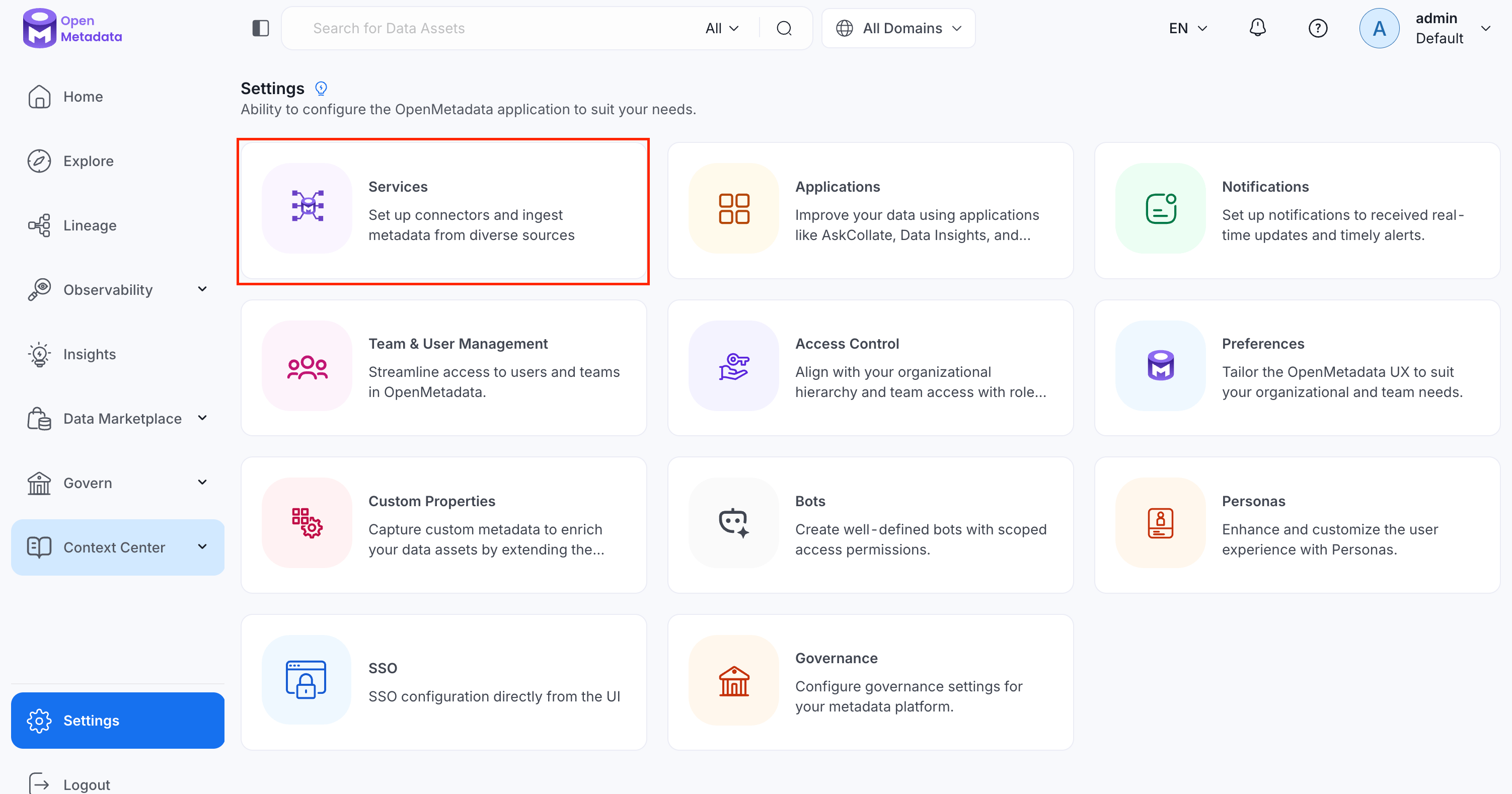 2. Click **Add New Service**.
 ### Step 2: Select a Service and Connector
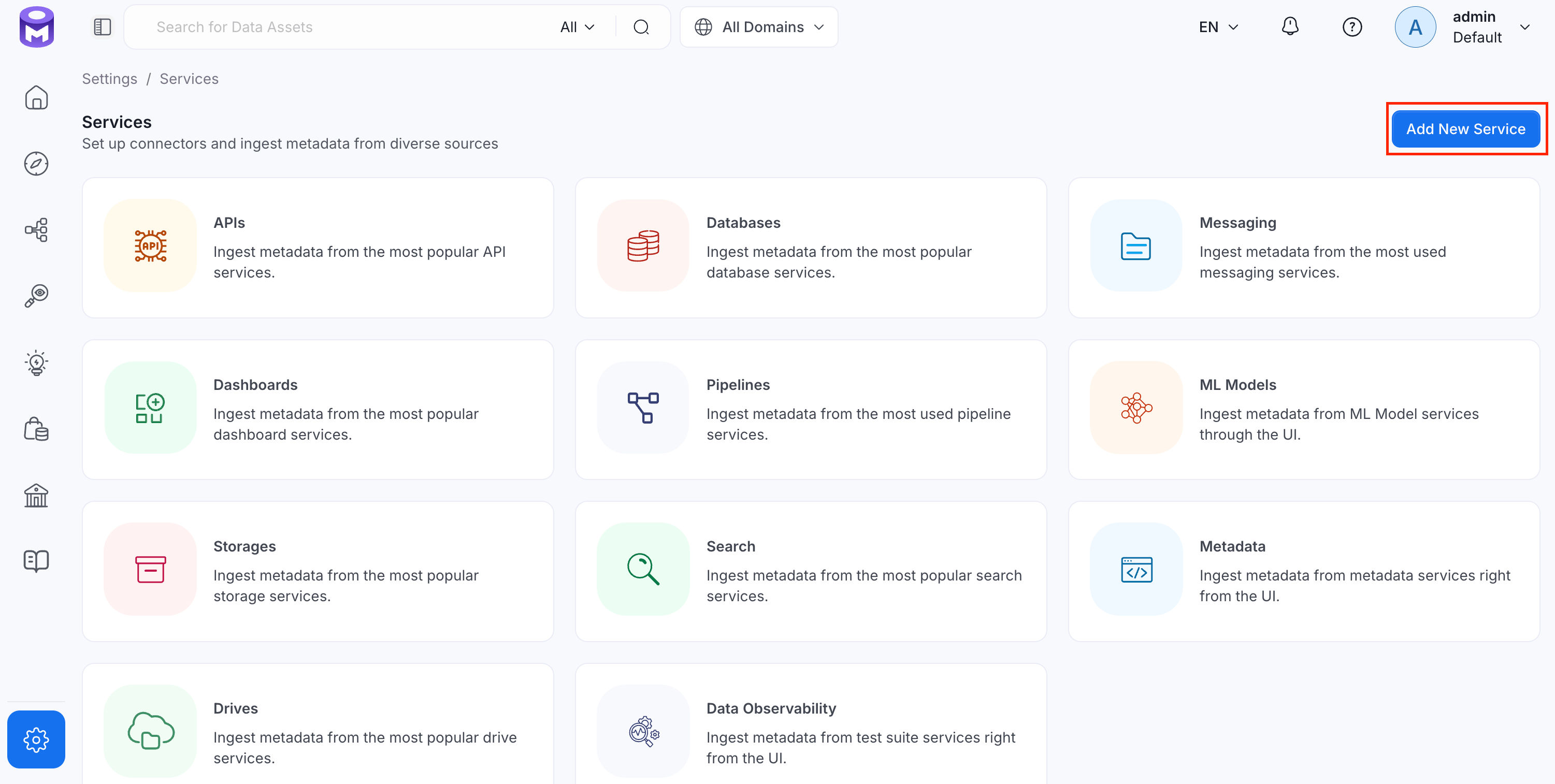
From the service type dropdown, select **Database Services**, then click the **TimescaleDB** connector tile.
### Step 2: Select a Service and Connector
From the service type dropdown, select **Database Services**, then click the **TimescaleDB** connector tile.
 ### Step 3: Add Service Name and Description
* Enter a unique, descriptive **Service Name**. OpenMetadata identifies services by their service name. Enter a name that distinguishes this deployment from other TimescaleDB services you are ingesting metadata from.
* Optional: Enter a **Description** for the service.
### Step 3: Add Service Name and Description
* Enter a unique, descriptive **Service Name**. OpenMetadata identifies services by their service name. Enter a name that distinguishes this deployment from other TimescaleDB services you are ingesting metadata from.
* Optional: Enter a **Description** for the service.

 **Connection**
* **Username**: Specify the user to connect to TimescaleDB. It should have enough privileges to read all the metadata.
* **Host and Port**: Enter the fully qualified hostname and port number for your TimescaleDB deployment.
**Authentication**
* **Auth Type**: Basic Auth or IAM-based auth to connect to instances or cloud RDS.
* **Basic Auth**: Provide the password to connect to TimescaleDB.
* **IAM Based Auth**:
* **AWS Access Key ID** & **AWS Secret Access Key**: Required when interacting with AWS programmatically ([docs](https://docs.aws.amazon.com/IAM/latest/UserGuide/security-creds.html)).
* **AWS Region**: Required to resolve service endpoints ([docs](https://docs.aws.amazon.com/AmazonRDS/latest/UserGuide/Concepts.RegionsAndAvailabilityZones.html)).
* **AWS Session Token** *(Optional)*: Needed when using temporary credentials ([docs](https://docs.aws.amazon.com/IAM/latest/UserGuide/id_credentials_temp_use-resources.html)).
* **Endpoint URL** *(Optional)*: Override the default AWS endpoint if needed ([docs](https://docs.aws.amazon.com/general/latest/gr/rande.html)).
* **Profile Name**: Use a named profile other than `default` if desired ([docs](https://docs.aws.amazon.com/cli/latest/userguide/cli-configure-profiles.html)).
* **Assume Role Arn**: ARN of the role to assume for cross-account access ([docs](https://docs.aws.amazon.com/STS/latest/APIReference/API_AssumeRole.html)).
* **Assume Role Session Name**: Identifier for the assumed role session ([docs](https://docs.aws.amazon.com/STS/latest/APIReference/API_AssumeRole.html#:~:text=Role%20Session%20Name)).
* **Assume Role Source Identity**: Source identity for CloudTrail attribution ([docs](https://docs.aws.amazon.com/STS/latest/APIReference/API_AssumeRole.html#:~:text=SourceIdentity)).
**Connection**
* **Username**: Specify the user to connect to TimescaleDB. It should have enough privileges to read all the metadata.
* **Host and Port**: Enter the fully qualified hostname and port number for your TimescaleDB deployment.
**Authentication**
* **Auth Type**: Basic Auth or IAM-based auth to connect to instances or cloud RDS.
* **Basic Auth**: Provide the password to connect to TimescaleDB.
* **IAM Based Auth**:
* **AWS Access Key ID** & **AWS Secret Access Key**: Required when interacting with AWS programmatically ([docs](https://docs.aws.amazon.com/IAM/latest/UserGuide/security-creds.html)).
* **AWS Region**: Required to resolve service endpoints ([docs](https://docs.aws.amazon.com/AmazonRDS/latest/UserGuide/Concepts.RegionsAndAvailabilityZones.html)).
* **AWS Session Token** *(Optional)*: Needed when using temporary credentials ([docs](https://docs.aws.amazon.com/IAM/latest/UserGuide/id_credentials_temp_use-resources.html)).
* **Endpoint URL** *(Optional)*: Override the default AWS endpoint if needed ([docs](https://docs.aws.amazon.com/general/latest/gr/rande.html)).
* **Profile Name**: Use a named profile other than `default` if desired ([docs](https://docs.aws.amazon.com/cli/latest/userguide/cli-configure-profiles.html)).
* **Assume Role Arn**: ARN of the role to assume for cross-account access ([docs](https://docs.aws.amazon.com/STS/latest/APIReference/API_AssumeRole.html)).
* **Assume Role Session Name**: Identifier for the assumed role session ([docs](https://docs.aws.amazon.com/STS/latest/APIReference/API_AssumeRole.html#:~:text=Role%20Session%20Name)).
* **Assume Role Source Identity**: Source identity for CloudTrail attribution ([docs](https://docs.aws.amazon.com/STS/latest/APIReference/API_AssumeRole.html#:~:text=SourceIdentity)).
 ### Step 5: Configure Ingestion Options
In the **What to Ingest** step, use filter patterns to control which assets OpenMetadata ingests from your database service. Filter patterns use regular expressions applied to asset names.
#### How Filter Patterns Work
* **Include**: Add one or more comma-separated regular expressions. OpenMetadata ingests only assets whose names match at least one expression. Leave blank to include all assets.
* **Exclude**: Add one or more comma-separated regular expressions. OpenMetadata skips any asset whose name matches an expression. Leave blank to exclude nothing.
Rules match asset names using one of five expressions:
* **contains**: matches any name containing the value. For example, `sales` matches `my_sales_data` and `sales_2024`.
* **starts with**: matches names beginning with the value. For example, `prod_` matches `prod_db` and `prod_schema`.
* **ends with**: matches names ending with the value. For example, `_raw` matches `events_raw` and `logs_raw`.
* **is exactly**: matches the exact name only. For example, `analytics` matches only `analytics`.
* **matches regex**: matches names using a regular expression. For example, `^prod_.*_v\d+$` matches `prod_events_v1`.
When both Include and Exclude are set, Exclude takes priority.
### Step 5: Configure Ingestion Options
In the **What to Ingest** step, use filter patterns to control which assets OpenMetadata ingests from your database service. Filter patterns use regular expressions applied to asset names.
#### How Filter Patterns Work
* **Include**: Add one or more comma-separated regular expressions. OpenMetadata ingests only assets whose names match at least one expression. Leave blank to include all assets.
* **Exclude**: Add one or more comma-separated regular expressions. OpenMetadata skips any asset whose name matches an expression. Leave blank to exclude nothing.
Rules match asset names using one of five expressions:
* **contains**: matches any name containing the value. For example, `sales` matches `my_sales_data` and `sales_2024`.
* **starts with**: matches names beginning with the value. For example, `prod_` matches `prod_db` and `prod_schema`.
* **ends with**: matches names ending with the value. For example, `_raw` matches `events_raw` and `logs_raw`.
* **is exactly**: matches the exact name only. For example, `analytics` matches only `analytics`.
* **matches regex**: matches names using a regular expression. For example, `^prod_.*_v\d+$` matches `prod_events_v1`.
When both Include and Exclude are set, Exclude takes priority.
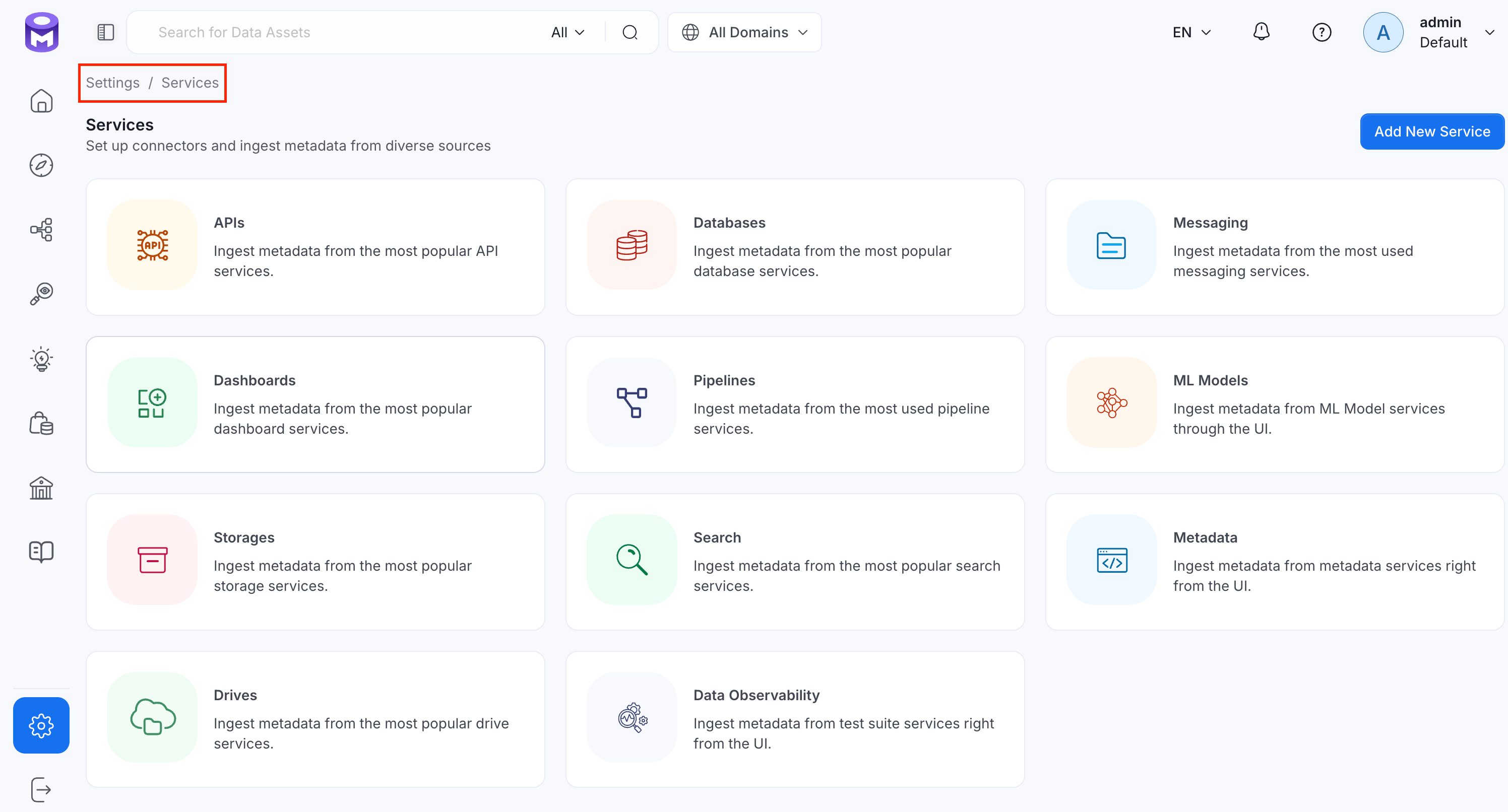 2. Click the service you have added.
3. Select the **Agents** tab and click **Add Agent** > **Metadata**.
2. Click the service you have added.
3. Select the **Agents** tab and click **Add Agent** > **Metadata**.
 For some services, the dropdown is not available and clicking **Add Agent** takes you directly to the agent configuration page.
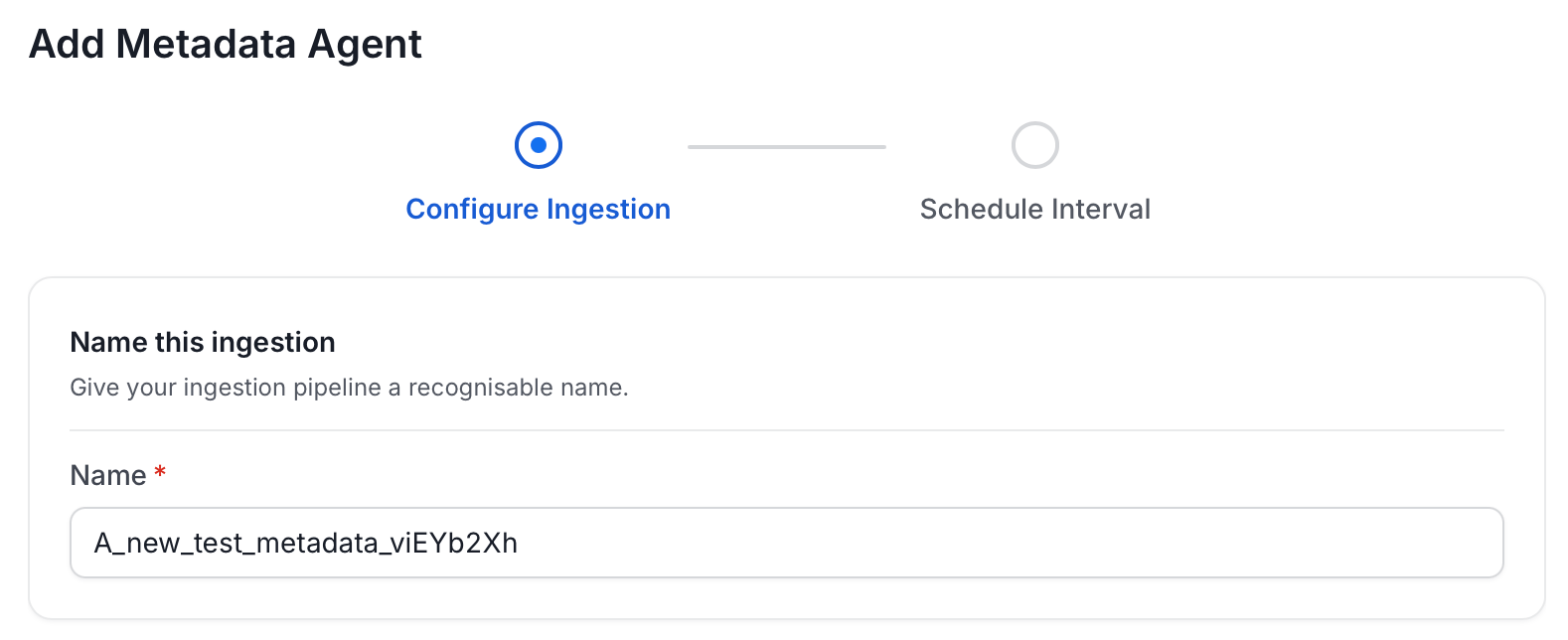
4. On the **Configure Ingestion** page, do the following and click **Next**.
* **Name this Ingestion**: Enter a unique recognizable name for this ingestion pipeline.
For some services, the dropdown is not available and clicking **Add Agent** takes you directly to the agent configuration page.
4. On the **Configure Ingestion** page, do the following and click **Next**.
* **Name this Ingestion**: Enter a unique recognizable name for this ingestion pipeline.
 * **Agent Setup**: Configure core parameters for metadata extraction. The following fields are available:
| Field | Default | Description |
| ------------------------------------- | ------- | ------------------------------------------------------------------------------------------------------------------------ |
| Default Owner | — | Owner applied to all entities when no specific level owner is configured. Accepts a user or team name/email. |
| Service Owner | — | Owner assigned to the service entity. |
| Database Owner | — | Owner assigned to all ingested databases. Accepts a single owner or a per-database name mapping. |
| Database Schema Owner | — | Owner assigned to all ingested schemas. Accepts a single owner or a per-schema name mapping. |
| Table Owner | — | Owner assigned to all ingested tables. Accepts a single owner or a per-table name mapping. |
| Enable Inheritance | On | When on, child entities inherit the owner from their parent when they have no owner configured. |
| Query Log Duration | 1 | Number of days to look back in query logs when processing stored procedure results. |
| Query Parsing Timeout Limit | 300 | Timeout in seconds for parsing a single query. |
| Number of Threads | 1 | Number of threads to use for parallel table ingestion. |
| Incremental Extraction | Off | When enabled, subsequent runs only extract entities changed since the last successful run. |
| Successful Pipeline Run Lookback Days | 7 | Number of days to search back for a prior successful run to use as a baseline for incremental extraction. |
| Safety Margin Days | 1 | Additional days added to the baseline timestamp as a buffer for incremental extraction. |
| JSON Schema Sample Size | 10 | Number of rows sampled to infer JSON column schema. Only applies when Extract JSON Schema is enabled in Advanced Config. |
* **Agent Setup**: Configure core parameters for metadata extraction. The following fields are available:
| Field | Default | Description |
| ------------------------------------- | ------- | ------------------------------------------------------------------------------------------------------------------------ |
| Default Owner | — | Owner applied to all entities when no specific level owner is configured. Accepts a user or team name/email. |
| Service Owner | — | Owner assigned to the service entity. |
| Database Owner | — | Owner assigned to all ingested databases. Accepts a single owner or a per-database name mapping. |
| Database Schema Owner | — | Owner assigned to all ingested schemas. Accepts a single owner or a per-schema name mapping. |
| Table Owner | — | Owner assigned to all ingested tables. Accepts a single owner or a per-table name mapping. |
| Enable Inheritance | On | When on, child entities inherit the owner from their parent when they have no owner configured. |
| Query Log Duration | 1 | Number of days to look back in query logs when processing stored procedure results. |
| Query Parsing Timeout Limit | 300 | Timeout in seconds for parsing a single query. |
| Number of Threads | 1 | Number of threads to use for parallel table ingestion. |
| Incremental Extraction | Off | When enabled, subsequent runs only extract entities changed since the last successful run. |
| Successful Pipeline Run Lookback Days | 7 | Number of days to search back for a prior successful run to use as a baseline for incremental extraction. |
| Safety Margin Days | 1 | Additional days added to the baseline timestamp as a buffer for incremental extraction. |
| JSON Schema Sample Size | 10 | Number of rows sampled to infer JSON column schema. Only applies when Extract JSON Schema is enabled in Advanced Config. |
 * **Filter Patterns**: Apply include or exclude rules to scope which databases, schemas, tables, and stored procedures this agent ingests. For more information about various filter options, see **Step 6: Configure Ingestion Options**.
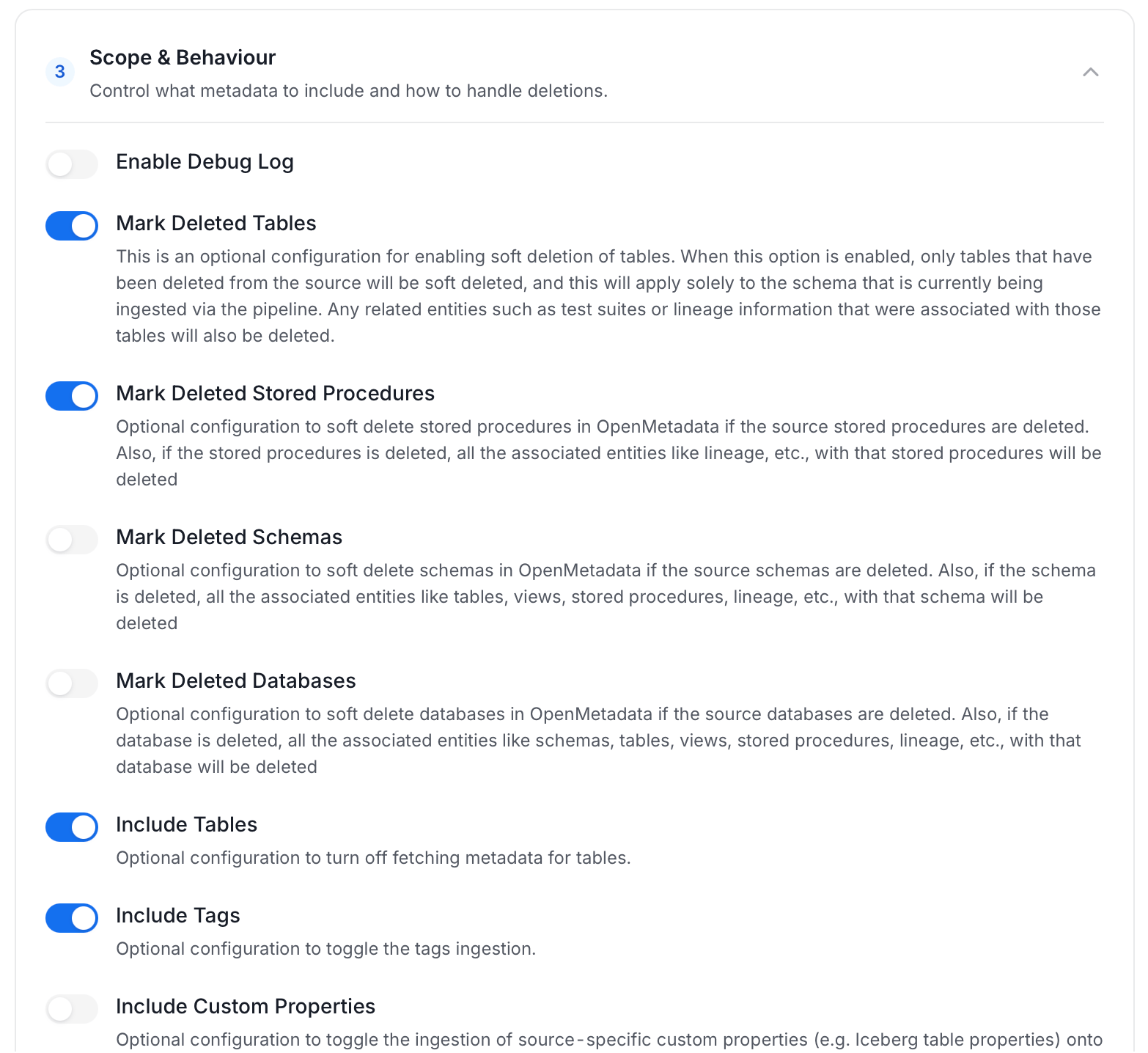
 * **Scope & Behaviour**: Control how the agent handles metadata during ingestion. Toggle each option on or off based on your needs:
| Toggle | Default | Description |
| ------------------------------ | ------- | -------------------------------------------------------------------------------------------------------------------------------------------------------------------------------- |
| Include Tables | On | Ingest table metadata from the source. Turn off to skip tables entirely. |
| Include Tags | On | Ingest tags from the source. |
| Include Stored Procedures | On | Ingest stored procedure metadata. |
| Include DDL Statements | Off | Ingest DDL statements alongside table metadata. |
| Include Owners | Off | Assign owners to ingested entities when the source owner's email matches a user in OpenMetadata. Does not overwrite an existing owner. |
| Include Custom Properties | Off | Ingest connector-specific custom properties onto entities. |
| Mark Deleted Tables | On | Soft-delete tables in OpenMetadata when they are removed from the source. Applies only within the currently ingested schema. |
| Mark Deleted Stored Procedures | On | Soft-delete stored procedures in OpenMetadata when they are removed from the source. |
| Mark Deleted Schemas | Off | Soft-delete schemas and all their child assets when removed from the source. |
| Mark Deleted Databases | Off | Soft-delete databases and all their child assets when removed from the source. |
| Override Metadata | Off | When on, source values overwrite existing descriptions, tags, owners, and display names in OpenMetadata. When off, OpenMetadata only updates fields that have no existing value. |
| Enable Debug Log | Off | Sets the ingestion log level to DEBUG. Useful for troubleshooting. |
* **Scope & Behaviour**: Control how the agent handles metadata during ingestion. Toggle each option on or off based on your needs:
| Toggle | Default | Description |
| ------------------------------ | ------- | -------------------------------------------------------------------------------------------------------------------------------------------------------------------------------- |
| Include Tables | On | Ingest table metadata from the source. Turn off to skip tables entirely. |
| Include Tags | On | Ingest tags from the source. |
| Include Stored Procedures | On | Ingest stored procedure metadata. |
| Include DDL Statements | Off | Ingest DDL statements alongside table metadata. |
| Include Owners | Off | Assign owners to ingested entities when the source owner's email matches a user in OpenMetadata. Does not overwrite an existing owner. |
| Include Custom Properties | Off | Ingest connector-specific custom properties onto entities. |
| Mark Deleted Tables | On | Soft-delete tables in OpenMetadata when they are removed from the source. Applies only within the currently ingested schema. |
| Mark Deleted Stored Procedures | On | Soft-delete stored procedures in OpenMetadata when they are removed from the source. |
| Mark Deleted Schemas | Off | Soft-delete schemas and all their child assets when removed from the source. |
| Mark Deleted Databases | Off | Soft-delete databases and all their child assets when removed from the source. |
| Override Metadata | Off | When on, source values overwrite existing descriptions, tags, owners, and display names in OpenMetadata. When off, OpenMetadata only updates fields that have no existing value. |
| Enable Debug Log | Off | Sets the ingestion log level to DEBUG. Useful for troubleshooting. |
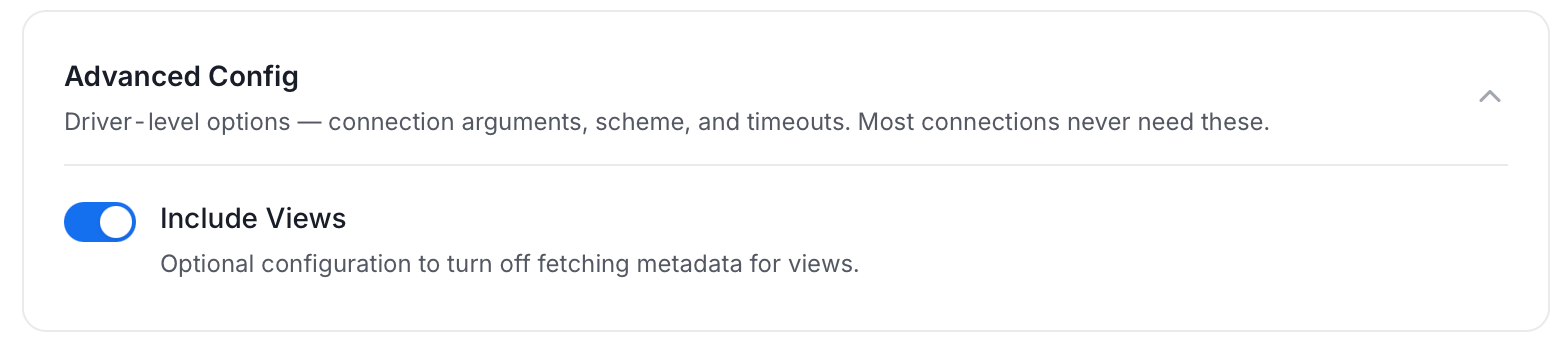
 * **Advanced Config**: Optional connector-specific settings such as Include Views and Extract JSON Schema.
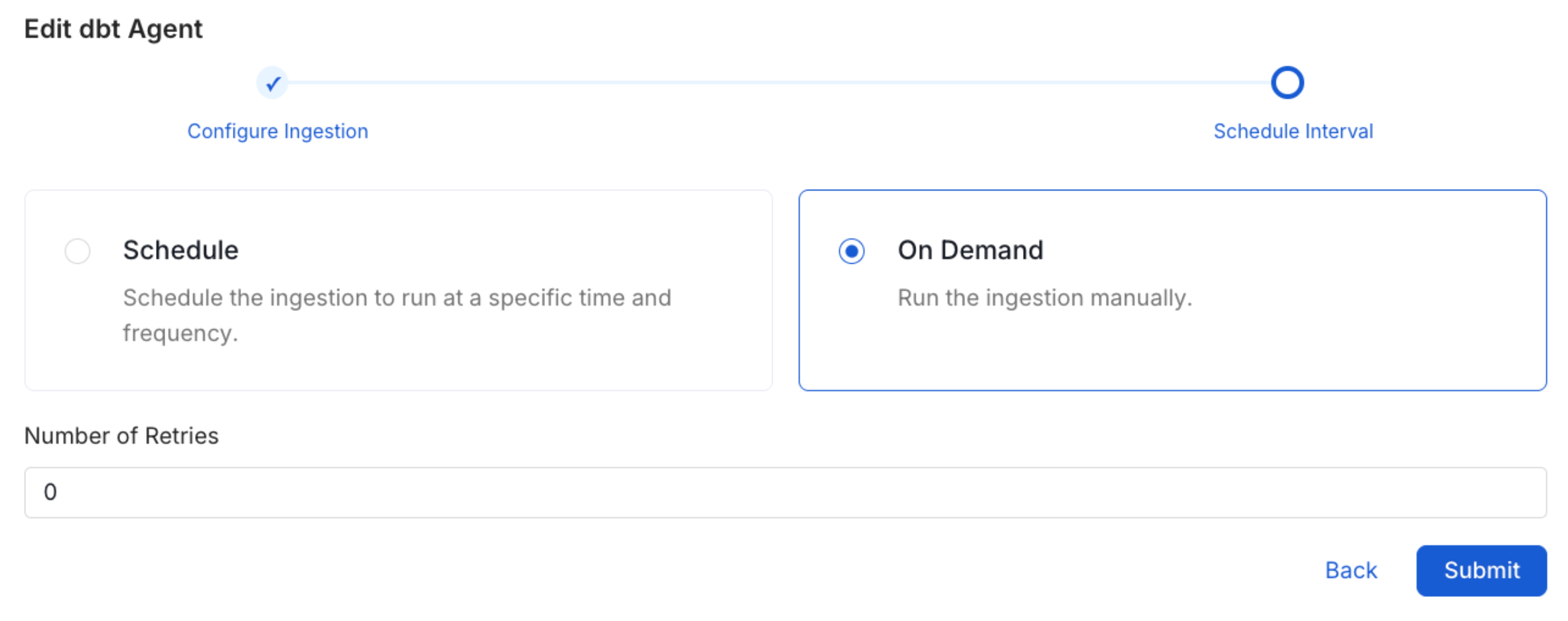
 5. On the **Schedule Interval** page, set when the agent runs:
* **Schedule**: Choose a preset interval (Hourly, Daily, Weekly, Monthly) or enter a custom cron expression.
* **On-Demand**: No automatic schedule; trigger the agent manually when needed.
5. On the **Schedule Interval** page, set when the agent runs:
* **Schedule**: Choose a preset interval (Hourly, Daily, Weekly, Monthly) or enter a custom cron expression.
* **On-Demand**: No automatic schedule; trigger the agent manually when needed.
 6. Click **Add** to deploy the agent.
## Securing TimescaleDB Connection with SSL in OpenMetadata
To establish secure connections between OpenMetadata and a TimescaleDB database, you can configure SSL using different SSL modes provided by PostgreSQL, each offering varying levels of security.
Under **Advanced Config**, specify the SSL mode appropriate for your connection, such as `prefer`, `verify-ca`, `allow`, and others. After selecting the SSL mode, provide the CA certificate used for SSL validation (`caCertificate`). Note that TimescaleDB (PostgreSQL) requires only the CA certificate for SSL validation.
6. Click **Add** to deploy the agent.
## Securing TimescaleDB Connection with SSL in OpenMetadata
To establish secure connections between OpenMetadata and a TimescaleDB database, you can configure SSL using different SSL modes provided by PostgreSQL, each offering varying levels of security.
Under **Advanced Config**, specify the SSL mode appropriate for your connection, such as `prefer`, `verify-ca`, `allow`, and others. After selecting the SSL mode, provide the CA certificate used for SSL validation (`caCertificate`). Note that TimescaleDB (PostgreSQL) requires only the CA certificate for SSL validation.