{icon &&
 }
}
{name}
{stage}Feature List
{totalAvailableFeatures.map(feature =>
✓ {feature}
)}
{unavailableFeatures.map(feature =>
✕ {feature}
)}
 #### 3. Configure Windows Firewall
If you are using SQL Server on Windows, you must configure the firewall on the computer running SQL Server to allow access.
1. On the Start menu, select Run, type WF.msc, and then select OK.
2. In the Windows Firewall with Advanced Security, in the left pane, right-click Inbound Rules, and then select New Rule in the action pane.
3. In the Rule Type dialog box, select Port, and then select Next.
4. In the Protocol and Ports dialog box, select TCP. Select Specific local ports, and then type the port number of the instance of the Database Engine, such as 1433 for the default instance. Select Next.
5. In the Action dialog box, select Allow the connection, and then select Next.
6. In the Profile dialog box, select any profiles that describe the computer connection environment when you want to connect to the Database Engine, and then select Next.
7. In the Name dialog box, type a name and description for this rule, and then select Finish.
For details, see this [link](https://docs.microsoft.com/en-us/sql/database-engine/configure-windows/configure-a-windows-firewall-for-database-engine-access?view=sql-server-ver15).
## Metadata Ingestion
To ingest metadata from MSSQL, you need to create a service connection. The service connects MSSQL with OpenMetadata. Once you create a service, OpenMetadata automatically starts ingesting metadata.
### Step 1: Add New Service
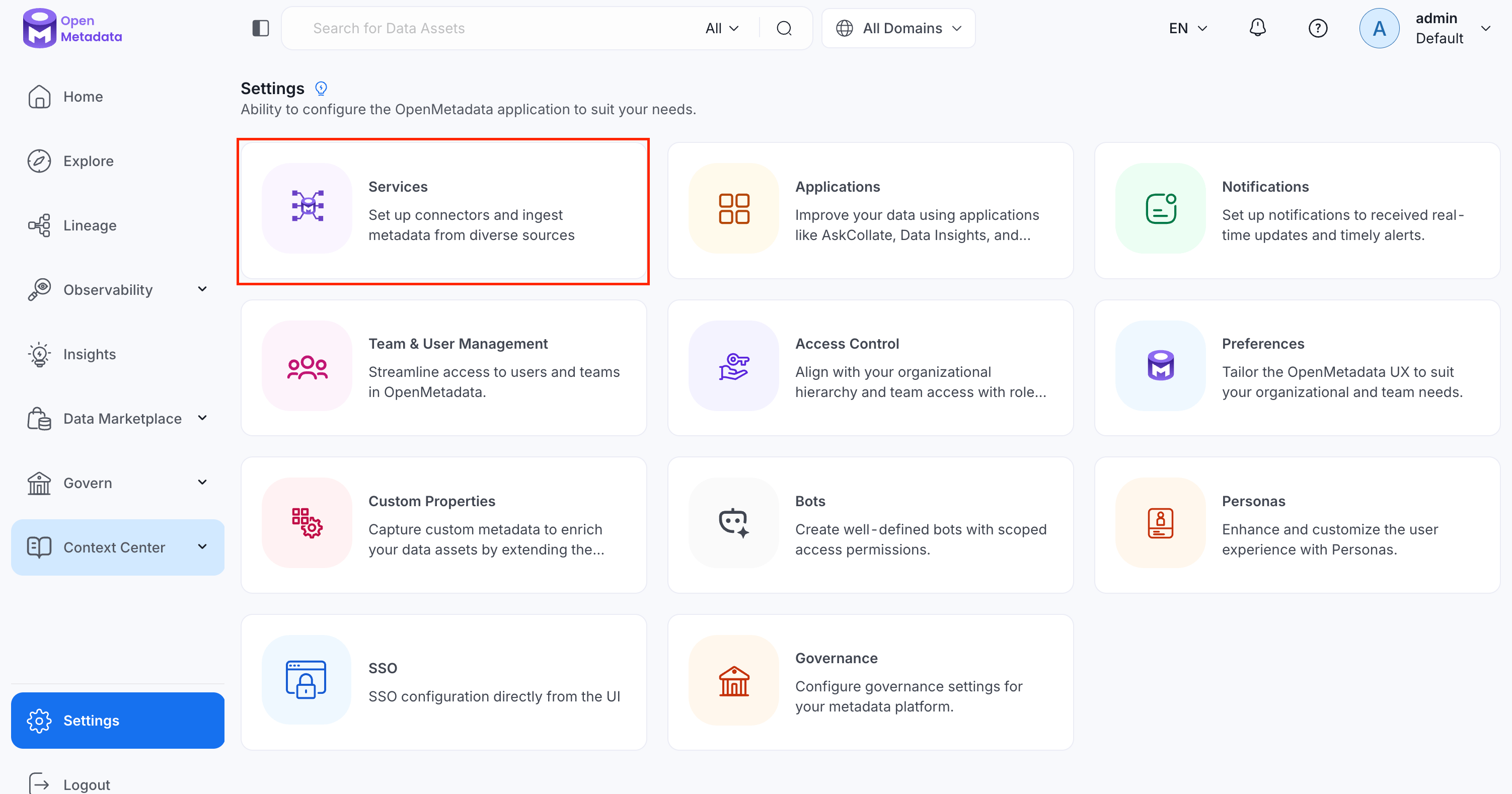
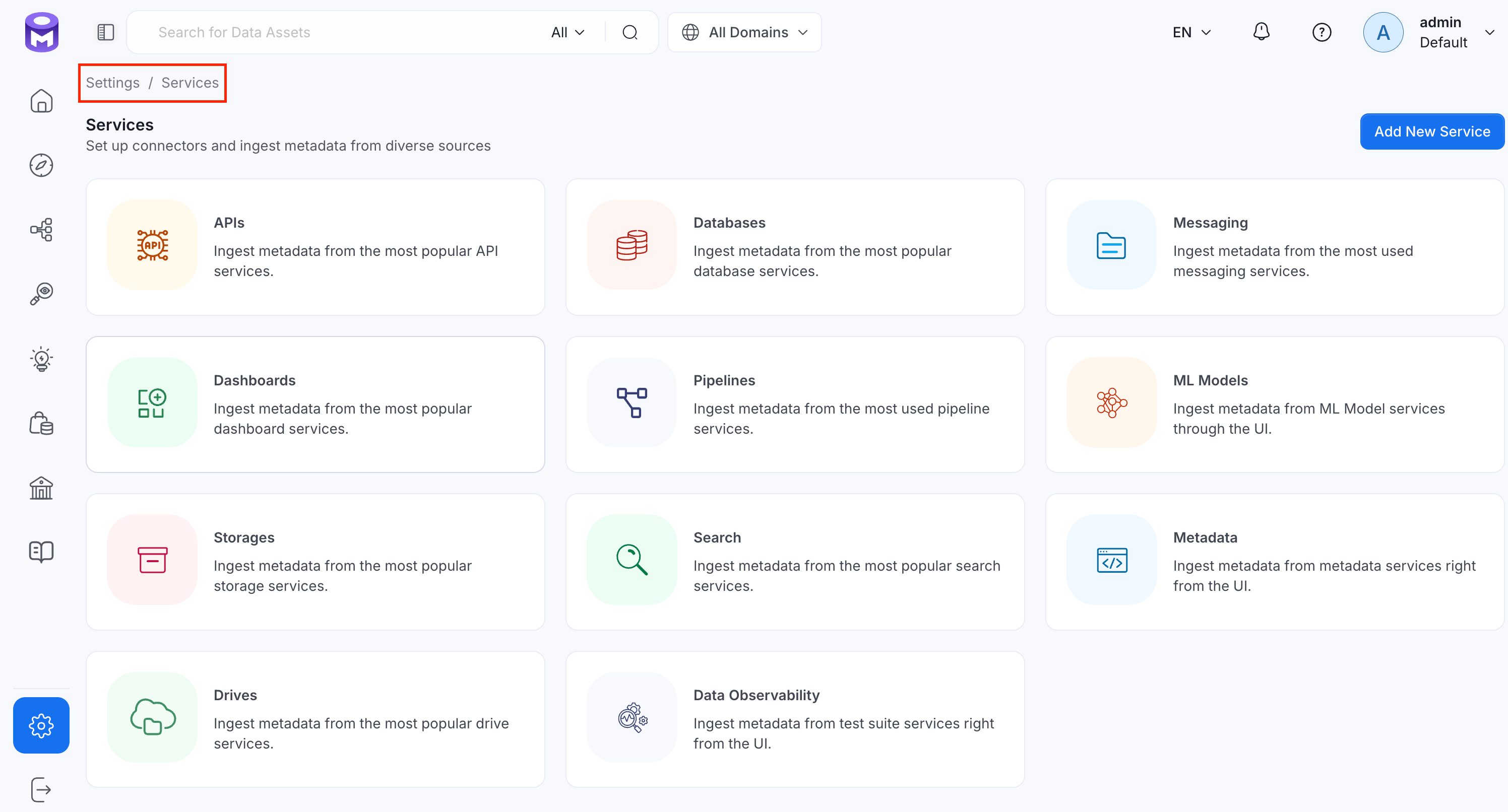
1. Navigate to **Settings** > **Services**.
#### 3. Configure Windows Firewall
If you are using SQL Server on Windows, you must configure the firewall on the computer running SQL Server to allow access.
1. On the Start menu, select Run, type WF.msc, and then select OK.
2. In the Windows Firewall with Advanced Security, in the left pane, right-click Inbound Rules, and then select New Rule in the action pane.
3. In the Rule Type dialog box, select Port, and then select Next.
4. In the Protocol and Ports dialog box, select TCP. Select Specific local ports, and then type the port number of the instance of the Database Engine, such as 1433 for the default instance. Select Next.
5. In the Action dialog box, select Allow the connection, and then select Next.
6. In the Profile dialog box, select any profiles that describe the computer connection environment when you want to connect to the Database Engine, and then select Next.
7. In the Name dialog box, type a name and description for this rule, and then select Finish.
For details, see this [link](https://docs.microsoft.com/en-us/sql/database-engine/configure-windows/configure-a-windows-firewall-for-database-engine-access?view=sql-server-ver15).
## Metadata Ingestion
To ingest metadata from MSSQL, you need to create a service connection. The service connects MSSQL with OpenMetadata. Once you create a service, OpenMetadata automatically starts ingesting metadata.
### Step 1: Add New Service
1. Navigate to **Settings** > **Services**.
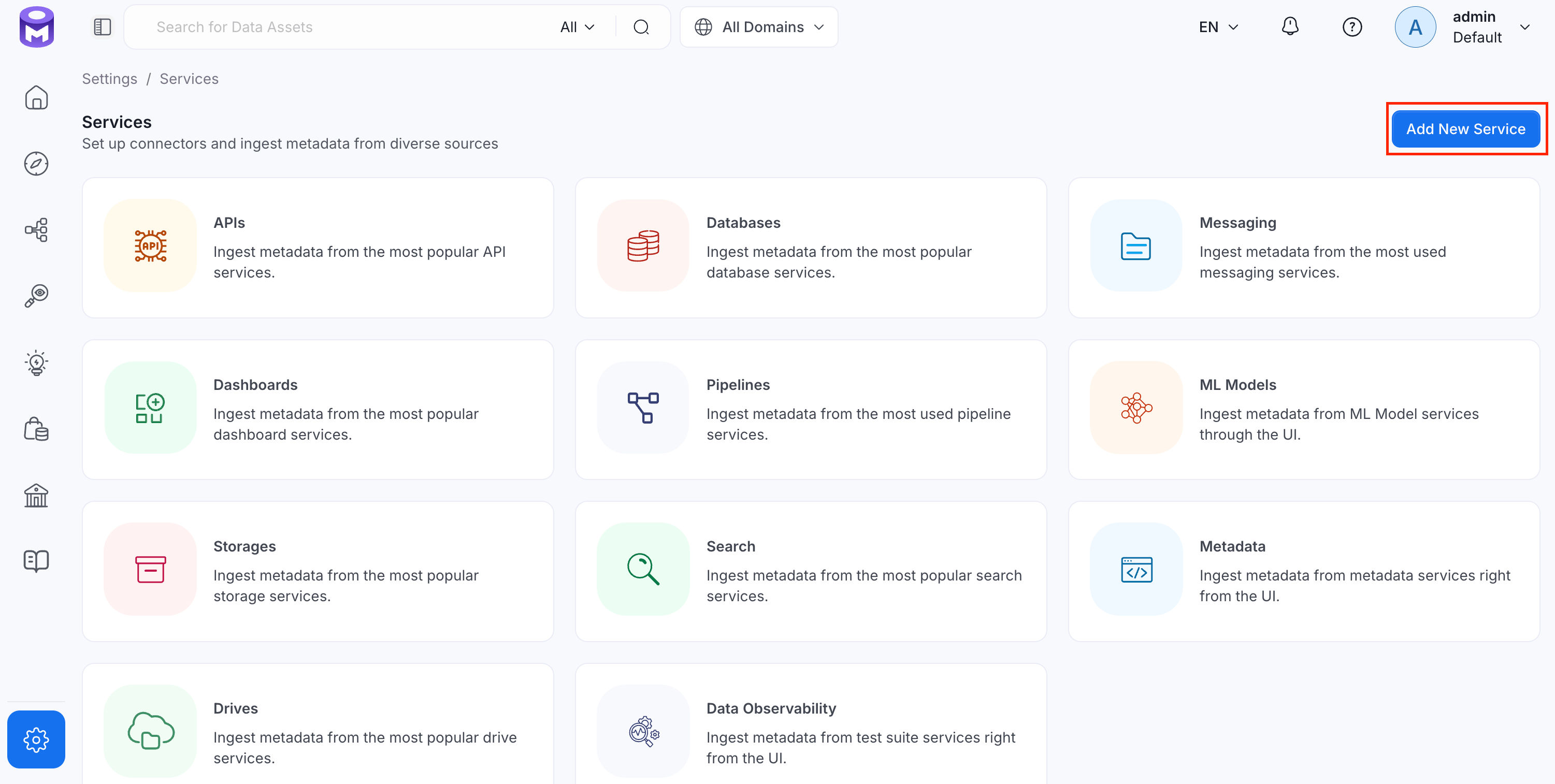
 2. Click **Add New Service**.
 ### Step 2: Select a Service and Connector
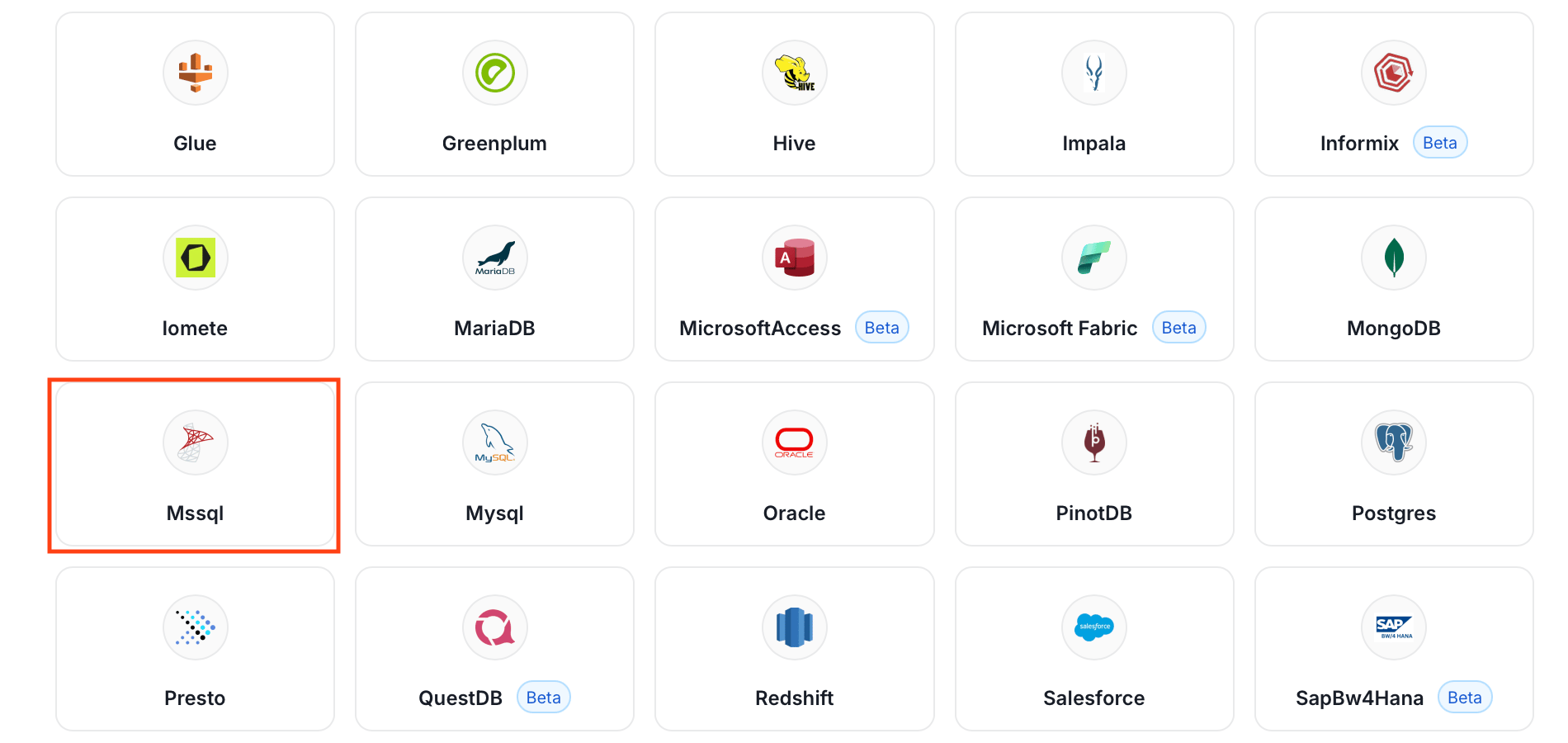
From the service type dropdown, select **Database Services**, then click the **MSSQL** connector tile.
### Step 2: Select a Service and Connector
From the service type dropdown, select **Database Services**, then click the **MSSQL** connector tile.
 ### Step 3: Add Service Name and Description
* Enter a unique, descriptive **Service Name**. OpenMetadata identifies services by their service name. Enter a name that distinguishes this deployment from other MSSQL services you are ingesting metadata from.
* Optional: Enter a **Description** for the service.
### Step 3: Add Service Name and Description
* Enter a unique, descriptive **Service Name**. OpenMetadata identifies services by their service name. Enter a name that distinguishes this deployment from other MSSQL services you are ingesting metadata from.
* Optional: Enter a **Description** for the service.

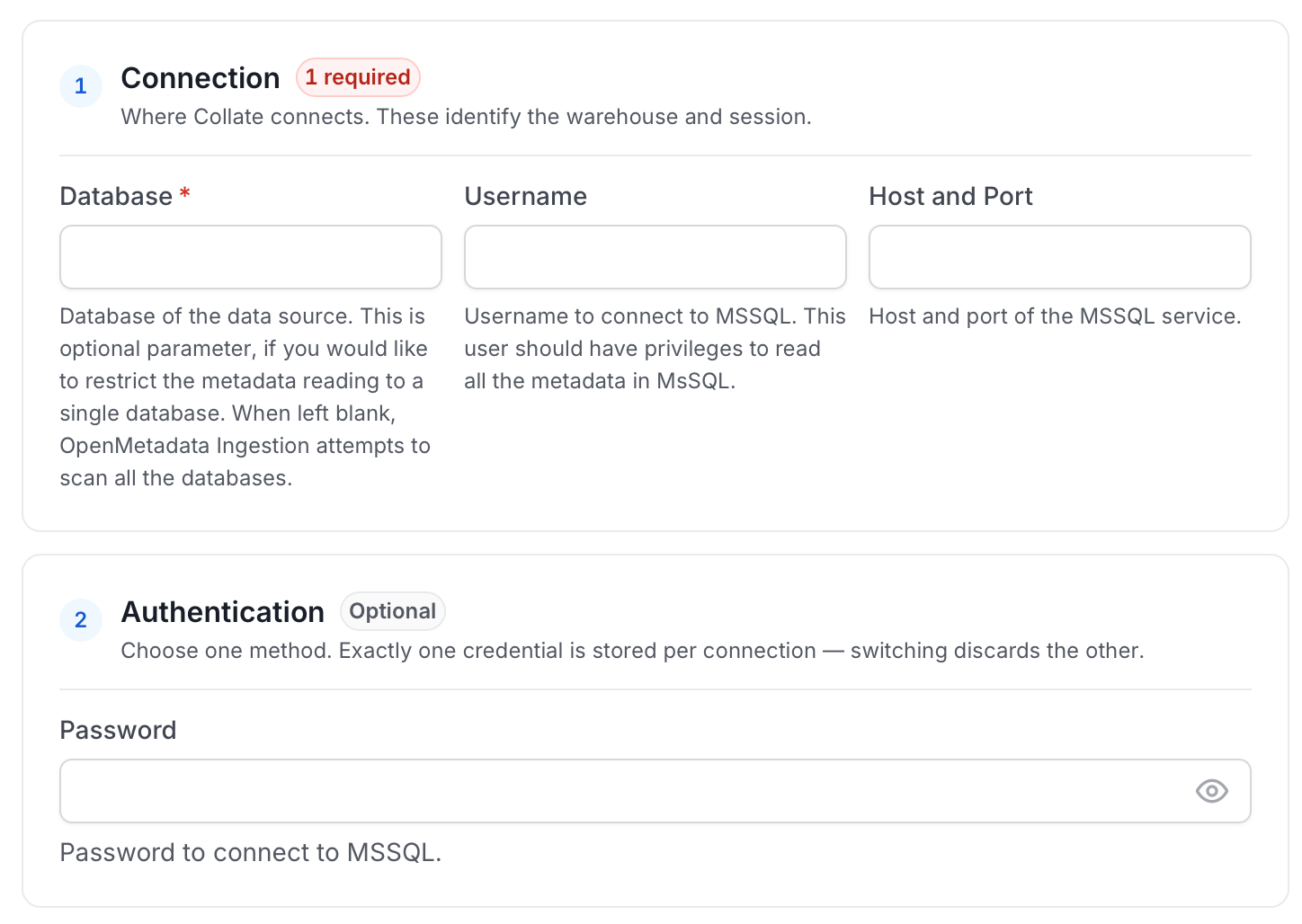 * **Connection Scheme**: Defines how to connect to MSSQL. OpenMetadata supports `mssql+pytds`, `mssql+pyodbc`, and `mssql+pymssql`. If you are using Windows Authentication from a Linux deployment, use `pymssql`.
* **Username**: Specify the User to connect to MSSQL. It should have enough privileges to read all the metadata.
* **Password**: Password to connect to MSSQL.
* **Host and Port**: Enter the fully qualified hostname and port number for your MSSQL deployment in the Host and Port field.
* **URI String**: In case of a `pyodbc` connection.
* **Database**: The initial database to establish a connection to the data source.
* **Ingest All Databases**: If you need to ingest multiple databases, aside from the initial one above, enable this option.
#### Advanced Configuration
Database Services have an Advanced Configuration section, where you can pass extra arguments to the connector and, if needed, change the connection scheme. This would only be required to handle advanced connectivity scenarios or customizations.
* **Connection Options (Optional)**: Enter the details for any additional connection options that can be sent to database during the connection. These details must be added as Key-Value pairs.
* **Connection Arguments (Optional)**: Enter the details for any additional connection arguments such as security or protocol configs that can be sent during the connection. These details must be added as Key-Value pairs.
#### Test Connection
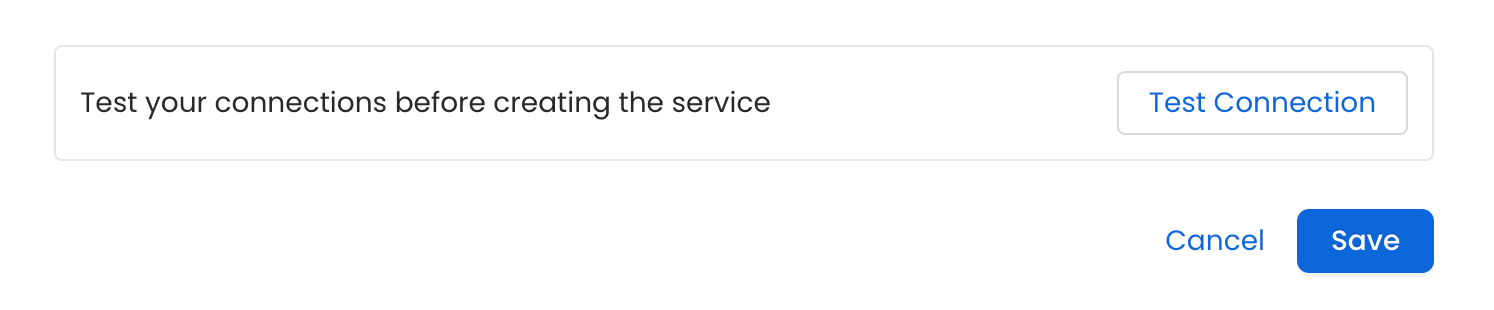
Once the credentials have been added, click on **Test Connection** and **Save** the changes.
* **Connection Scheme**: Defines how to connect to MSSQL. OpenMetadata supports `mssql+pytds`, `mssql+pyodbc`, and `mssql+pymssql`. If you are using Windows Authentication from a Linux deployment, use `pymssql`.
* **Username**: Specify the User to connect to MSSQL. It should have enough privileges to read all the metadata.
* **Password**: Password to connect to MSSQL.
* **Host and Port**: Enter the fully qualified hostname and port number for your MSSQL deployment in the Host and Port field.
* **URI String**: In case of a `pyodbc` connection.
* **Database**: The initial database to establish a connection to the data source.
* **Ingest All Databases**: If you need to ingest multiple databases, aside from the initial one above, enable this option.
#### Advanced Configuration
Database Services have an Advanced Configuration section, where you can pass extra arguments to the connector and, if needed, change the connection scheme. This would only be required to handle advanced connectivity scenarios or customizations.
* **Connection Options (Optional)**: Enter the details for any additional connection options that can be sent to database during the connection. These details must be added as Key-Value pairs.
* **Connection Arguments (Optional)**: Enter the details for any additional connection arguments such as security or protocol configs that can be sent during the connection. These details must be added as Key-Value pairs.
#### Test Connection
Once the credentials have been added, click on **Test Connection** and **Save** the changes.
 ### Step 5: Configure Ingestion Options
In the **What to Ingest** step, use filter patterns to control which assets OpenMetadata ingests from your database service. Filter patterns use regular expressions applied to asset names.
#### How Filter Patterns Work
* **Include**: Add one or more comma-separated regular expressions. OpenMetadata ingests only assets whose names match at least one expression. Leave blank to include all assets.
* **Exclude**: Add one or more comma-separated regular expressions. OpenMetadata skips any asset whose name matches an expression. Leave blank to exclude nothing.
Rules match asset names using one of five expressions:
* **contains**: matches any name containing the value. For example, `sales` matches `my_sales_data` and `sales_2024`.
* **starts with**: matches names beginning with the value. For example, `prod_` matches `prod_db` and `prod_schema`.
* **ends with**: matches names ending with the value. For example, `_raw` matches `events_raw` and `logs_raw`.
* **is exactly**: matches the exact name only. For example, `analytics` matches only `analytics`.
* **matches regex**: matches names using a regular expression. For example, `^prod_.*_v\d+$` matches `prod_events_v1`.
When both Include and Exclude are set, Exclude takes priority.
### Step 5: Configure Ingestion Options
In the **What to Ingest** step, use filter patterns to control which assets OpenMetadata ingests from your database service. Filter patterns use regular expressions applied to asset names.
#### How Filter Patterns Work
* **Include**: Add one or more comma-separated regular expressions. OpenMetadata ingests only assets whose names match at least one expression. Leave blank to include all assets.
* **Exclude**: Add one or more comma-separated regular expressions. OpenMetadata skips any asset whose name matches an expression. Leave blank to exclude nothing.
Rules match asset names using one of five expressions:
* **contains**: matches any name containing the value. For example, `sales` matches `my_sales_data` and `sales_2024`.
* **starts with**: matches names beginning with the value. For example, `prod_` matches `prod_db` and `prod_schema`.
* **ends with**: matches names ending with the value. For example, `_raw` matches `events_raw` and `logs_raw`.
* **is exactly**: matches the exact name only. For example, `analytics` matches only `analytics`.
* **matches regex**: matches names using a regular expression. For example, `^prod_.*_v\d+$` matches `prod_events_v1`.
When both Include and Exclude are set, Exclude takes priority.
 2. Click the service you have added.
3. Select the **Agents** tab and click **Add Agent** > **Metadata**.
2. Click the service you have added.
3. Select the **Agents** tab and click **Add Agent** > **Metadata**.
 For some services, the dropdown is not available and clicking **Add Agent** takes you directly to the agent configuration page.
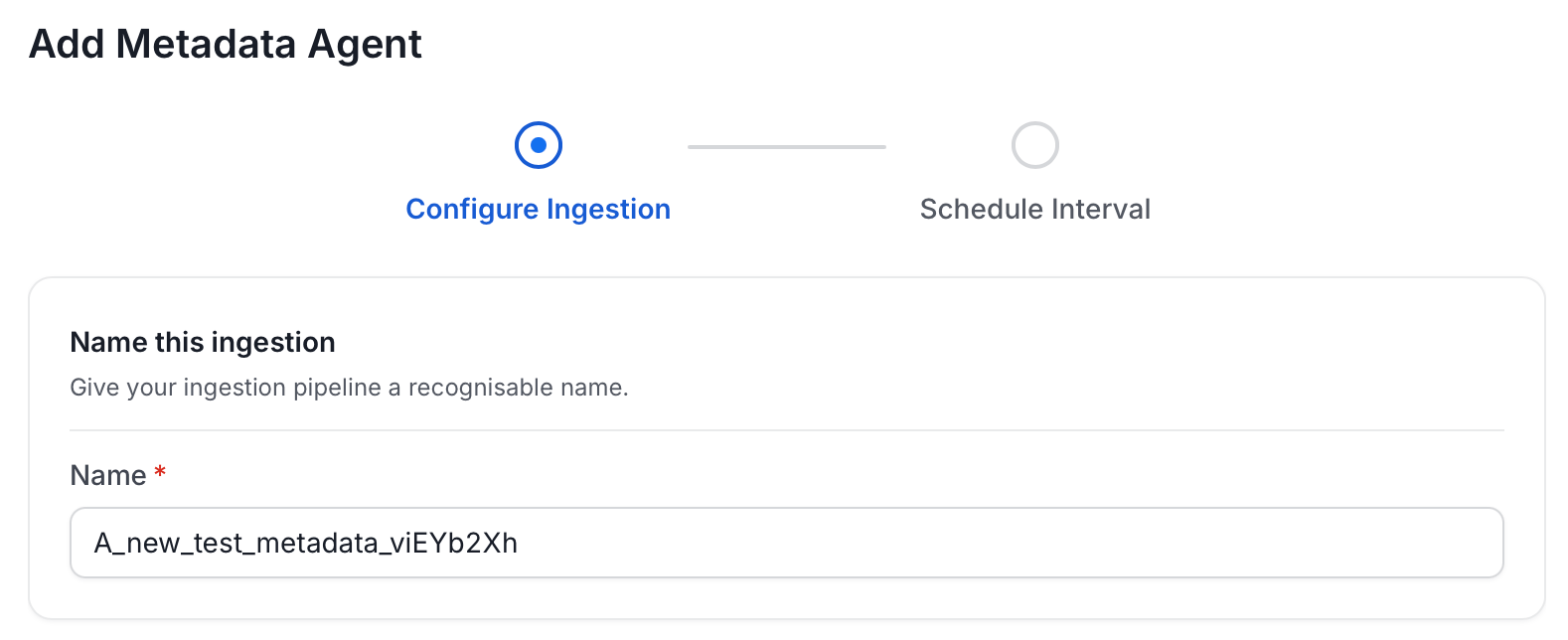
4. On the **Configure Ingestion** page, do the following and click **Next**.
* **Name this Ingestion**: Enter a unique recognizable name for this ingestion pipeline.
For some services, the dropdown is not available and clicking **Add Agent** takes you directly to the agent configuration page.
4. On the **Configure Ingestion** page, do the following and click **Next**.
* **Name this Ingestion**: Enter a unique recognizable name for this ingestion pipeline.
 * **Agent Setup**: Configure core parameters for metadata extraction. The following fields are available:
| Field | Default | Description |
| ------------------------------------- | ------- | ------------------------------------------------------------------------------------------------------------------------ |
| Default Owner | — | Owner applied to all entities when no specific level owner is configured. Accepts a user or team name/email. |
| Service Owner | — | Owner assigned to the service entity. |
| Database Owner | — | Owner assigned to all ingested databases. Accepts a single owner or a per-database name mapping. |
| Database Schema Owner | — | Owner assigned to all ingested schemas. Accepts a single owner or a per-schema name mapping. |
| Table Owner | — | Owner assigned to all ingested tables. Accepts a single owner or a per-table name mapping. |
| Enable Inheritance | On | When on, child entities inherit the owner from their parent when they have no owner configured. |
| Query Log Duration | 1 | Number of days to look back in query logs when processing stored procedure results. |
| Query Parsing Timeout Limit | 300 | Timeout in seconds for parsing a single query. |
| Number of Threads | 1 | Number of threads to use for parallel table ingestion. |
| Incremental Extraction | Off | When enabled, subsequent runs only extract entities changed since the last successful run. |
| Successful Pipeline Run Lookback Days | 7 | Number of days to search back for a prior successful run to use as a baseline for incremental extraction. |
| Safety Margin Days | 1 | Additional days added to the baseline timestamp as a buffer for incremental extraction. |
| JSON Schema Sample Size | 10 | Number of rows sampled to infer JSON column schema. Only applies when Extract JSON Schema is enabled in Advanced Config. |
* **Agent Setup**: Configure core parameters for metadata extraction. The following fields are available:
| Field | Default | Description |
| ------------------------------------- | ------- | ------------------------------------------------------------------------------------------------------------------------ |
| Default Owner | — | Owner applied to all entities when no specific level owner is configured. Accepts a user or team name/email. |
| Service Owner | — | Owner assigned to the service entity. |
| Database Owner | — | Owner assigned to all ingested databases. Accepts a single owner or a per-database name mapping. |
| Database Schema Owner | — | Owner assigned to all ingested schemas. Accepts a single owner or a per-schema name mapping. |
| Table Owner | — | Owner assigned to all ingested tables. Accepts a single owner or a per-table name mapping. |
| Enable Inheritance | On | When on, child entities inherit the owner from their parent when they have no owner configured. |
| Query Log Duration | 1 | Number of days to look back in query logs when processing stored procedure results. |
| Query Parsing Timeout Limit | 300 | Timeout in seconds for parsing a single query. |
| Number of Threads | 1 | Number of threads to use for parallel table ingestion. |
| Incremental Extraction | Off | When enabled, subsequent runs only extract entities changed since the last successful run. |
| Successful Pipeline Run Lookback Days | 7 | Number of days to search back for a prior successful run to use as a baseline for incremental extraction. |
| Safety Margin Days | 1 | Additional days added to the baseline timestamp as a buffer for incremental extraction. |
| JSON Schema Sample Size | 10 | Number of rows sampled to infer JSON column schema. Only applies when Extract JSON Schema is enabled in Advanced Config. |
 * **Filter Patterns**: Apply include or exclude rules to scope which databases, schemas, tables, and stored procedures this agent ingests. For more information about various filter options, see **Step 6: Configure Ingestion Options**.
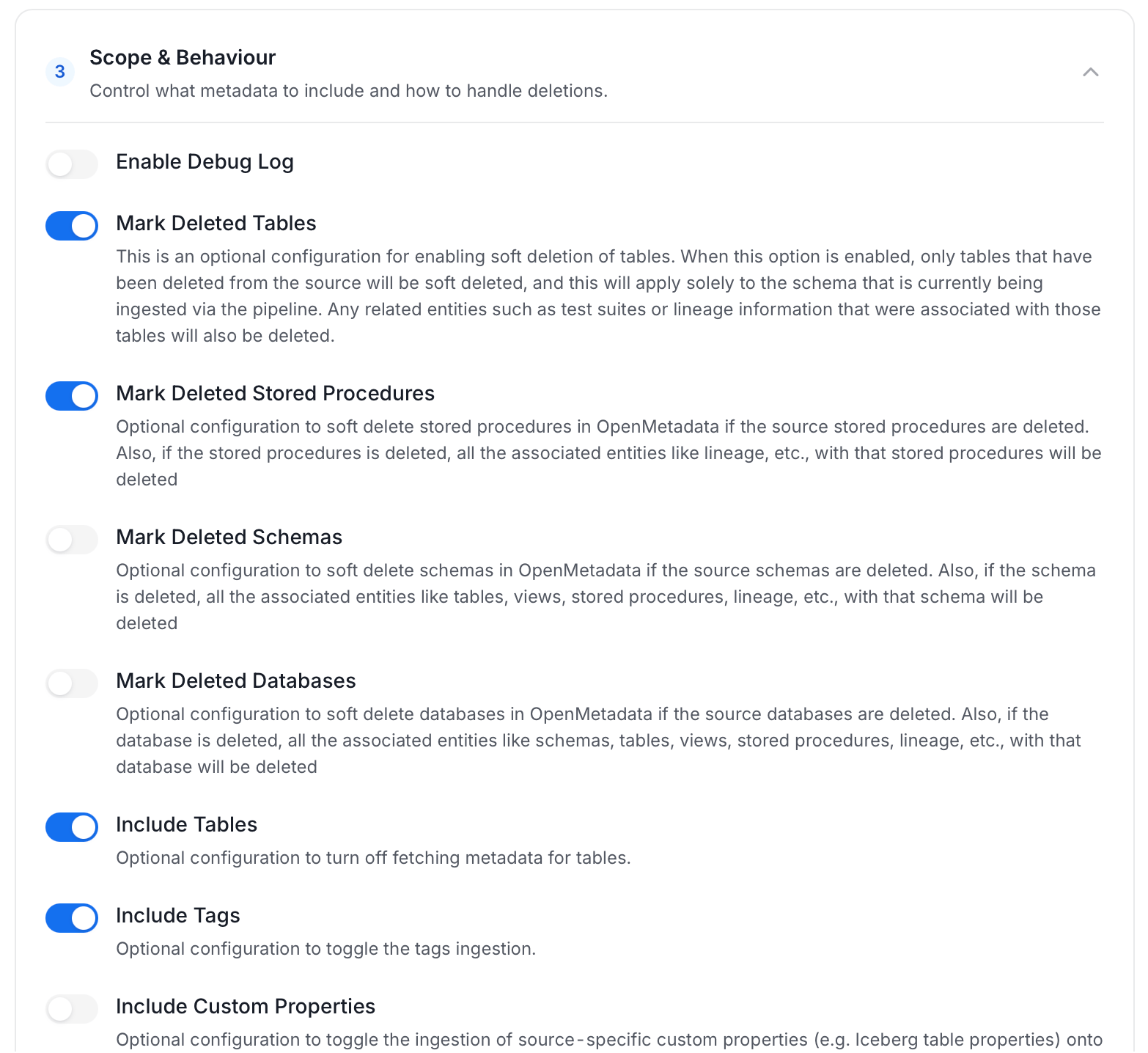
 * **Scope & Behaviour**: Control how the agent handles metadata during ingestion. Toggle each option on or off based on your needs:
| Toggle | Default | Description |
| ------------------------------ | ------- | -------------------------------------------------------------------------------------------------------------------------------------------------------------------------------- |
| Include Tables | On | Ingest table metadata from the source. Turn off to skip tables entirely. |
| Include Tags | On | Ingest tags from the source. |
| Include Stored Procedures | On | Ingest stored procedure metadata. |
| Include DDL Statements | Off | Ingest DDL statements alongside table metadata. |
| Include Owners | Off | Assign owners to ingested entities when the source owner's email matches a user in OpenMetadata. Does not overwrite an existing owner. |
| Include Custom Properties | Off | Ingest connector-specific custom properties onto entities. |
| Mark Deleted Tables | On | Soft-delete tables in OpenMetadata when they are removed from the source. Applies only within the currently ingested schema. |
| Mark Deleted Stored Procedures | On | Soft-delete stored procedures in OpenMetadata when they are removed from the source. |
| Mark Deleted Schemas | Off | Soft-delete schemas and all their child assets when removed from the source. |
| Mark Deleted Databases | Off | Soft-delete databases and all their child assets when removed from the source. |
| Override Metadata | Off | When on, source values overwrite existing descriptions, tags, owners, and display names in OpenMetadata. When off, OpenMetadata only updates fields that have no existing value. |
| Enable Debug Log | Off | Sets the ingestion log level to DEBUG. Useful for troubleshooting. |
* **Scope & Behaviour**: Control how the agent handles metadata during ingestion. Toggle each option on or off based on your needs:
| Toggle | Default | Description |
| ------------------------------ | ------- | -------------------------------------------------------------------------------------------------------------------------------------------------------------------------------- |
| Include Tables | On | Ingest table metadata from the source. Turn off to skip tables entirely. |
| Include Tags | On | Ingest tags from the source. |
| Include Stored Procedures | On | Ingest stored procedure metadata. |
| Include DDL Statements | Off | Ingest DDL statements alongside table metadata. |
| Include Owners | Off | Assign owners to ingested entities when the source owner's email matches a user in OpenMetadata. Does not overwrite an existing owner. |
| Include Custom Properties | Off | Ingest connector-specific custom properties onto entities. |
| Mark Deleted Tables | On | Soft-delete tables in OpenMetadata when they are removed from the source. Applies only within the currently ingested schema. |
| Mark Deleted Stored Procedures | On | Soft-delete stored procedures in OpenMetadata when they are removed from the source. |
| Mark Deleted Schemas | Off | Soft-delete schemas and all their child assets when removed from the source. |
| Mark Deleted Databases | Off | Soft-delete databases and all their child assets when removed from the source. |
| Override Metadata | Off | When on, source values overwrite existing descriptions, tags, owners, and display names in OpenMetadata. When off, OpenMetadata only updates fields that have no existing value. |
| Enable Debug Log | Off | Sets the ingestion log level to DEBUG. Useful for troubleshooting. |
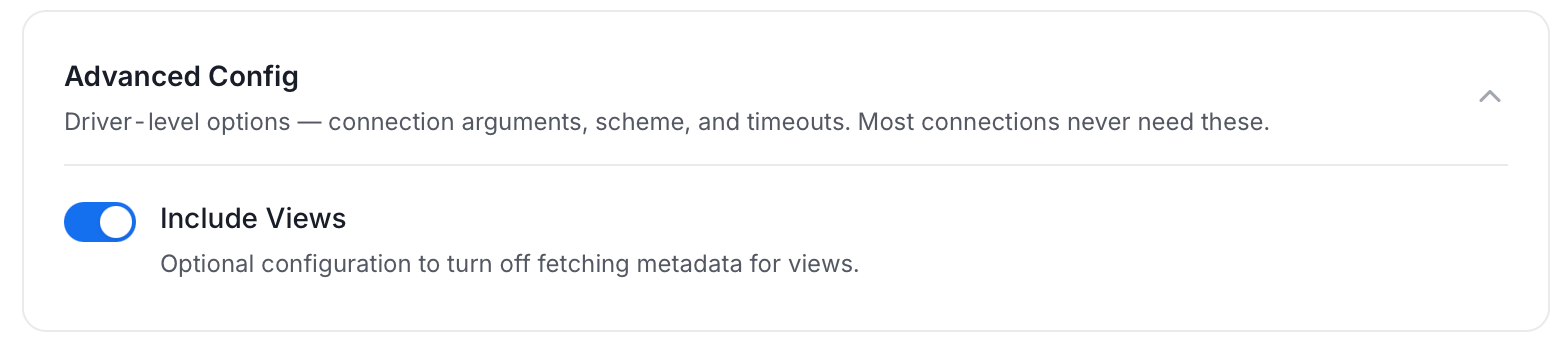
 * **Advanced Config**: Optional connector-specific settings such as Include Views and Extract JSON Schema.
 5. On the **Schedule Interval** page, set when the agent runs:
* **Schedule**: Choose a preset interval (Hourly, Daily, Weekly, Monthly) or enter a custom cron expression.
* **On-Demand**: No automatic schedule; trigger the agent manually when needed.
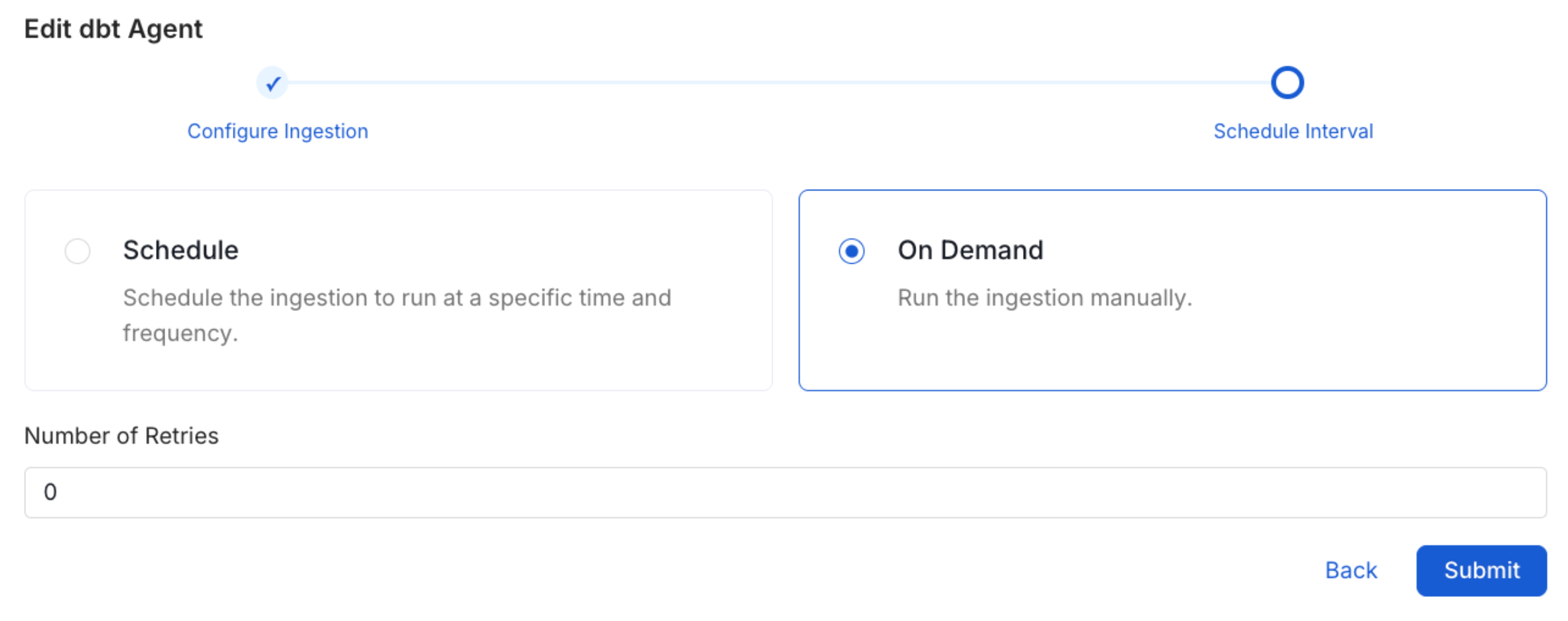
5. On the **Schedule Interval** page, set when the agent runs:
* **Schedule**: Choose a preset interval (Hourly, Daily, Weekly, Monthly) or enter a custom cron expression.
* **On-Demand**: No automatic schedule; trigger the agent manually when needed.
 6. Click **Add** to deploy the agent.
## Related
6. Click **Add** to deploy the agent.
## Related