{icon &&
 }
}
{name}
{stage}Feature List
{totalAvailableFeatures.map(feature =>
✓ {feature}
)}
{unavailableFeatures.map(feature =>
✕ {feature}
)}
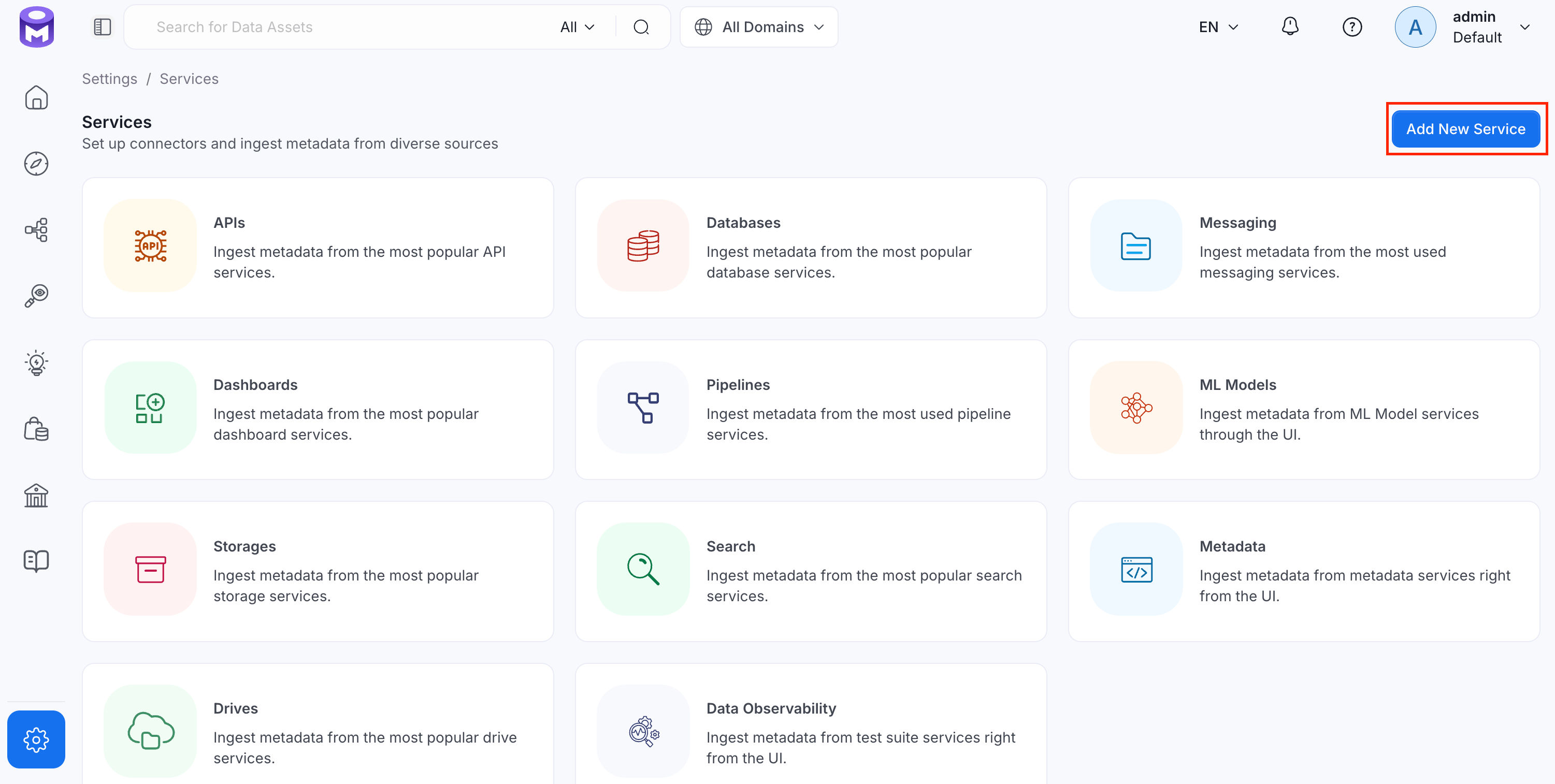
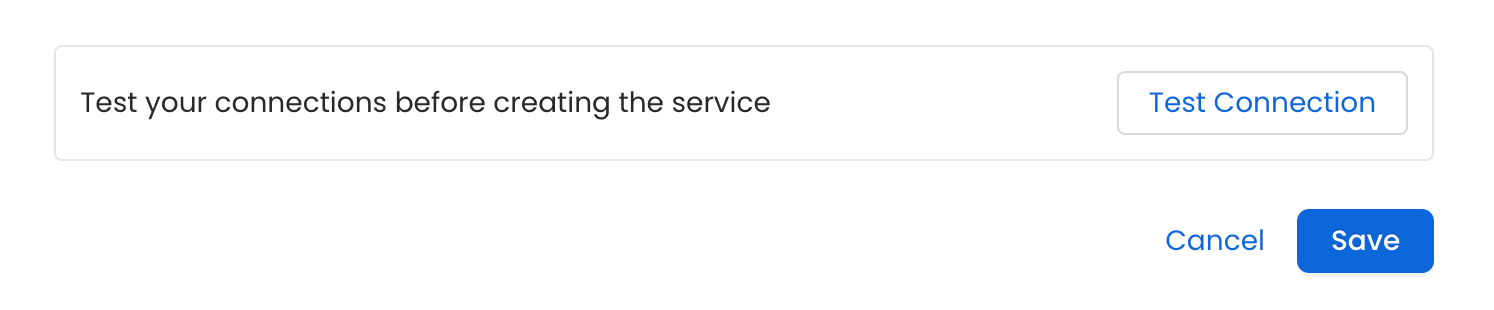
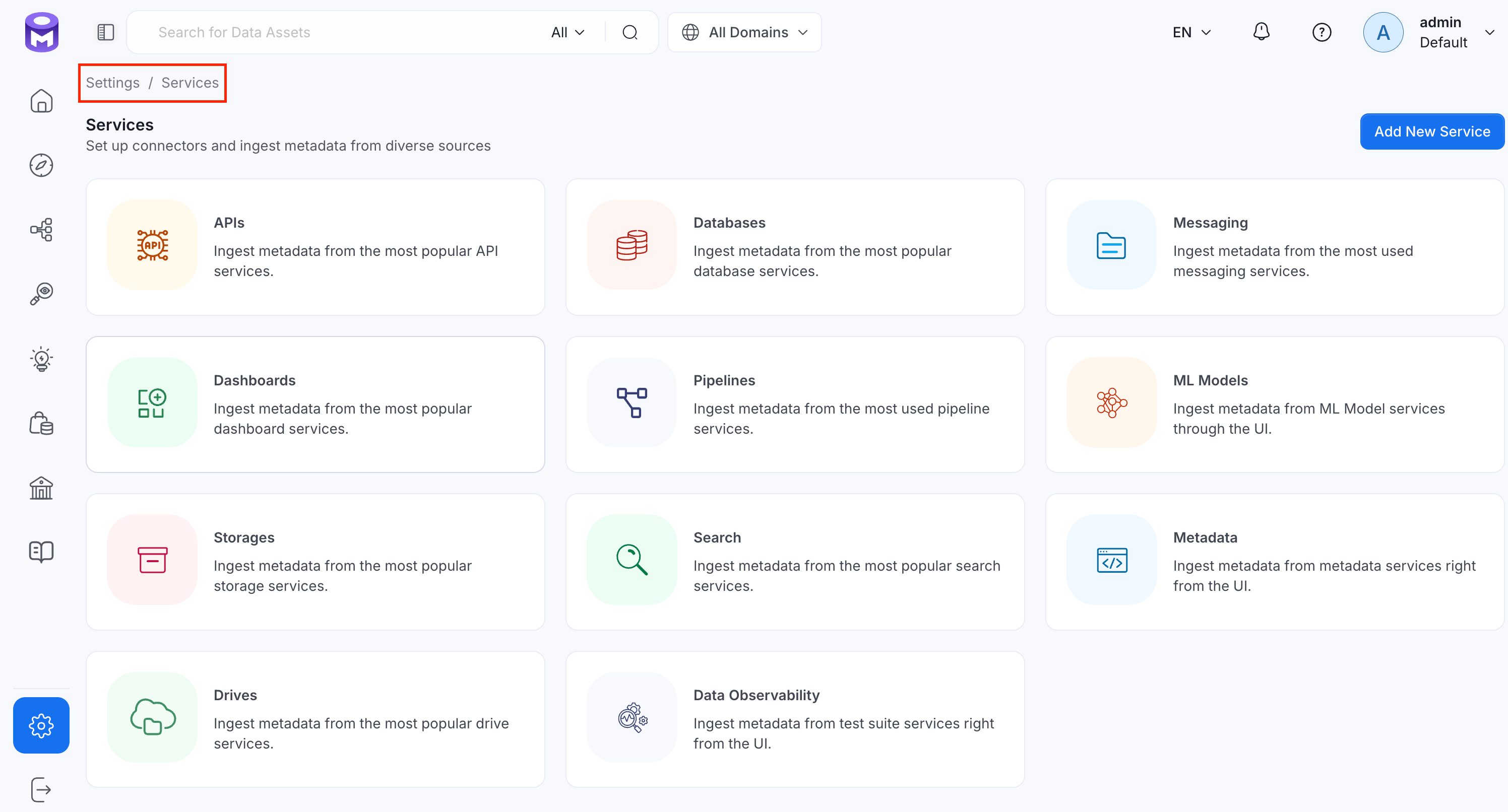
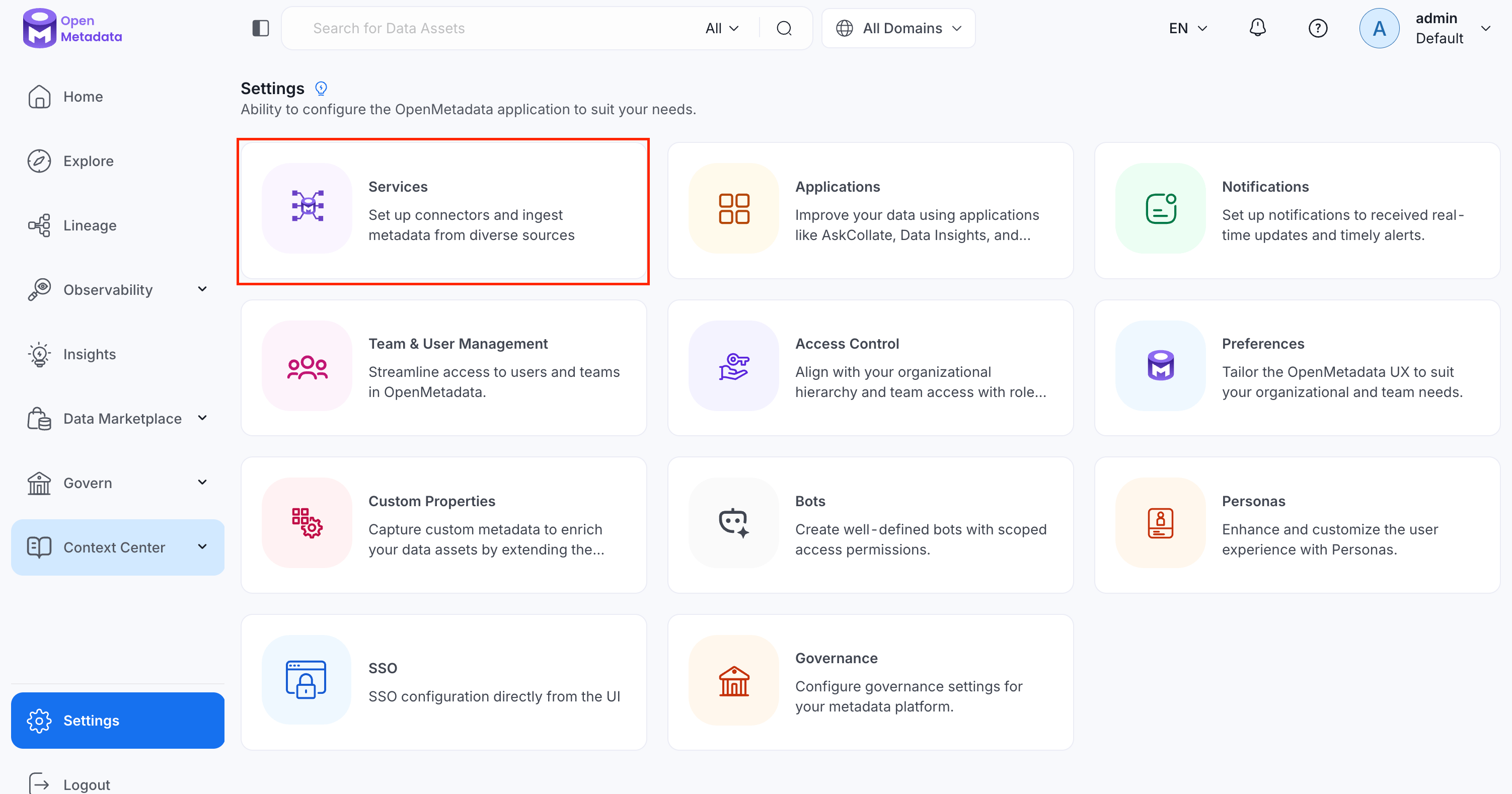 2. Click **Add New Service**.
 ### Step 2: Select a Service and Connector
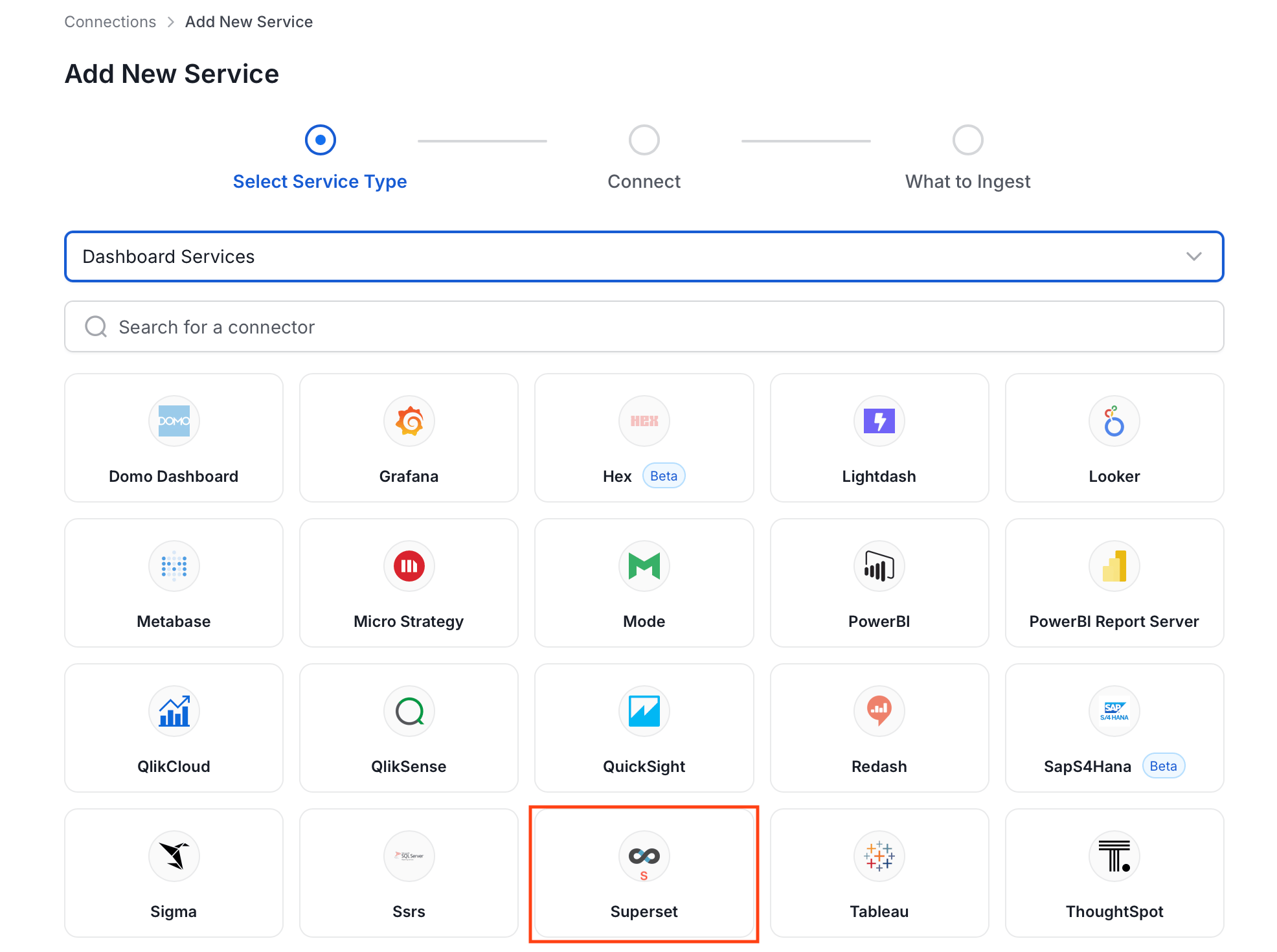
From the service type dropdown, select **Dashboard Services**, then click the **Superset** connector tile.
### Step 2: Select a Service and Connector
From the service type dropdown, select **Dashboard Services**, then click the **Superset** connector tile.
 ### Step 3: Add Service Name and Description
* Enter a unique, descriptive **Service Name**. OpenMetadata identifies services by their service name. Enter a name that distinguishes this deployment from other Superset services you are ingesting metadata from.
* Optional: Enter a **Description** for the service.
### Step 3: Add Service Name and Description
* Enter a unique, descriptive **Service Name**. OpenMetadata identifies services by their service name. Enter a name that distinguishes this deployment from other Superset services you are ingesting metadata from.
* Optional: Enter a **Description** for the service.

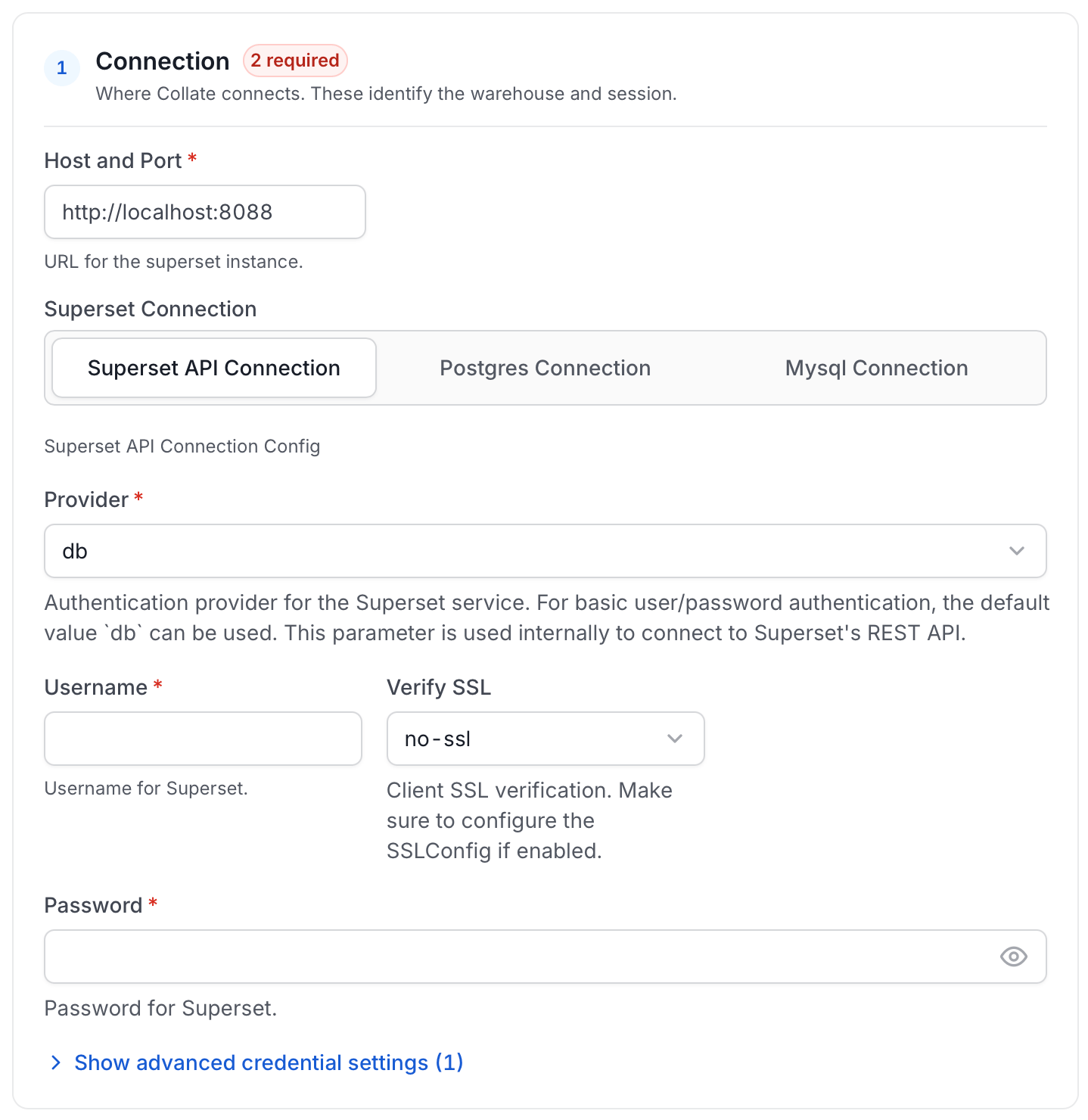 * **Host and Port**: The `Host and Port` parameter is common to all three authentication modes and specifies the host and port of the Superset instance. This should be specified as a string in the format `http://hostname:port` or `https://hostname:port`. For example, you might set the hostPort parameter to `https://org.superset.com:8088`.
* **Superset Connection**: Add the connection details to fetch metadata from Superset either through APIs or a database.
##### For Superset API Connection
Superset API connection is the default authentication mode. It fetches metadata using the [Superset APIs](https://superset.apache.org/docs/api/).
* **Host and Port**: The `Host and Port` parameter is common to all three authentication modes and specifies the host and port of the Superset instance. This should be specified as a string in the format `http://hostname:port` or `https://hostname:port`. For example, you might set the hostPort parameter to `https://org.superset.com:8088`.
* **Superset Connection**: Add the connection details to fetch metadata from Superset either through APIs or a database.
##### For Superset API Connection
Superset API connection is the default authentication mode. It fetches metadata using the [Superset APIs](https://superset.apache.org/docs/api/).
 ### Step 5: Configure Ingestion Options
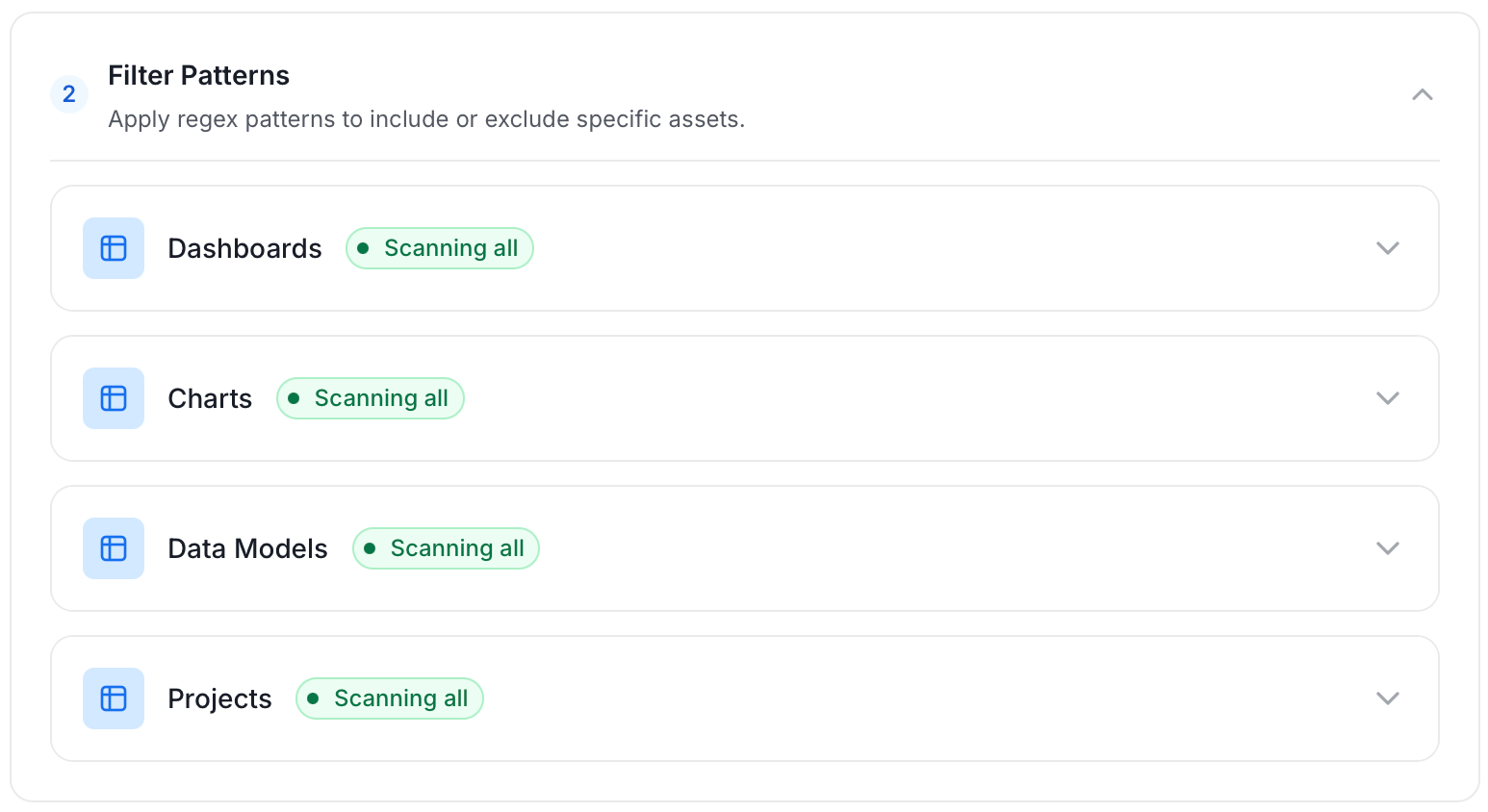
In the **What to Ingest** step, use filter patterns to control which assets OpenMetadata ingests from your dashboard service. Filter patterns use regular expressions applied to asset names.
#### How Filter Patterns Work
* **Include**: Add one or more comma-separated regular expressions. OpenMetadata ingests only assets whose names match at least one expression. Leave blank to include all assets.
* **Exclude**: Add one or more comma-separated regular expressions. OpenMetadata skips any asset whose name matches an expression. Leave blank to exclude nothing.
Rules match asset names using one of five expressions:
* **contains**: matches any name containing the value. For example, `sales` matches `my_sales_data` and `sales_2024`.
* **starts with**: matches names beginning with the value. For example, `prod_` matches `prod_db` and `prod_schema`.
* **ends with**: matches names ending with the value. For example, `_raw` matches `events_raw` and `logs_raw`.
* **is exactly**: matches the exact name only. For example, `analytics` matches only `analytics`.
* **matches regex**: matches names using a regular expression. For example, `^prod_.*_v\d+$` matches `prod_events_v1`.
When both Include and Exclude are set, Exclude takes priority.
### Step 5: Configure Ingestion Options
In the **What to Ingest** step, use filter patterns to control which assets OpenMetadata ingests from your dashboard service. Filter patterns use regular expressions applied to asset names.
#### How Filter Patterns Work
* **Include**: Add one or more comma-separated regular expressions. OpenMetadata ingests only assets whose names match at least one expression. Leave blank to include all assets.
* **Exclude**: Add one or more comma-separated regular expressions. OpenMetadata skips any asset whose name matches an expression. Leave blank to exclude nothing.
Rules match asset names using one of five expressions:
* **contains**: matches any name containing the value. For example, `sales` matches `my_sales_data` and `sales_2024`.
* **starts with**: matches names beginning with the value. For example, `prod_` matches `prod_db` and `prod_schema`.
* **ends with**: matches names ending with the value. For example, `_raw` matches `events_raw` and `logs_raw`.
* **is exactly**: matches the exact name only. For example, `analytics` matches only `analytics`.
* **matches regex**: matches names using a regular expression. For example, `^prod_.*_v\d+$` matches `prod_events_v1`.
When both Include and Exclude are set, Exclude takes priority.
 2. Click the service you have added.
3. Select the **Agents** tab and click **Add Agent** > **Metadata**.
2. Click the service you have added.
3. Select the **Agents** tab and click **Add Agent** > **Metadata**.
 For some services, the dropdown is not available and clicking **Add Agent** takes you directly to the agent configuration page.
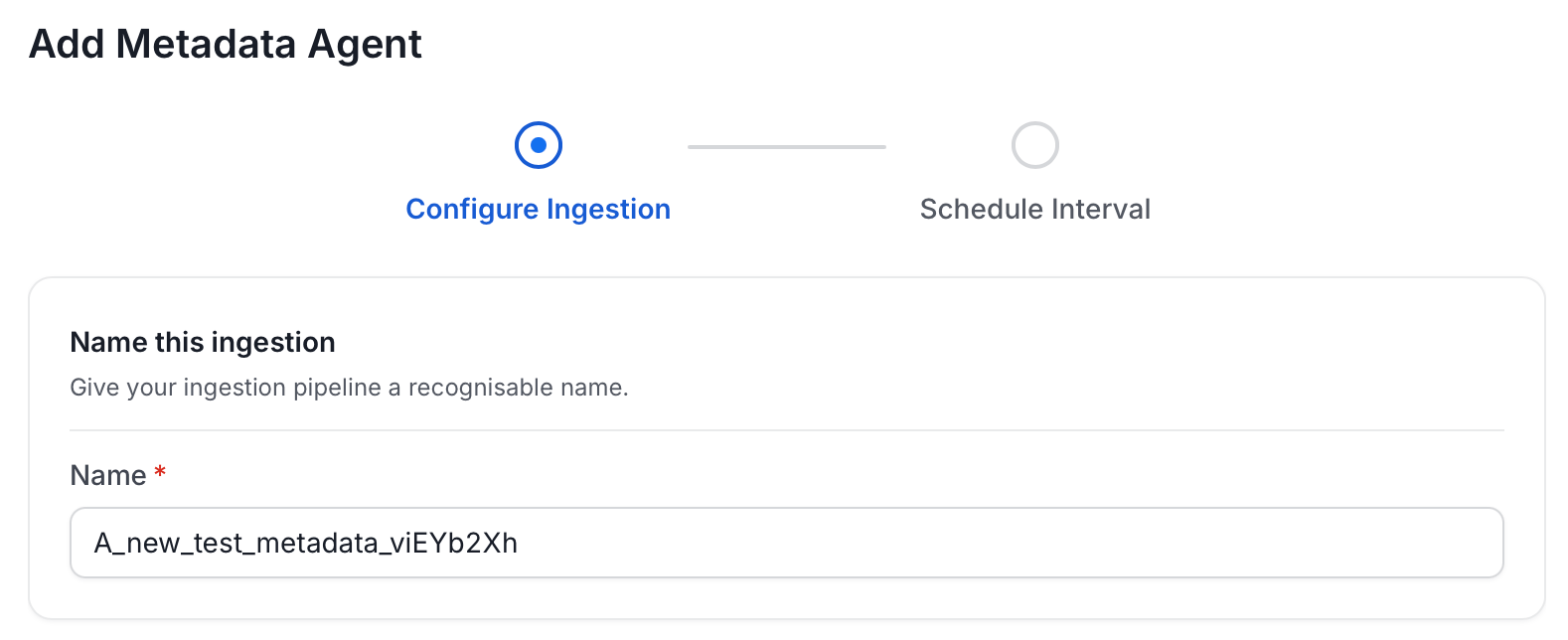
4. On the **Configure Ingestion** page, do the following and click **Next**.
* **Name this Ingestion**: Enter a unique recognizable name for this ingestion pipeline.
For some services, the dropdown is not available and clicking **Add Agent** takes you directly to the agent configuration page.
4. On the **Configure Ingestion** page, do the following and click **Next**.
* **Name this Ingestion**: Enter a unique recognizable name for this ingestion pipeline.
 * **Agent Setup**: Configure ingestion parameters. The following fields are available:
| Field | Default | Description |
| ------------------------ | ------- | ------------------------------------------------------------------------------------------------------------------------------------------------------------------------------------------------------------------------------------------------------------------------------------------------------------------------------------------------------ |
| Db Service Prefixes | — | List of database service name prefixes used to resolve lineage between dashboards and database assets. Accepted formats: `DBService`, `DBService.Database`, `DBService.Database.Schema`, `DBService.Database.Schema.Table`. |
| Query Parser Type | Auto | Select the SQL parser used for lineage extraction from dashboard queries. **Auto** selects the best available parser automatically. **SqlGlot** is a high-performance parser with excellent dialect support; falls back to SqlParse on failure. **SqlFluff** is a comprehensive parser with strong dialect support; falls back to SqlParse on failure. |
| Mark Deleted Dashboards | On | Soft-delete dashboards in OpenMetadata when they are removed from the source. Associated lineage is also deleted. |
| Mark Deleted Data Models | On | Soft-delete data models in OpenMetadata when they are removed from the source. Associated lineage is also deleted. |
| Mark Deleted Charts | On | Soft-delete charts in OpenMetadata when they are removed from the source. |
| Include Data Models | On | Ingest data model metadata. |
| Include Draft Dashboards | On | Ingest dashboards that are in draft state. |
| Include Usage | On | Collect and ingest usage statistics for dashboards. |
* **Agent Setup**: Configure ingestion parameters. The following fields are available:
| Field | Default | Description |
| ------------------------ | ------- | ------------------------------------------------------------------------------------------------------------------------------------------------------------------------------------------------------------------------------------------------------------------------------------------------------------------------------------------------------ |
| Db Service Prefixes | — | List of database service name prefixes used to resolve lineage between dashboards and database assets. Accepted formats: `DBService`, `DBService.Database`, `DBService.Database.Schema`, `DBService.Database.Schema.Table`. |
| Query Parser Type | Auto | Select the SQL parser used for lineage extraction from dashboard queries. **Auto** selects the best available parser automatically. **SqlGlot** is a high-performance parser with excellent dialect support; falls back to SqlParse on failure. **SqlFluff** is a comprehensive parser with strong dialect support; falls back to SqlParse on failure. |
| Mark Deleted Dashboards | On | Soft-delete dashboards in OpenMetadata when they are removed from the source. Associated lineage is also deleted. |
| Mark Deleted Data Models | On | Soft-delete data models in OpenMetadata when they are removed from the source. Associated lineage is also deleted. |
| Mark Deleted Charts | On | Soft-delete charts in OpenMetadata when they are removed from the source. |
| Include Data Models | On | Ingest data model metadata. |
| Include Draft Dashboards | On | Ingest dashboards that are in draft state. |
| Include Usage | On | Collect and ingest usage statistics for dashboards. |
 * **Filter Patterns**: Apply include or exclude rules to scope which dashboards, charts, data models, and projects this agent ingests. These follow the same filter options described in **Step 5: Configure Ingestion Options**.
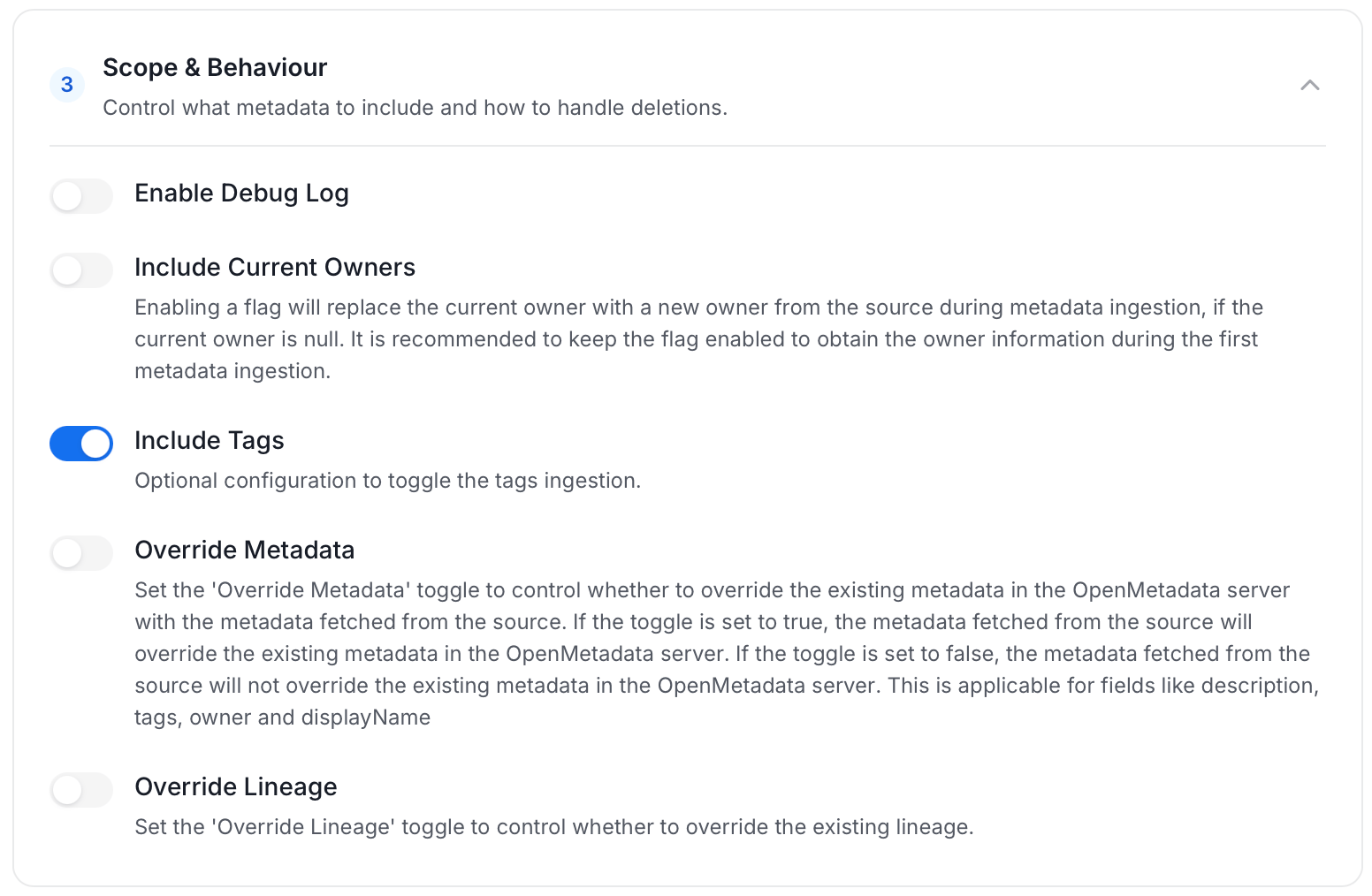
 * **Scope & Behaviour**: Control what metadata to include and how to handle deletions. Toggle each option on or off based on your needs:
| Toggle | Default | Description |
| ---------------------- | ------- | ----------------------------------------------------------------------------------------------------------------------------------------------------------------------------------------------------- |
| Enable Debug Log | Off | Sets the ingestion log level to DEBUG. Useful for troubleshooting. |
| Include Current Owners | Off | When enabled, replaces the current owner with a new owner from the source if the current owner is null. Recommended to keep enabled during the first metadata ingestion to capture owner information. |
| Include Tags | On | Ingest tags from the source. |
| Override Metadata | Off | When on, source values overwrite existing descriptions, tags, owners, and display names in OpenMetadata. When off, OpenMetadata only updates fields that have no existing value. |
| Override Lineage | Off | When on, existing lineage is replaced with newly extracted lineage on each run. |
* **Scope & Behaviour**: Control what metadata to include and how to handle deletions. Toggle each option on or off based on your needs:
| Toggle | Default | Description |
| ---------------------- | ------- | ----------------------------------------------------------------------------------------------------------------------------------------------------------------------------------------------------- |
| Enable Debug Log | Off | Sets the ingestion log level to DEBUG. Useful for troubleshooting. |
| Include Current Owners | Off | When enabled, replaces the current owner with a new owner from the source if the current owner is null. Recommended to keep enabled during the first metadata ingestion to capture owner information. |
| Include Tags | On | Ingest tags from the source. |
| Override Metadata | Off | When on, source values overwrite existing descriptions, tags, owners, and display names in OpenMetadata. When off, OpenMetadata only updates fields that have no existing value. |
| Override Lineage | Off | When on, existing lineage is replaced with newly extracted lineage on each run. |
 5. On the **Schedule Interval** page, set when the agent runs:
* **Schedule**: Choose a preset interval (Hourly, Daily, Weekly, Monthly) or enter a custom cron expression.
* **On-Demand**: No automatic schedule; trigger the agent manually when needed.
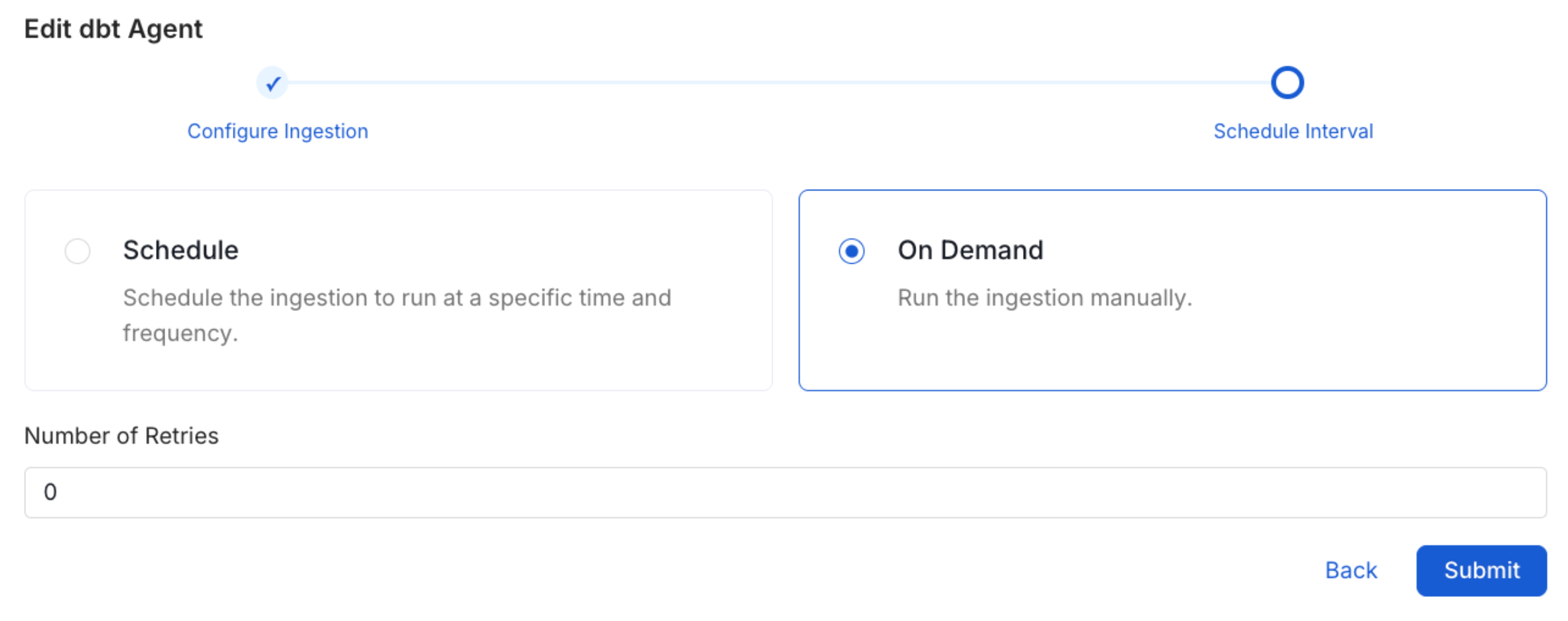
5. On the **Schedule Interval** page, set when the agent runs:
* **Schedule**: Choose a preset interval (Hourly, Daily, Weekly, Monthly) or enter a custom cron expression.
* **On-Demand**: No automatic schedule; trigger the agent manually when needed.
 6. Click **Add** to deploy the agent.
## Lineage
Lineage in OpenMetadata shows you which database tables power each dashboard. When lineage is set up, you can trace any dashboard back to the exact source tables in your database.
There is no separate lineage agent or lineage pipeline—lineage is collected as part of the same metadata ingestion workflow. Configuring the **Db Service Prefixes** field (covered below) is optional but recommended — it restricts table matching to specific database services. If left blank, OpenMetadata attempts to match source tables across all ingested database services.
6. Click **Add** to deploy the agent.
## Lineage
Lineage in OpenMetadata shows you which database tables power each dashboard. When lineage is set up, you can trace any dashboard back to the exact source tables in your database.
There is no separate lineage agent or lineage pipeline—lineage is collected as part of the same metadata ingestion workflow. Configuring the **Db Service Prefixes** field (covered below) is optional but recommended — it restricts table matching to specific database services. If left blank, OpenMetadata attempts to match source tables across all ingested database services.
 ### How to Set Up Lineage
1. Go to **Settings** > **Services** > **Dashboards**.
2. Click the dashboard service you've added.
3. Go to the **Agents** tab, then select **Add Agent** > **Add Metadata Agent**.
If a metadata agent already exists, select the three-dot context menu (⋮) next to it and select **Edit**.
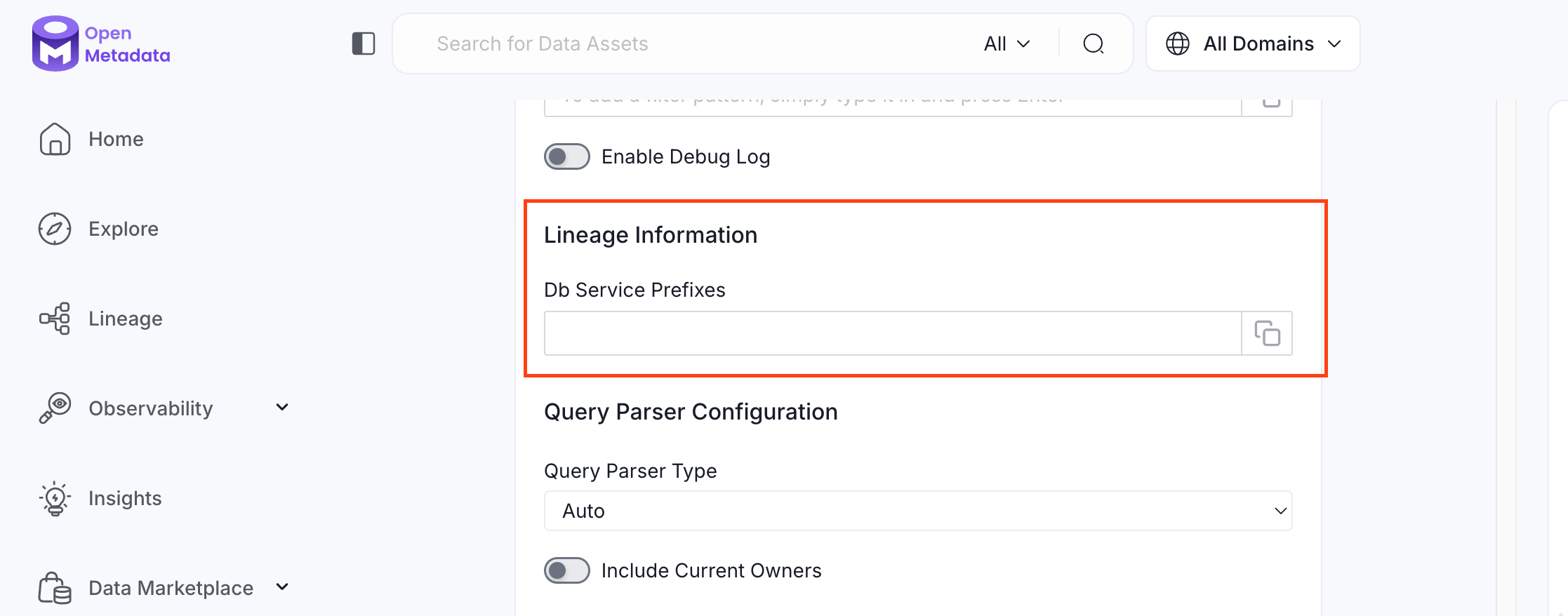
4. In the **Configure Ingestion** step, scroll down to the **Lineage Information** section.
5. Optionally enter one or more database service names in the **Db Service Prefixes** field to restrict table matching to specific services. If left blank, OpenMetadata searches across all ingested database services.
The **Db Service Prefixes** field helps OpenMetadata locate the source tables and draw the lineage path from table to dashboard.
**Examples of valid entries:**
| What you enter | What it matches |
| ------------------------------- | --------------------------------------------------------- |
| `SnowflakeProd` | All tables in the Snowflake service named `SnowflakeProd` |
| `SnowflakeProd.sales_db` | Tables in the `sales_db` database within `SnowflakeProd` |
| `SnowflakeProd.sales_db.public` | Tables in the `public` schema within `sales_db` |
### How to Set Up Lineage
1. Go to **Settings** > **Services** > **Dashboards**.
2. Click the dashboard service you've added.
3. Go to the **Agents** tab, then select **Add Agent** > **Add Metadata Agent**.
If a metadata agent already exists, select the three-dot context menu (⋮) next to it and select **Edit**.
4. In the **Configure Ingestion** step, scroll down to the **Lineage Information** section.
5. Optionally enter one or more database service names in the **Db Service Prefixes** field to restrict table matching to specific services. If left blank, OpenMetadata searches across all ingested database services.
The **Db Service Prefixes** field helps OpenMetadata locate the source tables and draw the lineage path from table to dashboard.
**Examples of valid entries:**
| What you enter | What it matches |
| ------------------------------- | --------------------------------------------------------- |
| `SnowflakeProd` | All tables in the Snowflake service named `SnowflakeProd` |
| `SnowflakeProd.sales_db` | Tables in the `sales_db` database within `SnowflakeProd` |
| `SnowflakeProd.sales_db.public` | Tables in the `public` schema within `sales_db` |
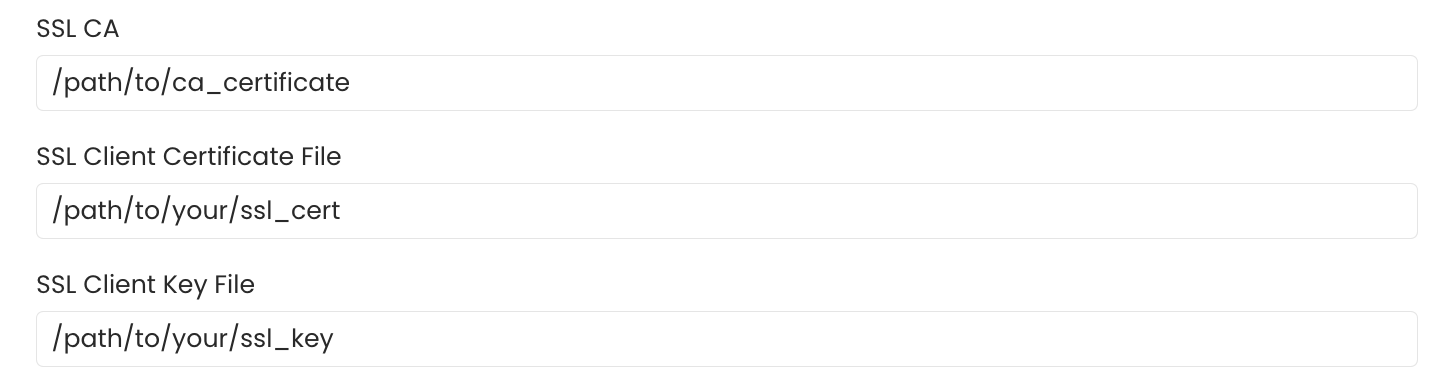
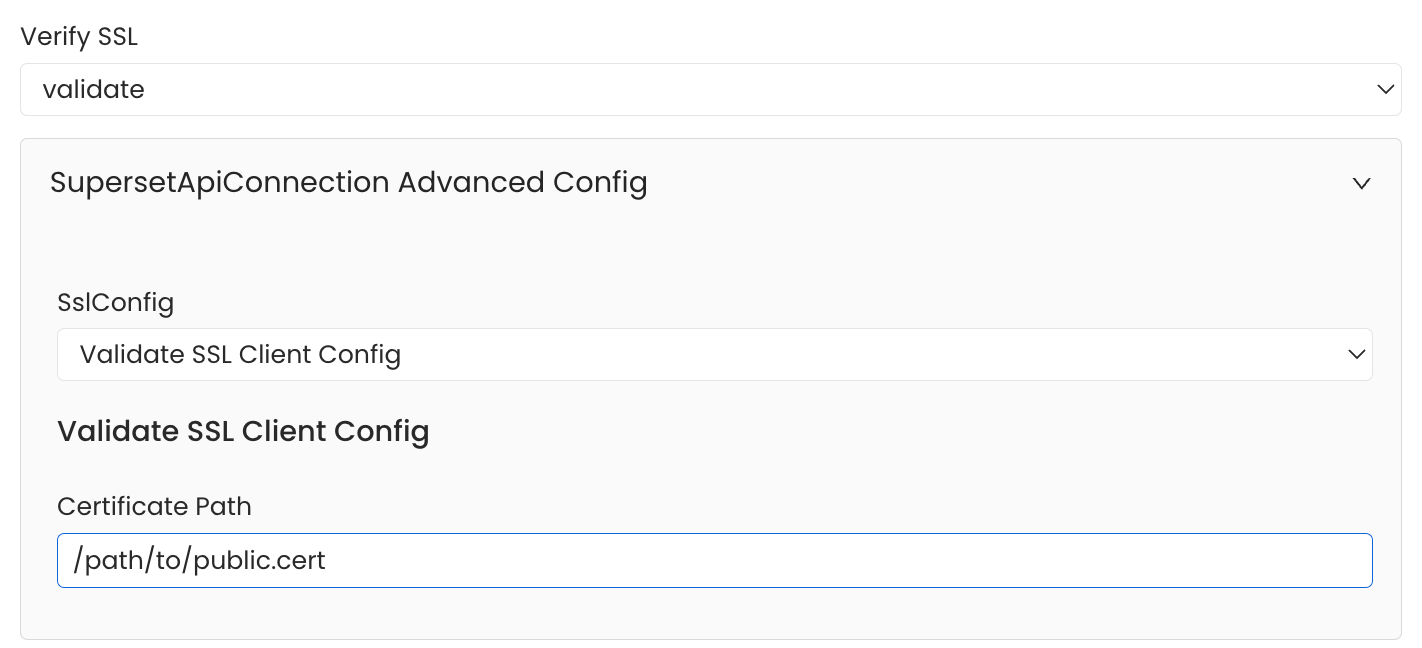 2. To establish secure connections between OpenMetadata and Superset's MySQL database, configure SSL certificates appropriately. If you only require SSL validation, specify the `caCertificate` to use the CA certificate for validating the server's certificate. For mutual authentication, where both client and server need to authenticate each other, provide all three parameters: `ssl_key` for the client's private key, `ssl_cert` for the client's SSL certificate, and `ssl_ca` for the CA certificate to validate the server's certificate.
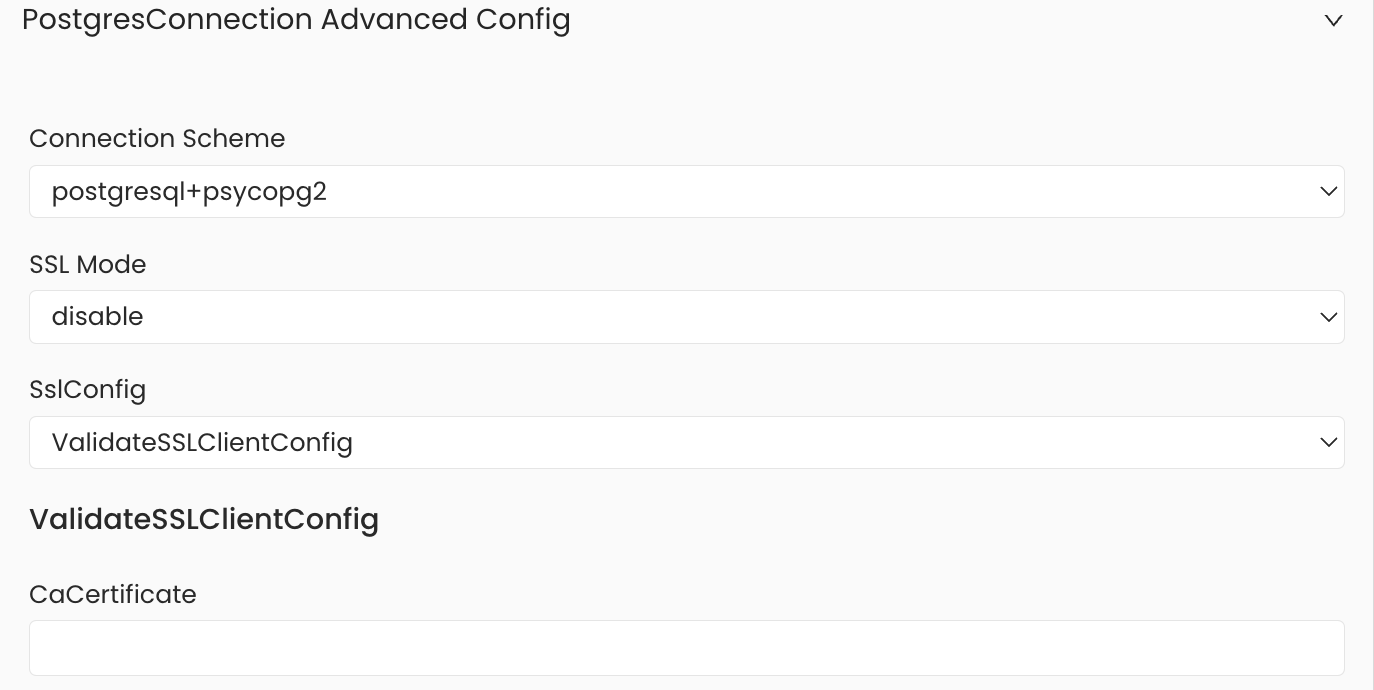
 3. To establish secure connections between OpenMetadata and Superset's PostgreSQL database, configure SSL using different SSL modes provided by PostgreSQL, each offering varying levels of security. Under `PostgresConnection Advanced Config`, specify the SSL mode appropriate for your connection, such as `prefer`, `verify-ca`, `allow`, and others. After selecting the SSL mode, provide the CA certificate used for SSL validation (`caCertificate`). PostgreSQL requires only the CA certificate for SSL validation.
 ## Related