> ## Documentation Index
> Fetch the complete documentation index at: https://openmetadata-format-2-0-connector-overview-pages.mintlify.site/llms.txt
> Use this file to discover all available pages before exploring further.

# Configure the Data Insights Report

> Set up email-based delivery of data insight reports for stakeholders and teams.

# Configure the Data Insights Report

Once the data insights ingestion has been set up, you can proceed to configure the email report for Data Insights.

* Navigate to **Settings >> Applications >> Add Apps** and install the **Data Insights Report**
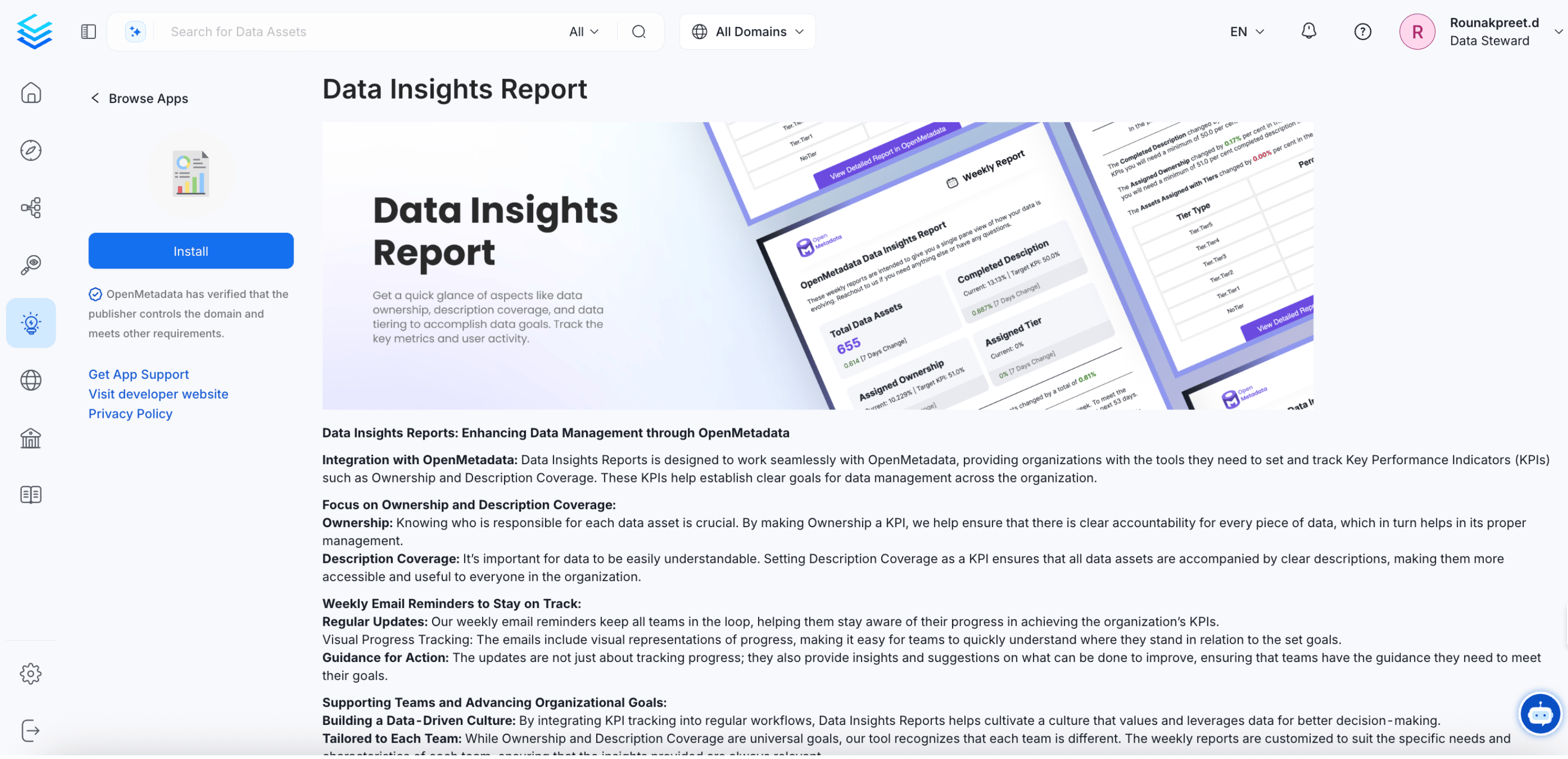
<img src="https://mintcdn.com/openmetadata-format-2-0-connector-overview-pages/3l5ZdQpFjvVxBE2L/public/images/how-to-guides/insights/dir.png?fit=max&auto=format&n=3l5ZdQpFjvVxBE2L&q=85&s=58d8164a902227b36b4975ed428f6470" alt="Install the Data Insights Report" width="2943" height="1424" data-path="public/images/how-to-guides/insights/dir.png" />

* Authorize and configure the data insights report.
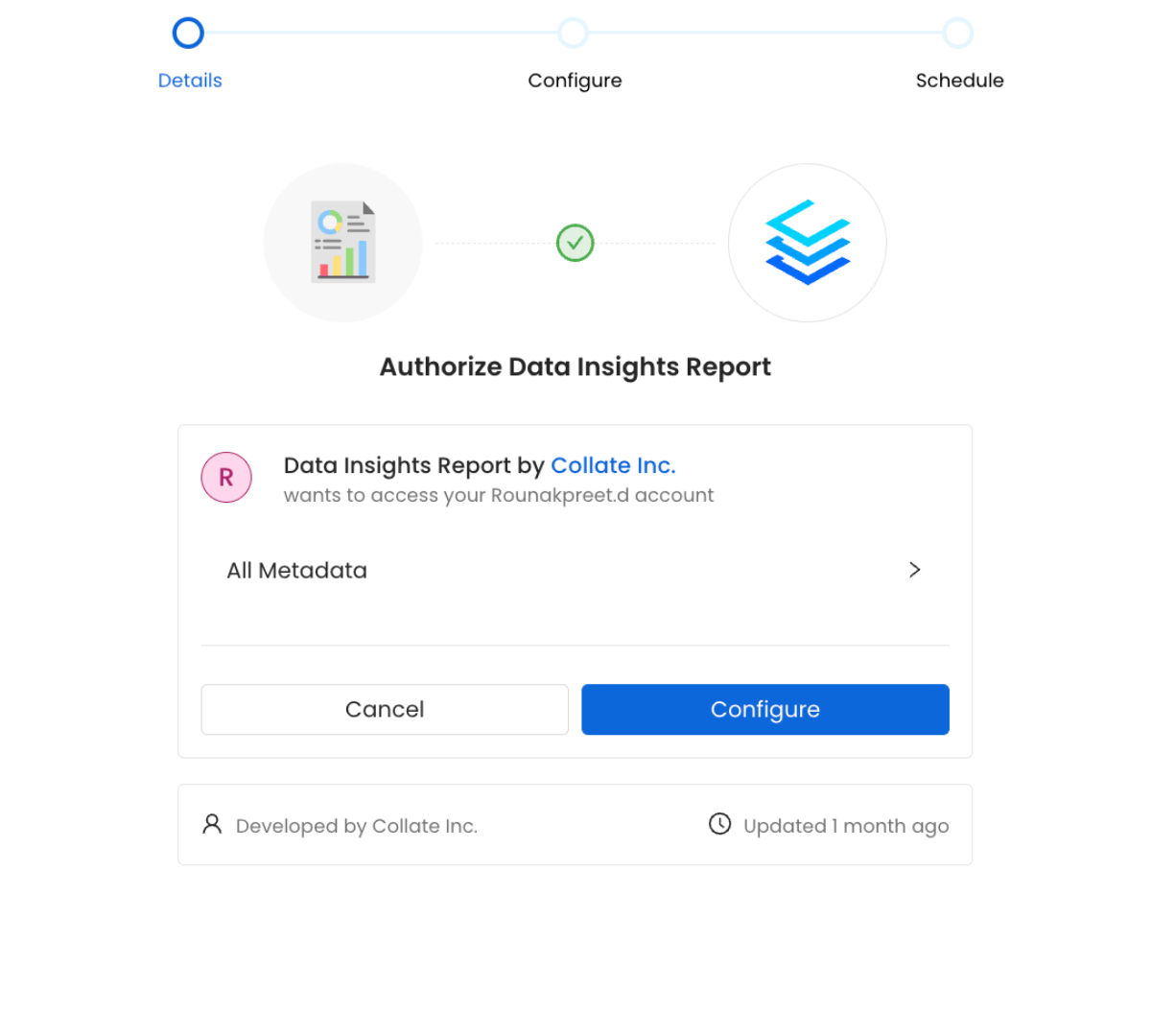
<img src="https://mintcdn.com/openmetadata-format-2-0-connector-overview-pages/3l5ZdQpFjvVxBE2L/public/images/how-to-guides/insights/dir2.png?fit=max&auto=format&n=3l5ZdQpFjvVxBE2L&q=85&s=9fbd8331e31d6ea87af1784dd189b131" alt="Configure the Data Insights Report" width="1200" height="1080" data-path="public/images/how-to-guides/insights/dir2.png" />

* Configure the report to send to Admins as well as Teams.
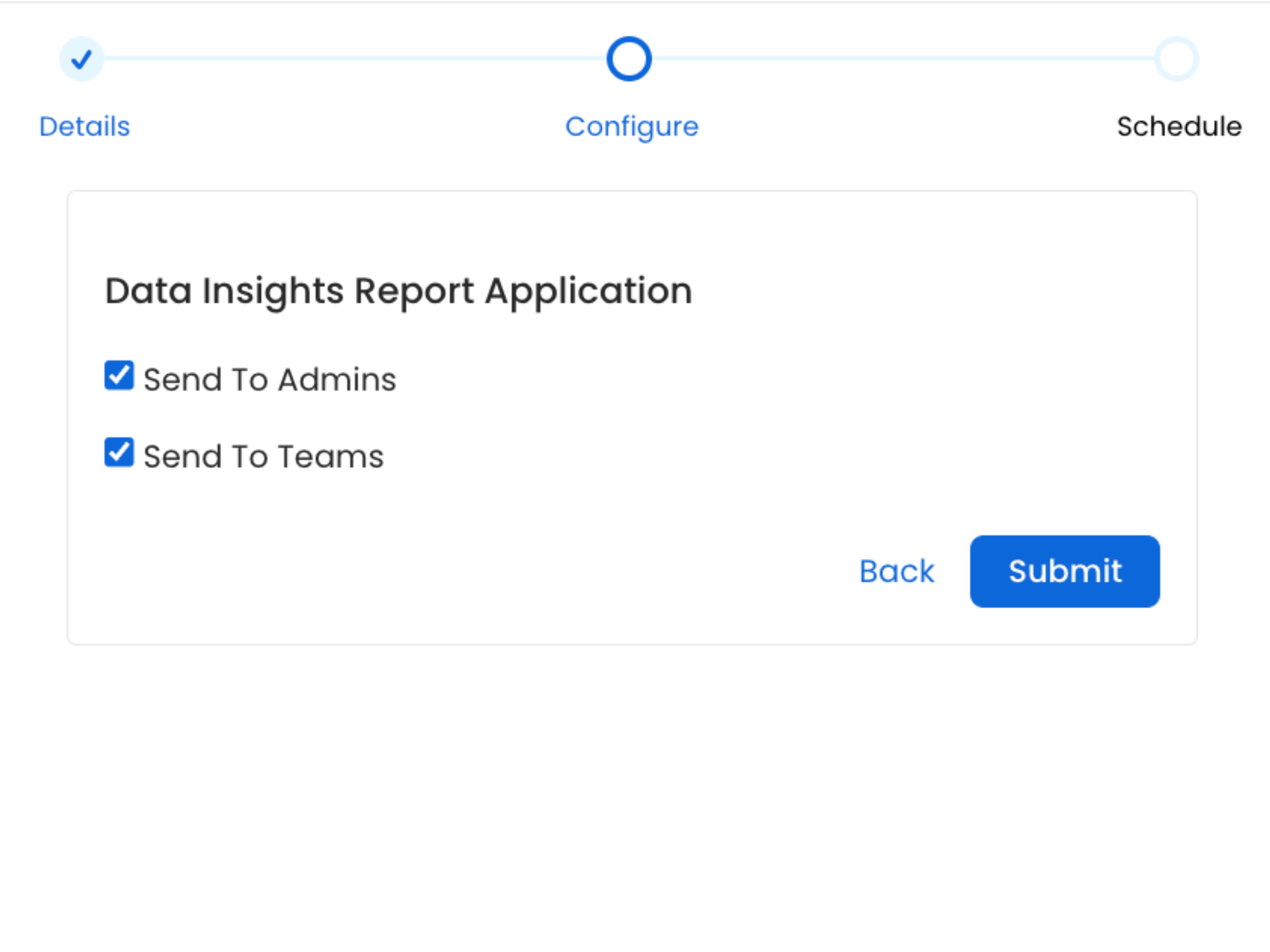
<img src="https://mintcdn.com/openmetadata-format-2-0-connector-overview-pages/3l5ZdQpFjvVxBE2L/public/images/how-to-guides/insights/dir3.png?fit=max&auto=format&n=3l5ZdQpFjvVxBE2L&q=85&s=eddf5602c11d6124191b4097b80f4e66" alt="Send Report to Admins and Teams" width="2400" height="1800" data-path="public/images/how-to-guides/insights/dir3.png" />

* Schedule the emails to be sent at the desired frequency. Click on **Submit**.
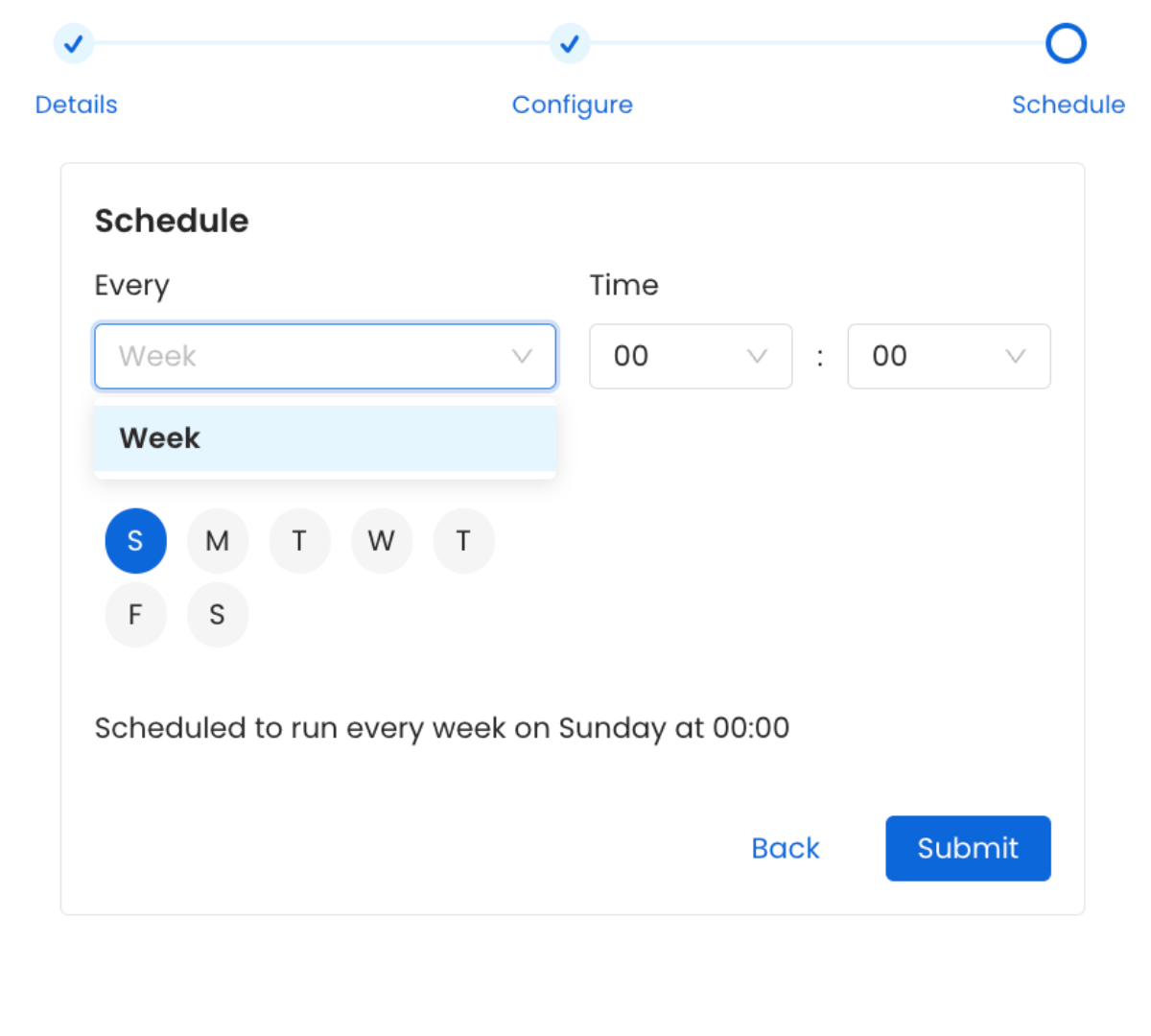
<img src="https://mintcdn.com/openmetadata-format-2-0-connector-overview-pages/3l5ZdQpFjvVxBE2L/public/images/how-to-guides/insights/dir4.png?fit=max&auto=format&n=3l5ZdQpFjvVxBE2L&q=85&s=9c8d17f09012de1d6e57ea6494d91425" alt="Schedule the Email Report" width="1200" height="1080" data-path="public/images/how-to-guides/insights/dir4.png" />

* The Data Insights Report has been configured successfully.

<img src="https://mintcdn.com/openmetadata-format-2-0-connector-overview-pages/3l5ZdQpFjvVxBE2L/public/images/how-to-guides/insights/dir5.png?fit=max&auto=format&n=3l5ZdQpFjvVxBE2L&q=85&s=a0d505d720cd745daf5e66370abc8853" alt="Configured the Data Insights Report" width="2943" height="1424" data-path="public/images/how-to-guides/insights/dir5.png" />

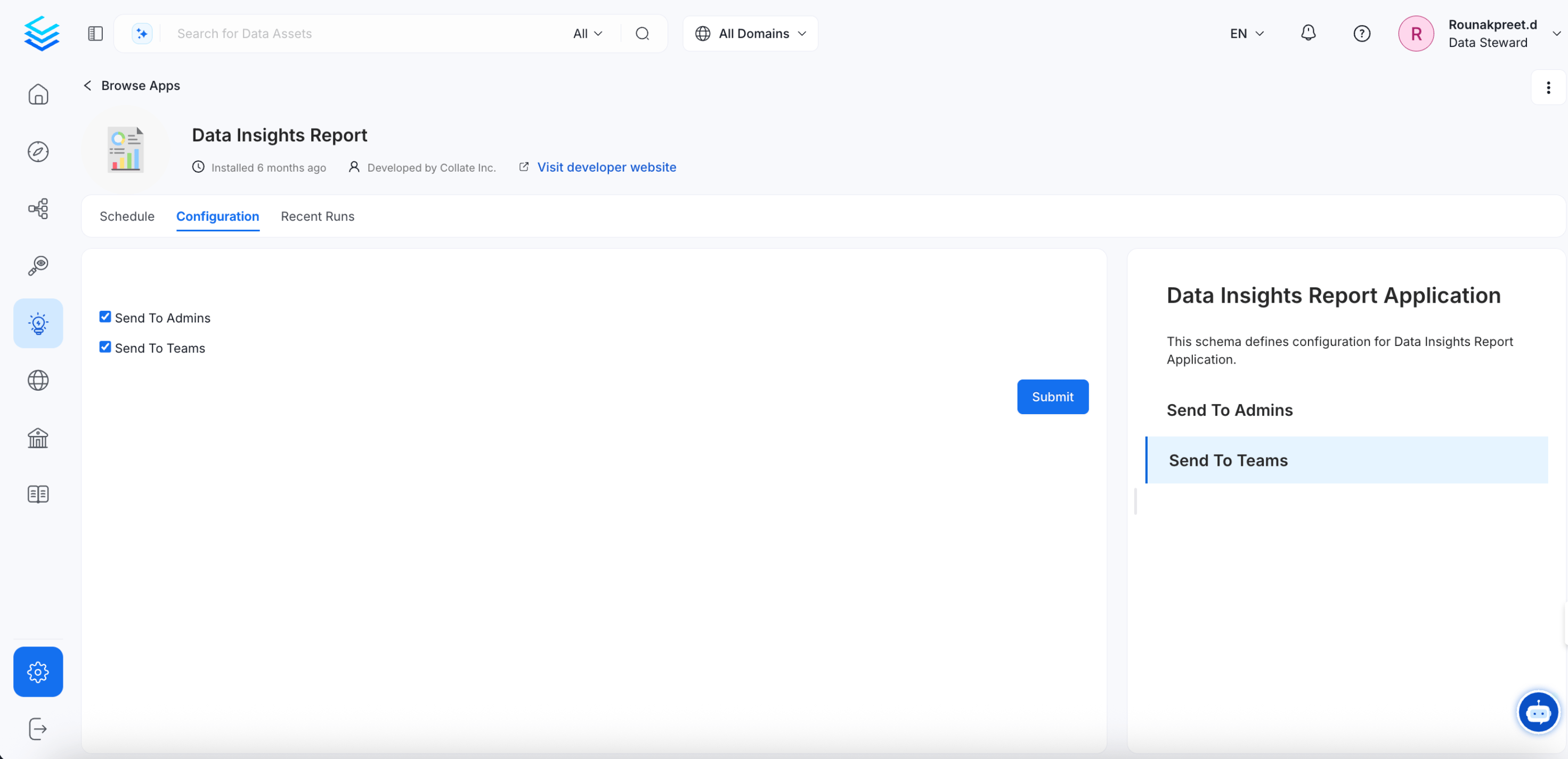
* By clicking on **Configure** You can change the schedule for the data insights report. You can also change who receives the report (Admins/Teams). You can also view the **History** on when the report was last sent.
<img src="https://mintcdn.com/openmetadata-format-2-0-connector-overview-pages/3l5ZdQpFjvVxBE2L/public/images/how-to-guides/insights/dir6.png?fit=max&auto=format&n=3l5ZdQpFjvVxBE2L&q=85&s=96d17bca535726c5b867fabe2a31414d" alt="Data Insights Report" width="2943" height="1424" data-path="public/images/how-to-guides/insights/dir6.png" />

<Card title="How to Transform the Data Culture of Your Company" href="/v1.12.x/how-to-guides/data-insights/data-culture">
  Improve your data culture for data-driven decision making.
</Card>
